
When filtering conversations on the conversations page, it's crucial to consider two key factors: the Audit Date and the Conversation Date. The conversation date and audit date may differ since:
Conversation Date - The date when a specific conversation occurred between the agent and the customer.
Audit Date - This signifies when the conversation was audited by a particular auditor.
Note: If a conversation is audited multiple times, the audit date displayed on the conversations page will reflect the most recent audit date.
To utilize the Conversation date filter, follow these steps:
Navigate to the "Conversations" module.

Locate the date range filter on the conversations page.

Choose your preferred date range for viewing conversations.

For a customized date range, opt for "Custom" and specify the start and end dates. Click on "Apply" to apply the desired conversation date range.

Upon successfully applying the conversation date range filter, all conversations within the specified period will be displayed.
To access conversations audited within a specific date range, proceed as follows:
Go to the "conversations" module.

Find and click on the More Filters button.

Select "Audit Type."

Opt for the "Manual" option (This will unlock additional filter options, including Date range and Auditor Name).

Choose the audit date range according to your requirements.
Select the auditor(s) whose audited conversations you wish to filter.
Click on "Apply Filter."

Upon successful application of the audit date range filter, all conversations audited within the specified period will be displayed, regardless of the conversation date.
How to differentiate between Audit Date and conversation Date concerning a conversation:
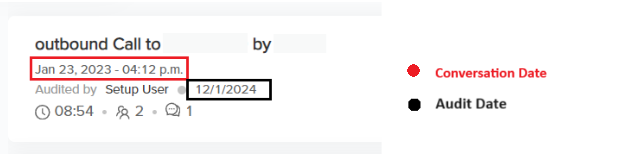
In the below image, the red box depicts the conversation date and the black box depicts the audit date.
View Conditions:
To access manual audits on conversations held from January 1st to January 31st, regardless of the audit date, adjust the conversation date range in the provided filter as shown in the screenshot, and in the Audit Type filter, select the "Manual" option and "All" under Audit Date. To apply the filter, simply click on the "Apply Filter" button.


To access manual audits for conversations conducted from January 1st to January 31st, with audits also conducted within the same period, modify the conversation date range on the conversations page and ensure the audit date range is selected between January 1st to January 31st after selecting "manual" in the Audit Type filter.


To view manual audits performed between January 1st to January 31st, regardless of the conversation date, set the conversation date range filter to "All" as shown in the provided screenshot, then specify the audit date range as January 1st to January 31st.


📩 Still need help? Contact our support team at [email protected] —we’re happy to assist!
Good day!