
The Learning Management System (LMS) in Convin allows users to create and upload various training materials. This article explains how to create a new document within the Knowledge Base to enrich learning resources available for agents during coaching or assessments.
Steps to create a New Document on LMS:
- Navigate to LMS Page:

- In the "Knowledge Base" tab, open an existing folder in which you want to add the new document.
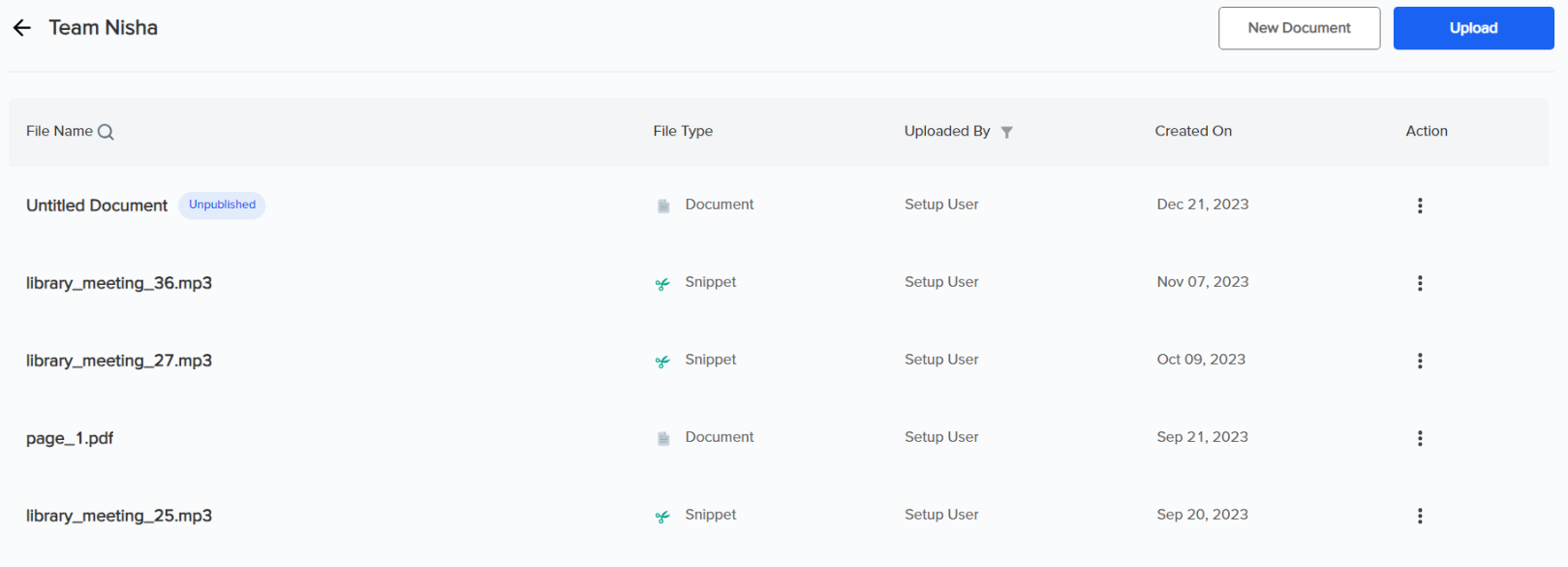
Once you open a folder, you will see an intuitive list view of the knowledge base. In addition to the resources, columns indicating the upload date, uploader's name, and file types enhance navigation and accessibility. - To generate a document within the platform, select "New Document."

The following interface will be displayed.

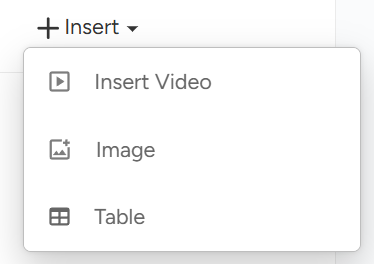
You can insert a video, image, or table using the insert option.
- Upon completing the document edits, download it to your system by clicking the Download icon.
- Publish your document by clicking the "Publish Document" button.
You can now easily access and view all the documents within the designated folder.
Need Additional Assistance?
📩 Still need help? Contact our support team at [email protected] —we’re happy to assist!
Good day!