
The ScoreSense feature in Convin allows organizations to measure agent performance more effectively. Depending on your requirements, you can enable or disable this feature directly from your Convin settings.
Steps to Enable or Disable ScoreSense:
- Log in to your Convin Dashboard.
- Navigate to Setting Page.

- Click on ScoreSense under ConvinGPT Settings.
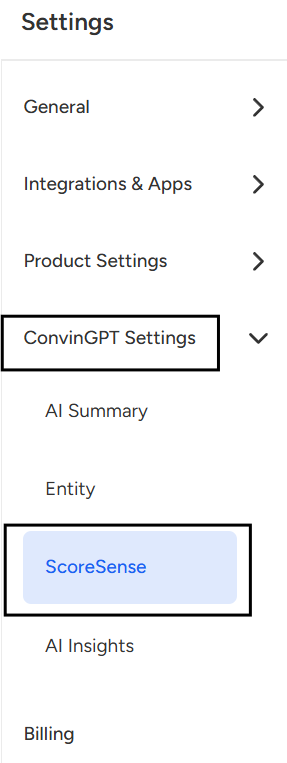
- Once you click on ScoreSense, the settings page will open where you can view and manage its configuration.
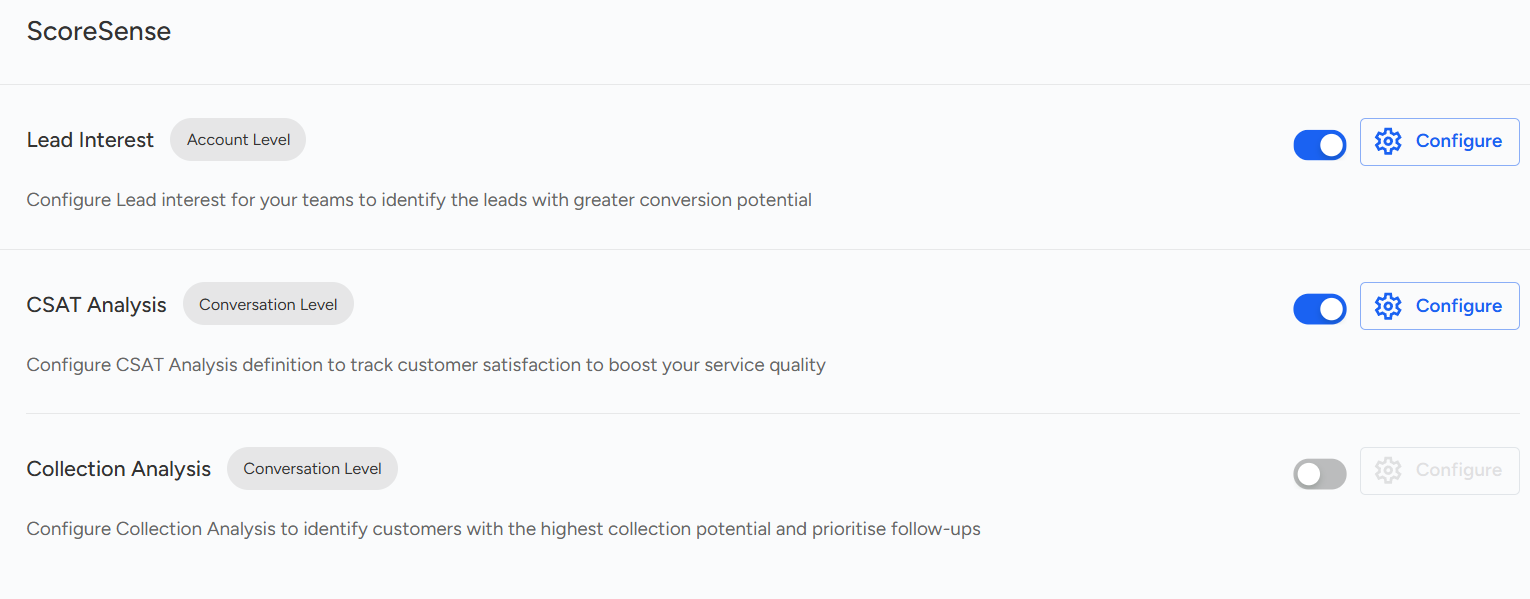
Switch the toggle button to either Enable or Disable ScoreSense based on your requirement.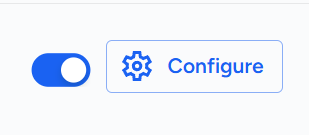
Use the toggle button to enable or disable ScoreSense based on your requirement. When enabled, scores will be visible in dashboards and reports; when disabled, the feature will no longer be active, and scores will not appear.
Note: Only users with Admin access or those with permission to make changes can enable or disable ScoreSense. Changes made here will apply to all users across the organization.
📩 Still need help? Contact our support team at [email protected] we’re happy to assist!
Good day!