
The Schedule Reports feature in Convin allows organizations to automate report delivery at regular intervals. Depending on your requirements, you can create, manage, or modify these reports directly from your Convin settings.
To schedule a new report, follow these steps:
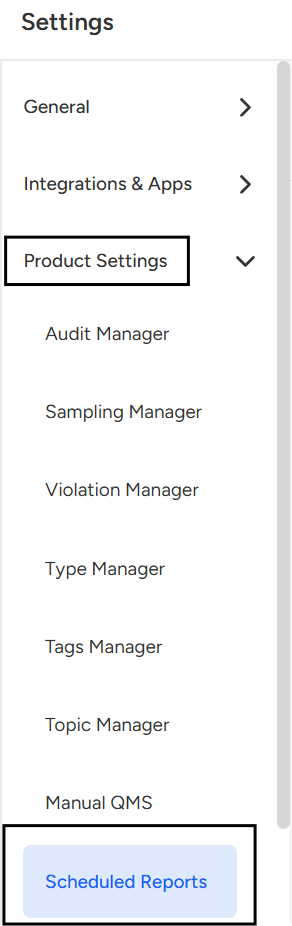
- Navigate to Setting Page.

- Click on Scheduled Reports under Product Settings.
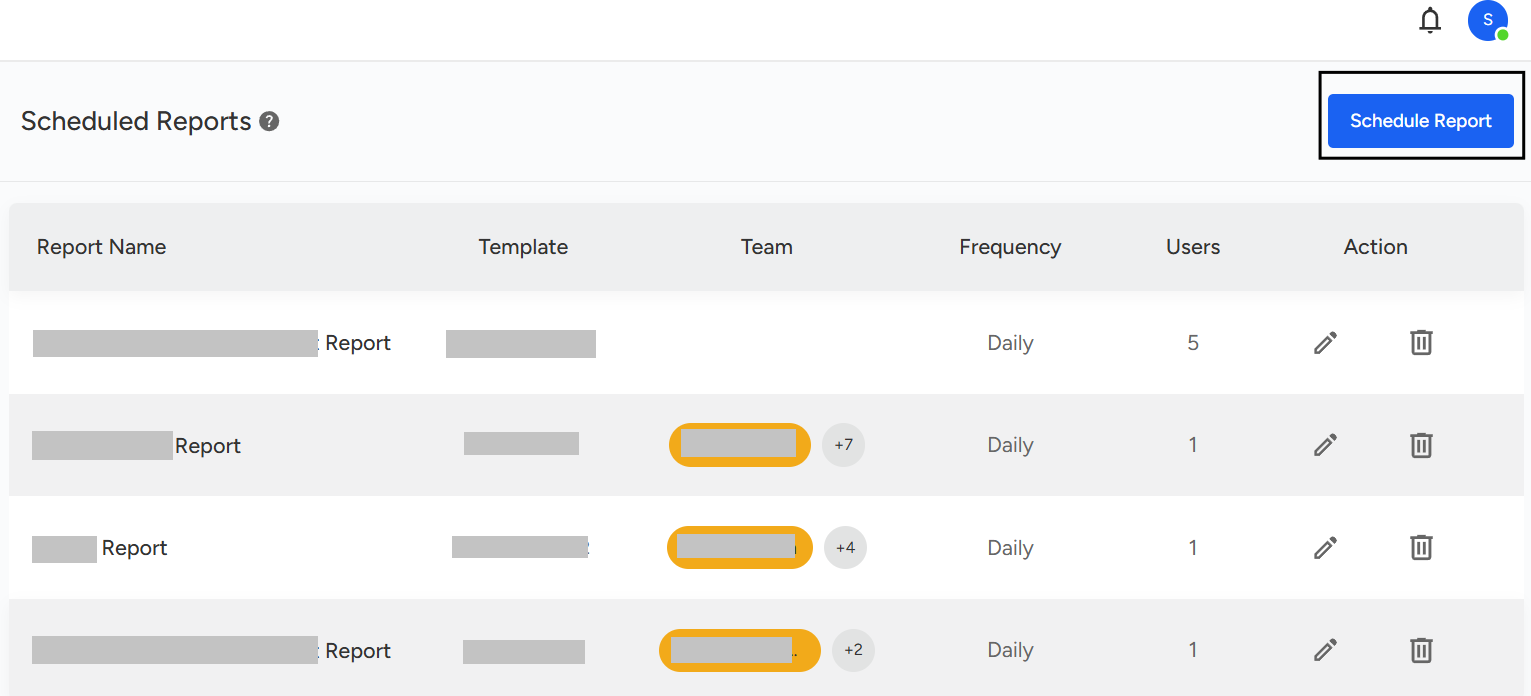
- Once you click on Scheduled Reports, the page will open where you can view and manage existing reports. To create a new report, click the “Schedule Report” in the top-right corner.
- Once you click on “Schedule Report,” you will be taken to the setup page where you can choose a report type.
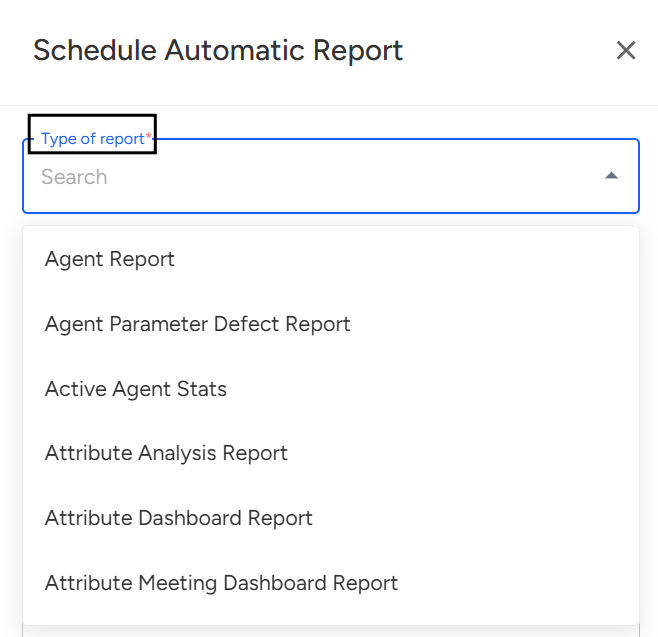
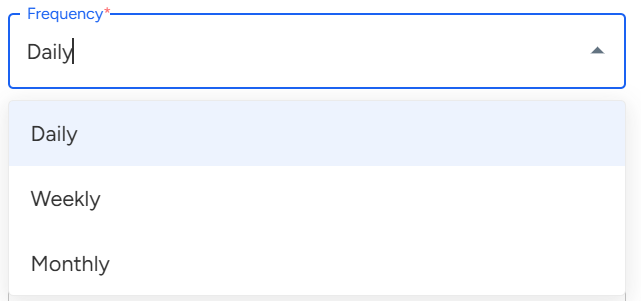
Select from the available options, which include both custom reports and standard reports. - Set Report Frequency: Choose how often the report should run - Daily, Weekly, or Monthly.
- Apply a Date Range Filter: Select the time period for which you want the report to include data.
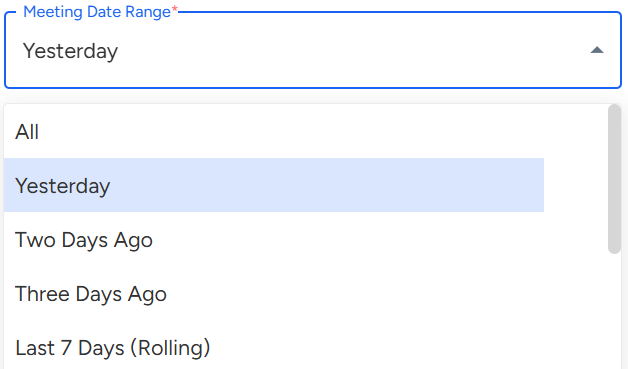
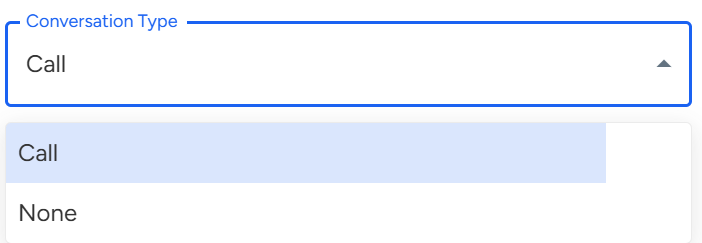
- Select Conversation Type: Choose the type of conversations to include in the report, such as Call, Email, or Chat.
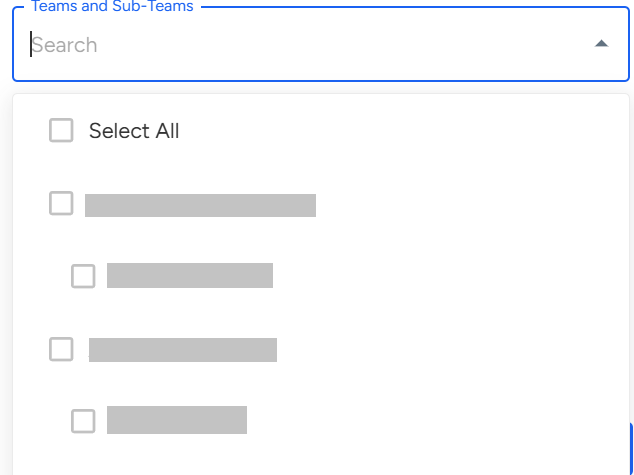
- Select Teams: Choose the relevant teams and sub-teams to include in the report.
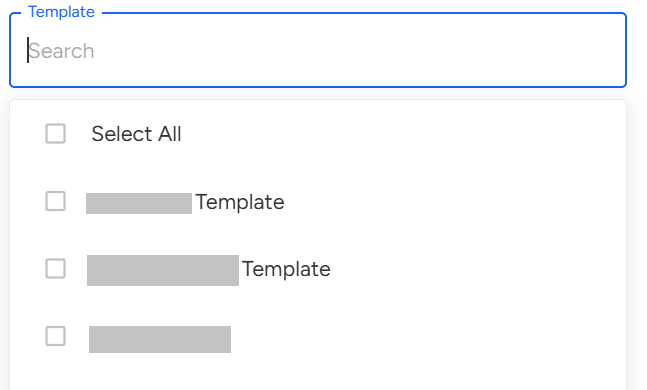
- Select Template: Choose the template you want to use for the report.
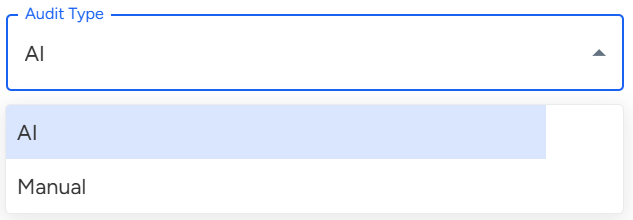
- Choose Audit Type: Select whether the report should include AI audits or Manual audits.
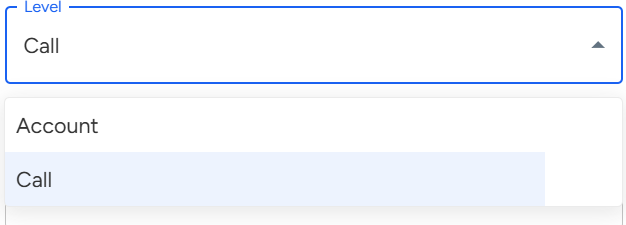
- Select Report Level: Choose the report level, Call or Account Level depending on how detailed you want the report to be.
Select Recipients: Choose the recipients who should receive the report to ensure it reaches the right people.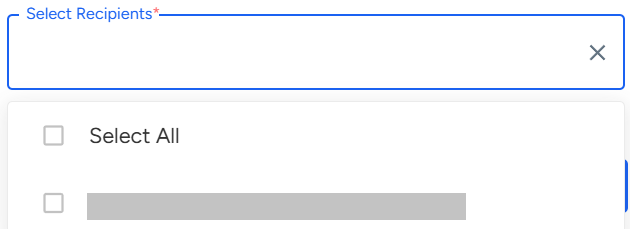
Once all preferences are set, click Schedule to finalize and activate the report.
Note: Only users with the necessary permissions can create, edit, or schedule reports. Changes made here will apply to all users across the organization.
📩 Still need help? Contact our support team at [email protected] we’re happy to assist!
Good day!