
The Upload User Data feature empowers managers to efficiently create or add multiple users simultaneously, thereby eliminating the necessity for manual, individual additions.
To upload users in bulk, please adhere to the following steps:
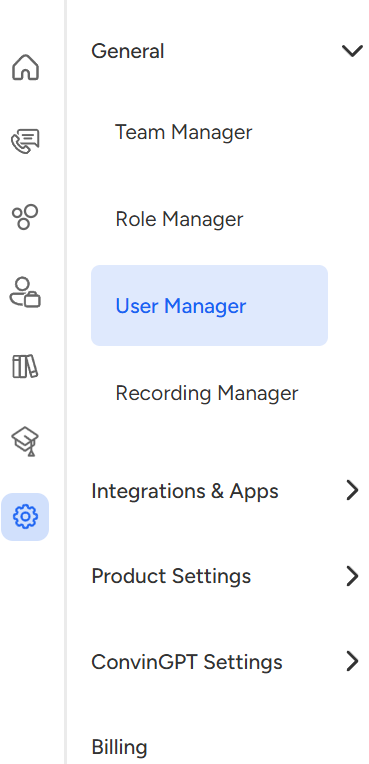
Access the "Settings" module.

Navigate to the "General" settings.
Choose "User Manager".
Select the "+User" button.

Click on "Upload User Data."

A pop-up window like below will appear.
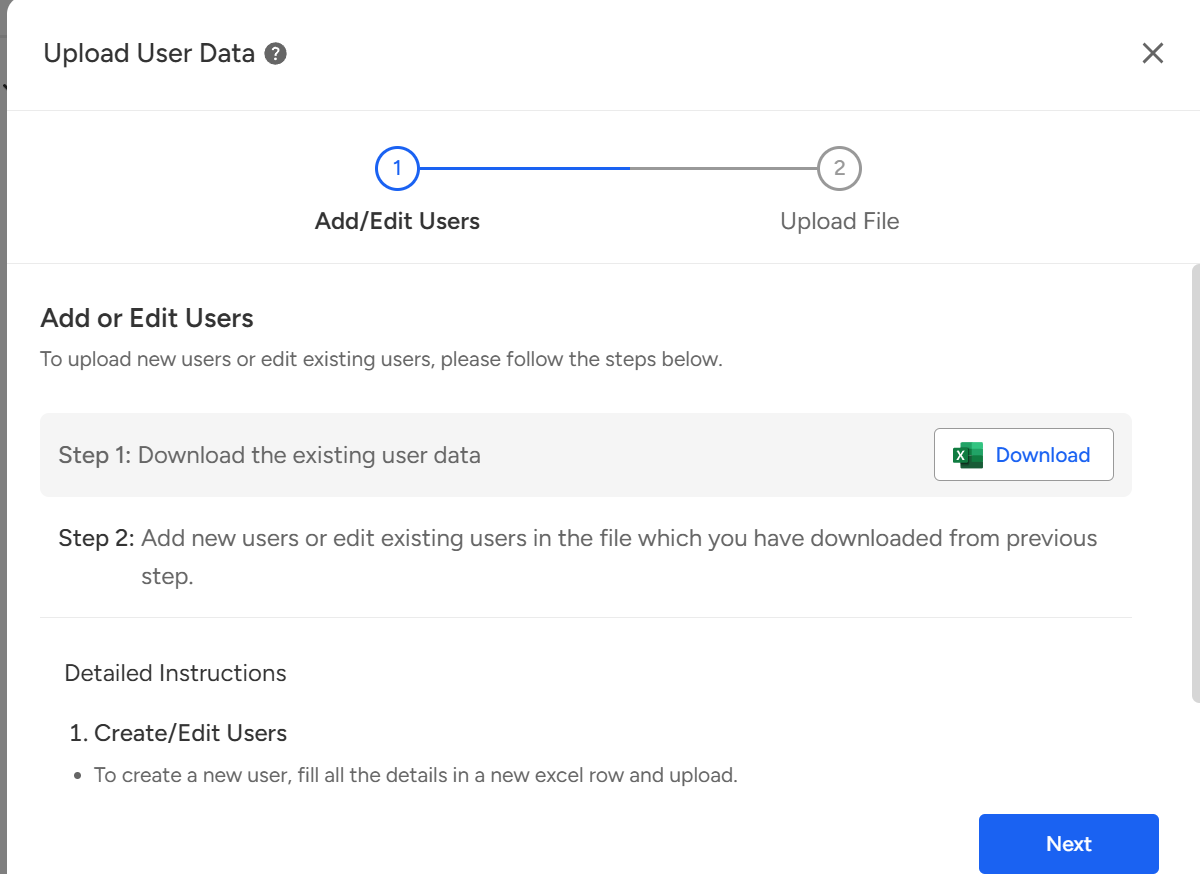
Download the existing user data by selecting the "Download" button.

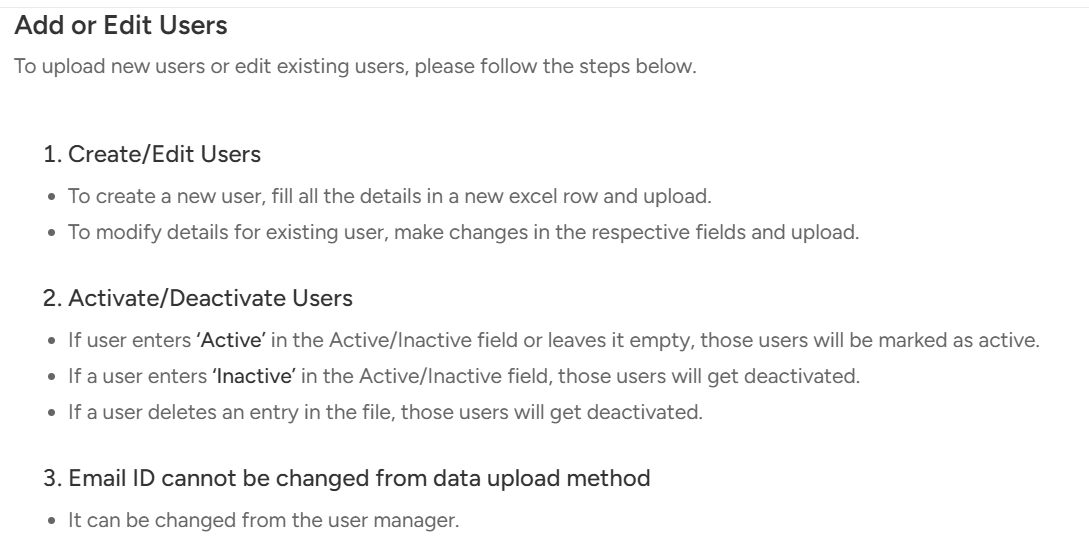
Review all instructions thoroughly.
Open the downloaded existing user file on your system.
Append new users in a new row to the existing list following the provided format and instructions.
Note:
Email IDs of existing users cannot be changed through this method.
If the Active/Inactive field is left blank, the user will be considered active.
Deleting a user's data will deactivate the user.
Save the updated sheet.
Return to the Convin platform and click "Next".

Browse the updated sheet from your system.
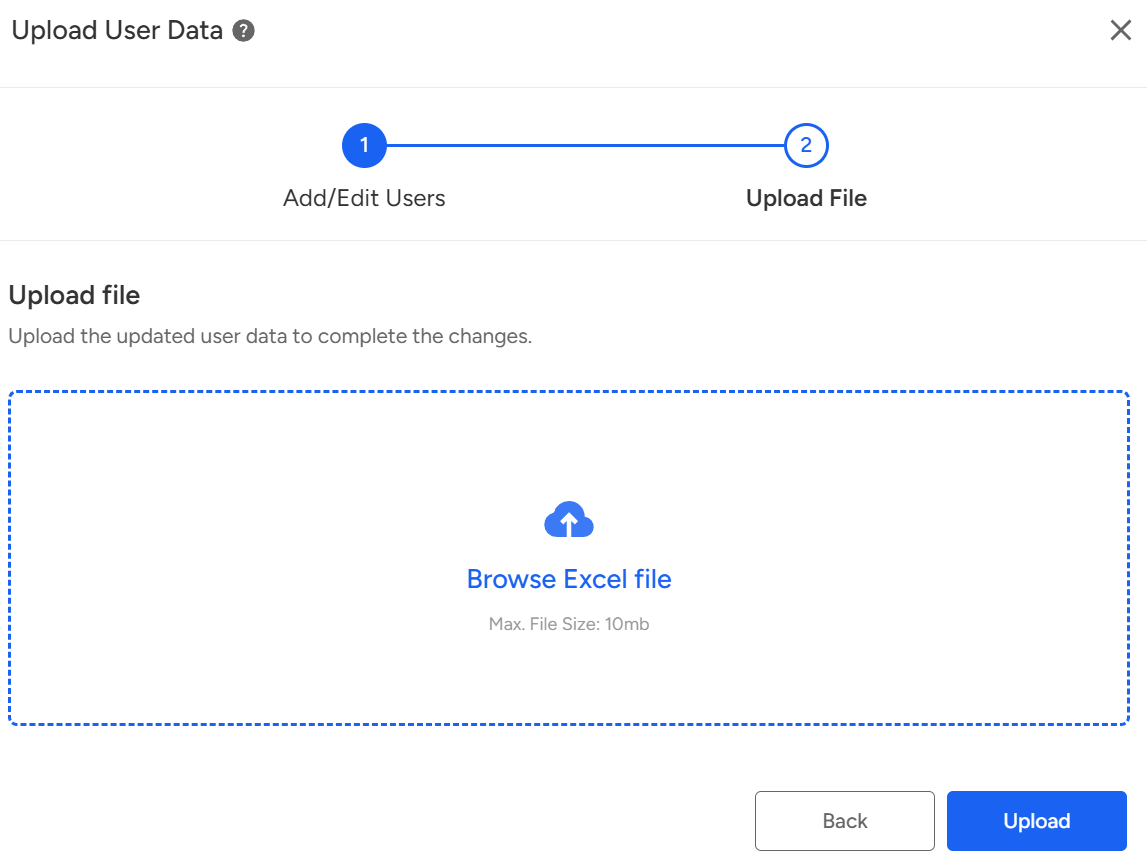
Once the file is fully loaded, click "Upload".

Upon successful upload on the Convin platform, you will receive a pop-up message indicating "Users have been uploaded successfully." However, please note that it may take up to 24 hours for the new users to appear in the User Manager List.
Need Additional Assistance?
📩 Still need help? Contact our support team at [email protected] —we’re happy to assist!
Good day!