
The AI Agents dashboard allows you to view and manage all your AI calling agents in one place. To make it easier to find exactly what you need, the Advanced Filters feature helps you narrow down agents by specific criteria.
To navigate to the AI Agents section, select it from the left menu as shown in the screenshot.
This is the main dashboard where you can view all the AI agents created so far.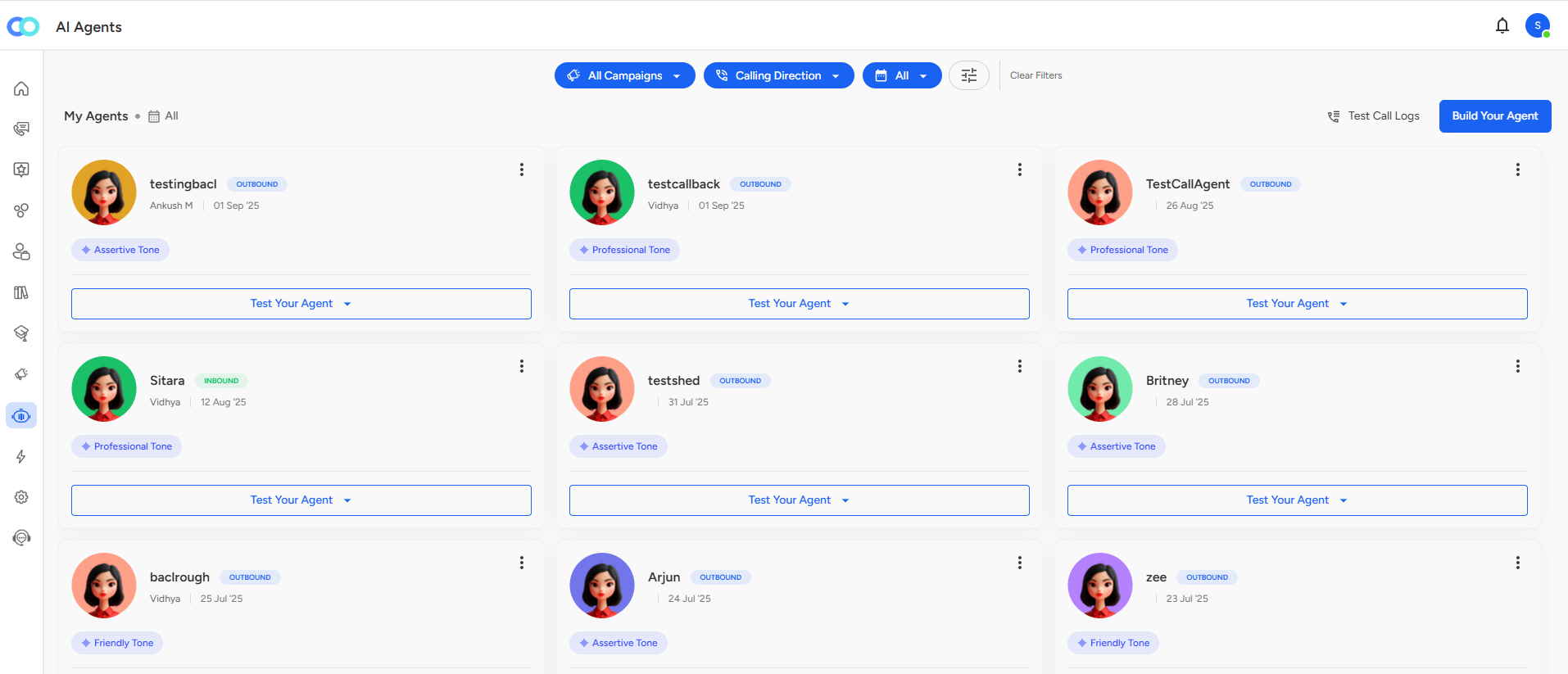
Let us first explore filters-
All Campaigns – Allows you to filter agents by specific campaigns.
Calling Direction – Choose to view either Inbound or Outbound agents using the dropdown menu (see screenshot).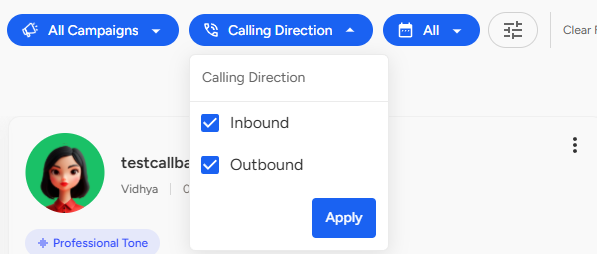
Created Date – Select a specific date range to view agents created within t
Accessing Advanced Filters
On the right side of the dashboard, you’ll find the Advanced Filters panel. This feature helps you narrow down your agent list to quickly find exactly what you need.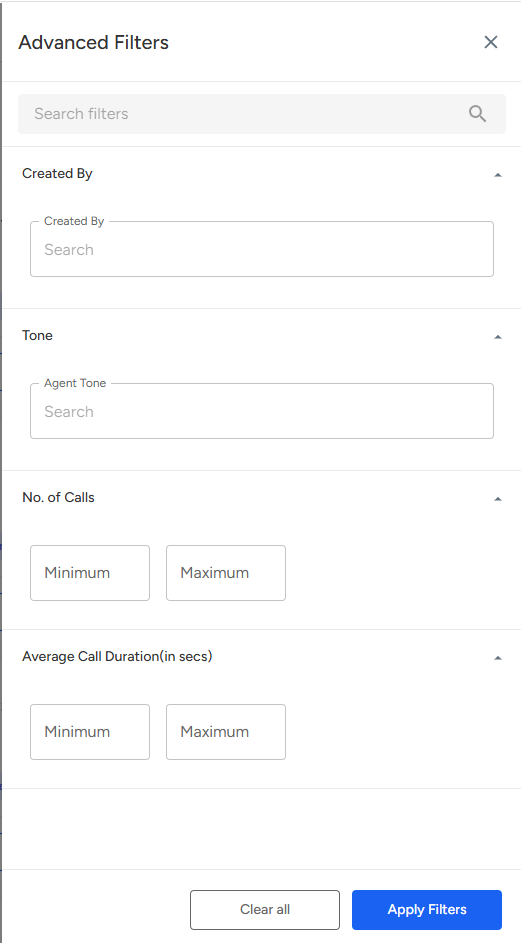
Available Filter Options
Created By
Use this filter to search for agents created by a specific team member.
Simply type in the name to display relevant results.
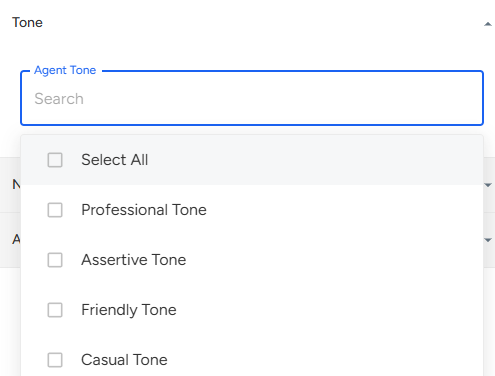
Tone
Select agents based on their assigned communication tone—such as Professional, Friendly, or Assertive.
This is particularly useful when evaluating agents built for different conversation styles.
Number of Calls
Set a minimum and maximum call count to filter agents based on usage volume.
Ideal for identifying frequently used or underutilized agents.
Average Call Duration (in seconds)
Define a range for average call duration to analyze agent performance.
Helpful for spotting agents handling short, quick interactions versus longer, detailed conversations.
- Enter the desired criteria in one or more fields.
- Click Apply Filters to instantly update the agent list.
- To reset your search, simply click Clear All to remove all filters.
The AI Agents dashboard, combined with Advanced Filters, gives teams better control and visibility over their virtual agents—ensuring you can test, evaluate, and optimize with precision.
Understanding the Test Call Logs Dashboard
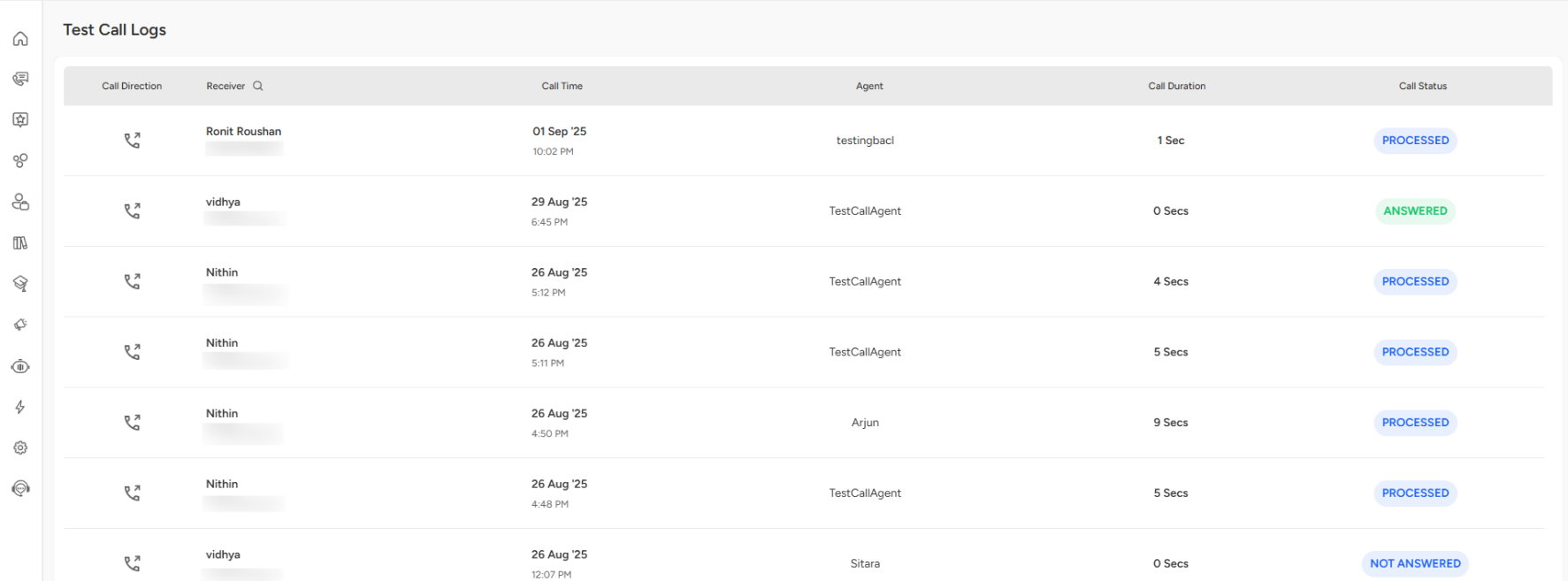
The Test Call Logs dashboard provides a detailed record of all test calls made through your AI calling agents. This feature helps you track performance, verify connectivity, and ensure agents are functioning as expected.
Call Direction
Indicates whether the test call was inbound (received by your system) or outbound (initiated by your AI agent).
The arrow icon helps quickly differentiate directions visually.
Receiver
Displays the name and phone number of the person or endpoint to which the test call is being directed.
Useful for verifying whether calls are reaching the correct target.
Call Time
Shows the exact date and time when the test call was made.
Allows you to track testing activity and correlate it with performance changes or troubleshooting events.
Agent
Lists the AI agent responsible for placing or receiving the test call.
Helps identify which virtual agent is being tested or monitored.
Call Duration
Displays the duration of the call (in seconds).
0 Secs often indicates that the call was connected but had no audio or was immediately terminated.
Longer durations (e.g., 4–9 seconds) indicate partial engagement, which is useful for functional verification.
Call Status
Reflects the outcome of the test call:
ANSWERED (Green): Call successfully connected and answered.
PROCESSED (Blue): Call flow was initiated and processed successfully by the system.
NOT ANSWERED (Gray/Blue): The call attempt failed to connect or was not picked up.
How to Use This Data
Verify Agent Setup: Check that the right agent is placing calls and that test numbers are valid.
Troubleshoot Issues: If multiple calls display a 0-second duration or 'Not Answered' status, verify call routing, audio configuration, or number validity.
Assess Stability: Regularly monitoring processed and answered calls helps ensure your AI agents are functioning correctly before deploying them at scale.
Cross-Check Timings: Correlate call times with logs or CRM records for deeper debugging.
When you click on one of the test call logs, you’ll be taken to a detailed call analysis page like the one shown in the screenshot.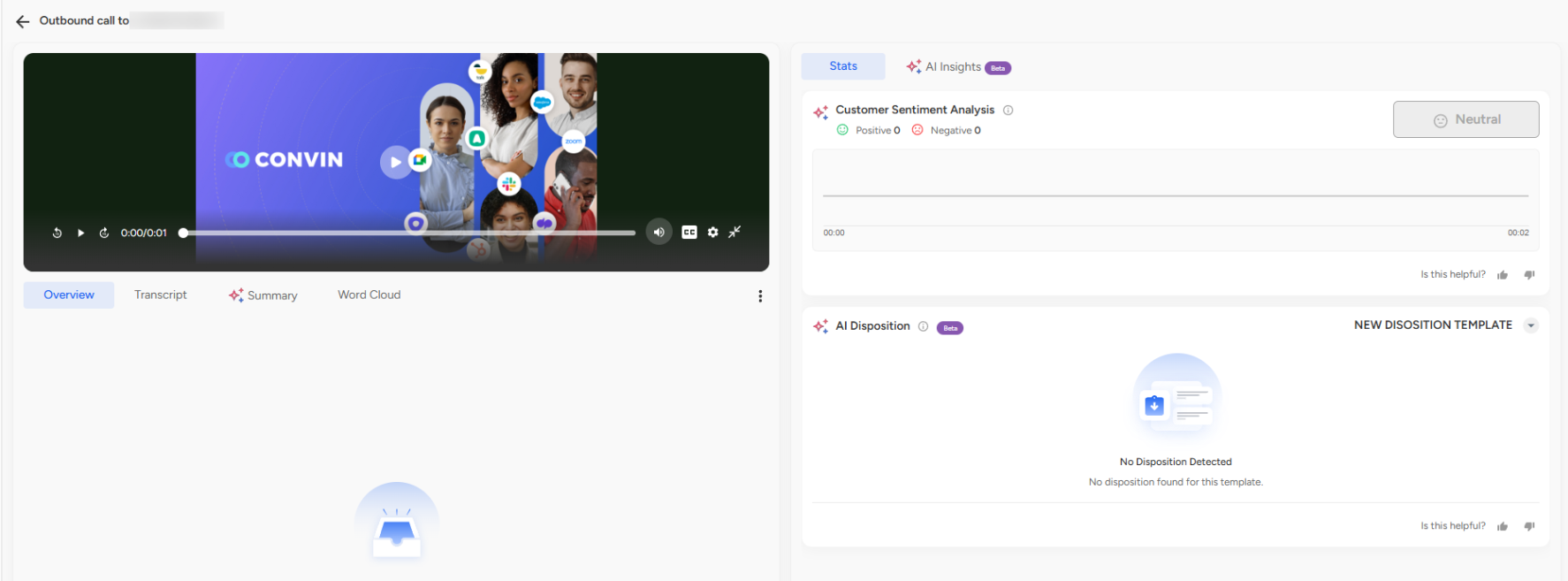
Key Sections:
Call Recording
At the top-left, you can play back the recorded call.
Playback controls allow you to pause, skip, and adjust playback speed.
Tabs Under the Recording
Overview – Displays a quick timestamp of the call (currently showing no additional data).
Transcript – The full call transcript will be shown when available.
Summary – Provides an AI-generated summary of key discussion points.
Word Cloud – Highlights commonly used words or phrases during the call.
AI Insights (Right Panel)
Customer Sentiment Analysis – Indicates whether the customer's tone was positive, negative, or neutral during the call.
AI Disposition (Beta) – Automatically classifies the call outcome (e.g., Interested, Not Interested). In this example, no disposition has been detected.
To view Build your Agent article, please refer to this link- https://help.convin.ai/en/article/122-build-your-agent
📩 Still need help? Contact our support team at [email protected] —we’re happy to assist!
Good day!