
The Accuracy Report in Audit Manager provides detailed information about how accurately audits have been conducted. This helps supervisors and managers evaluate the consistency of audit results, identify discrepancies, and take corrective actions where required.
Steps to Download Accuracy Report:
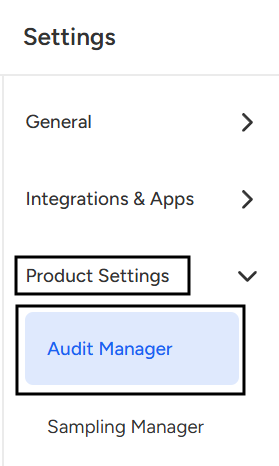
- Navigate to Setting page.

- Select Audit Manager under Product setting.
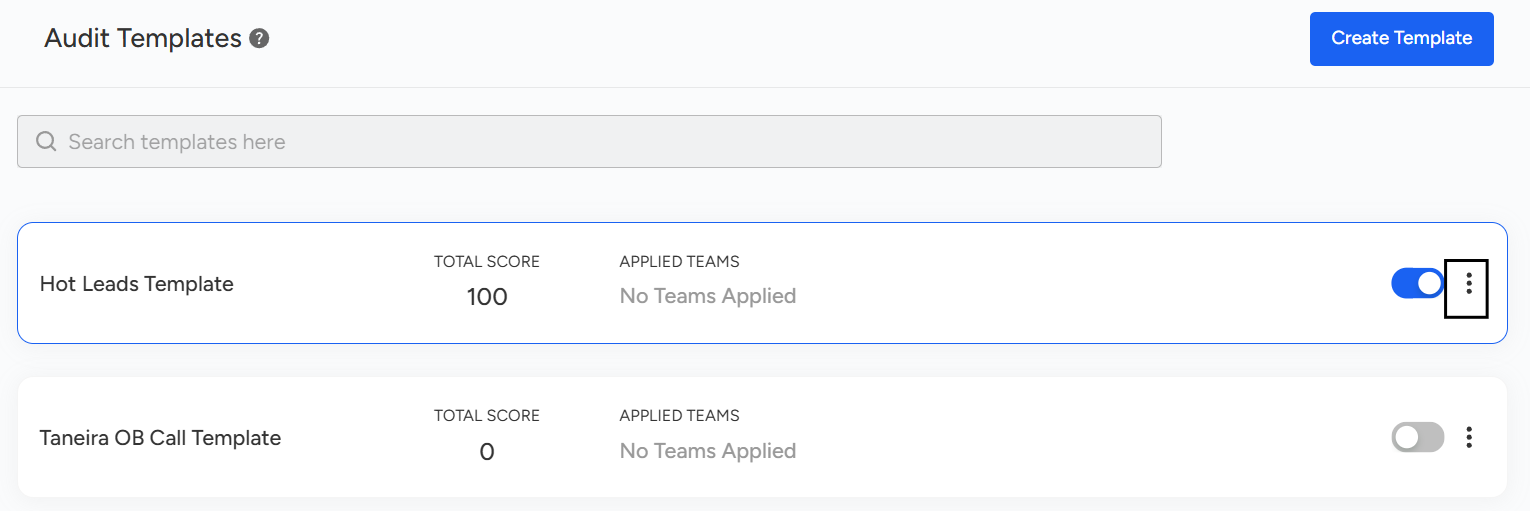
- Click on the three dots (⋮) icon next to the particular template from which you want to download the Accuracy Report.
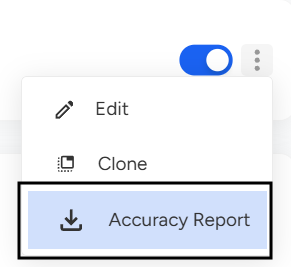
- Once you click on the three dots (⋮) icon, you will see three options: Edit, Clone, and Accuracy Report. Click on Accuracy Report to download it.
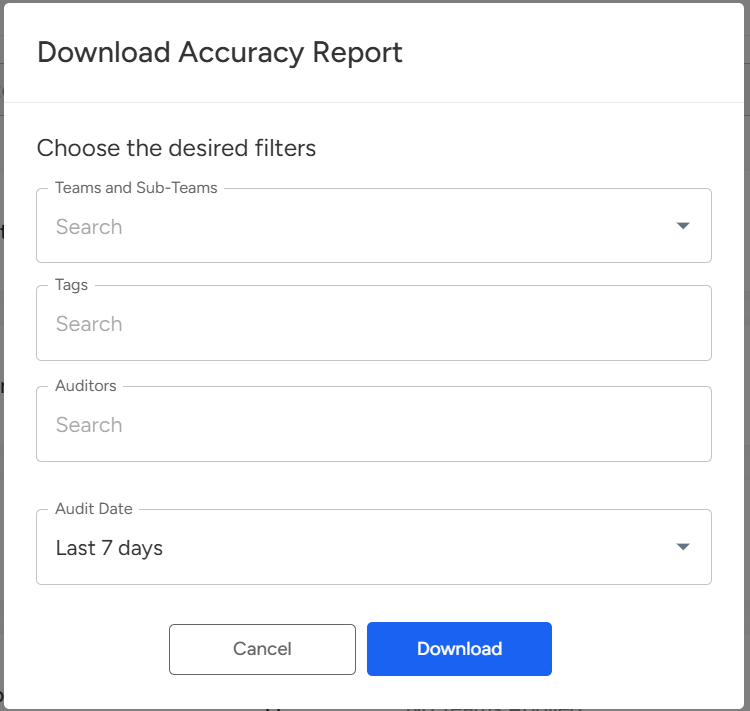
- After clicking on Accuracy Report, an overview will open. Here, you can select filters such as Teams and Sub-teams, Tags, Auditors, and Audit Date. Once your filters are set, click on Download to export the report.
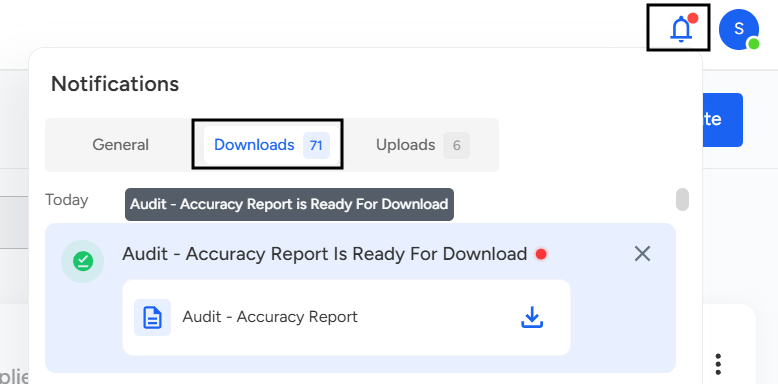
- Once the file is processed, you will find the downloaded report under the bell icon (🔔) at the top-right corner of your dashboard. From here, you can view or download the report file.
📩 Still need help? Contact our support team at [email protected] —we’re happy to assist!
Good day!