
Within the Tool Module, you can create and manage Custom Actions.
Navigate to the Tool Module
From the Convin sidebar, go to Tool as shown in the screenshot.
Tool → Custom Action. This is where you manage and create your API actions.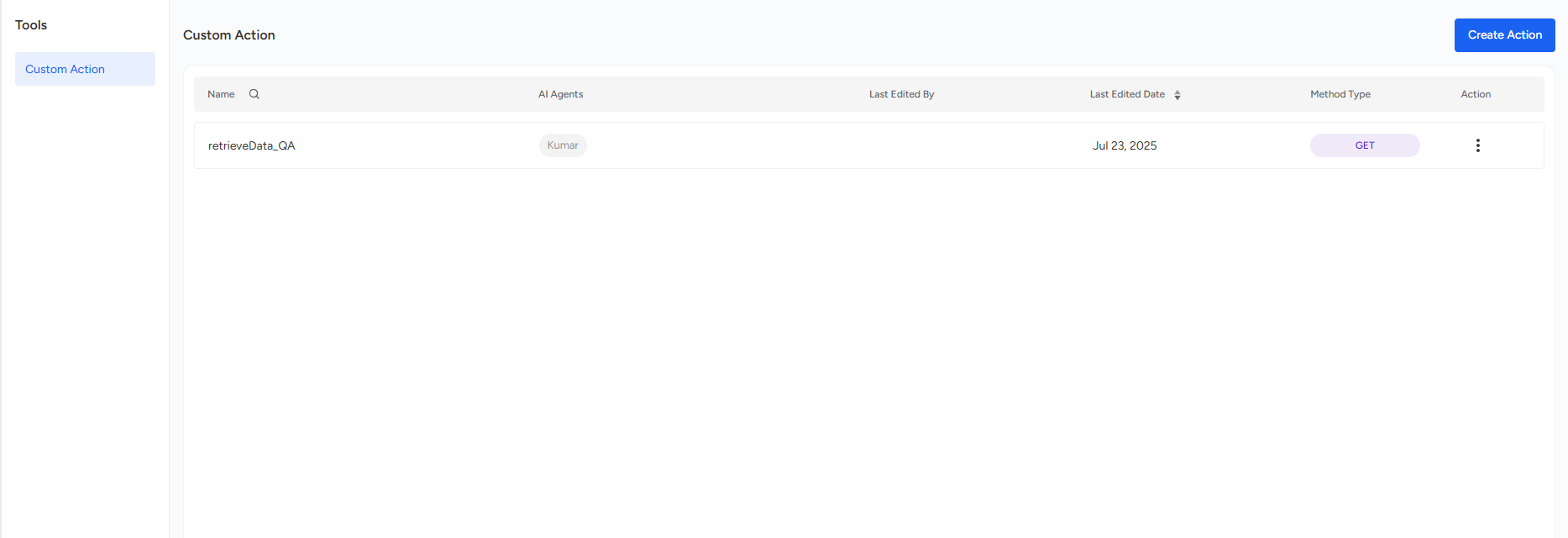
Understand the Custom Action Dashboard
On the dashboard, you’ll see a list of existing actions along with details such as name, linked AI agents, last edited by, last edited date, and method type. The menu on the right lets you edit configurations, clone an existing action, or delete one. At the top, there’s an option to create a new action.
Step 1: Create a New Action
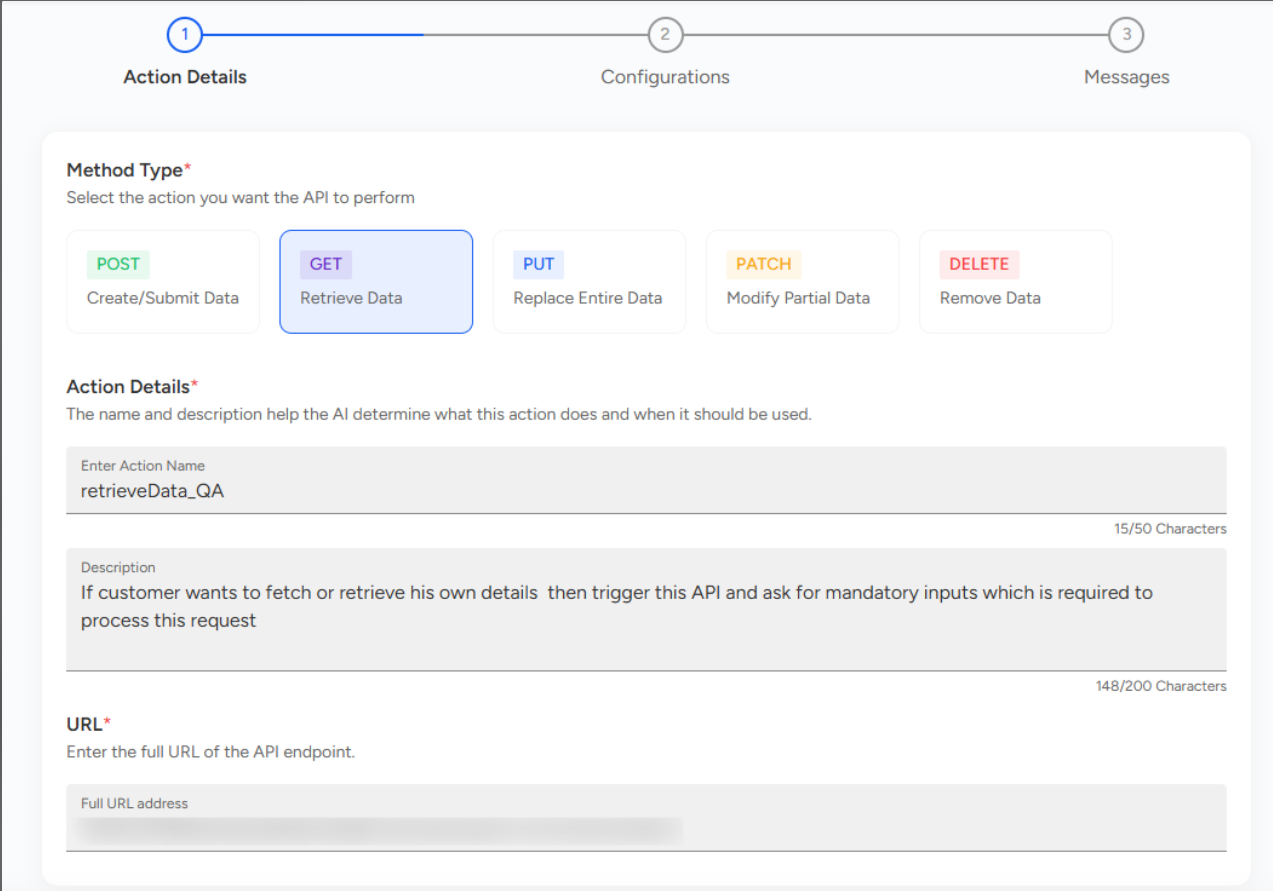
Click on Create Action. A three-step setup wizard will appear: Action Details, Configurations, and Messages.
Action Details
Method Type: Choose the HTTP method your API requires (GET for fetching, POST for creating, PUT for replacing, PATCH for partial updates, DELETE for removing).
Action Name: Give the action a short and descriptive name, like
retrieveData_QA.Description: Describe when the agent should use this action and what inputs it will need from the user. For example: “If a customer wants to retrieve their details, trigger this API and ask for mandatory inputs.”
URL: Enter the full API endpoint.
Step 2: Configurations
Here, you specify the technical details for the API call.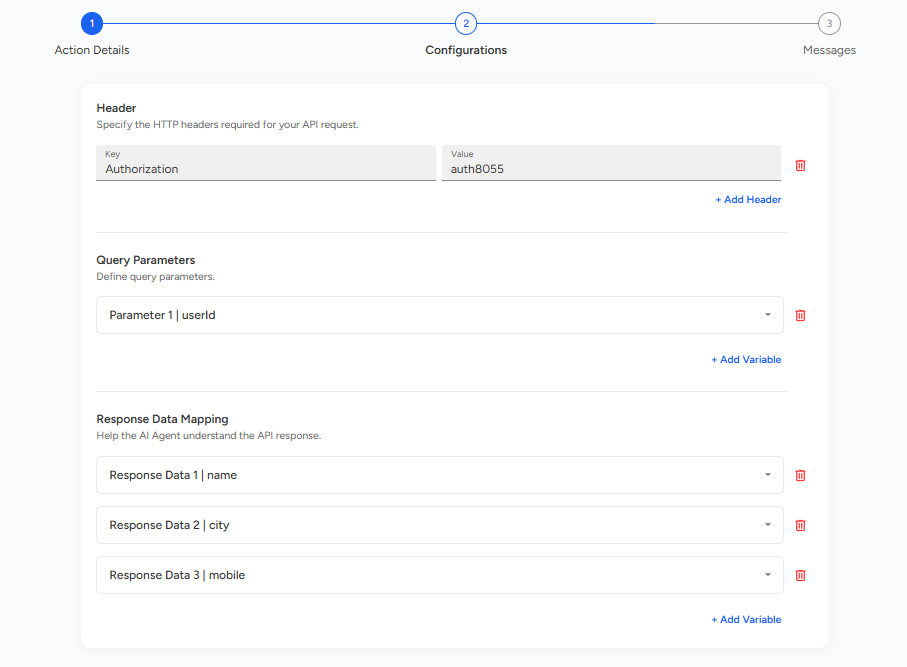
Headers: Provide any required headers, such as authentication tokens. Example:
Authorization: auth8055.Query Parameters or Body Variables: Add the input parameters that the API expects, such as
userId.Response Data Mapping: Map the keys from the API response to meaningful variables that the agent can speak back to the customer. For example:
name,city,mobile.
Step 3:Messages
This step defines what the agent should say at different stages of the API call.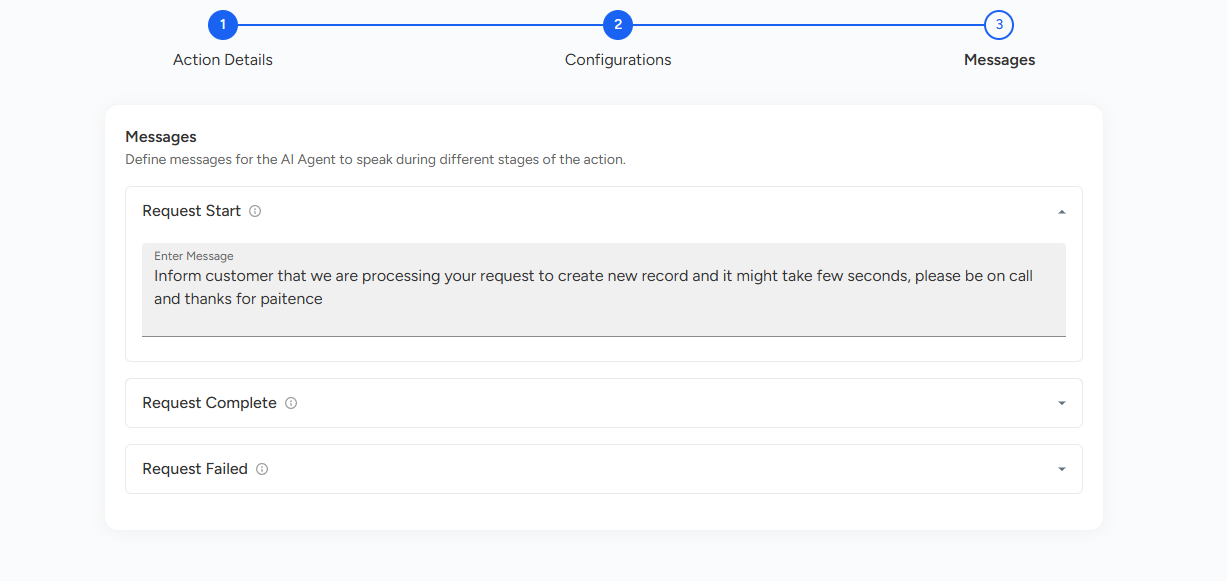
Request Start: Inform the customer that their request is being processed. Example: “I’m processing your request now. This may take a few seconds—please stay on the call. Thanks for your patience.”
Request Complete: Use the mapped response values to provide details. Example: “Here are your details: Name: {name}, City: {city}, Mobile: {mobile}. Would you like me to help with anything else?”
Request Failed: Handle errors gracefully. Example: “Sorry, due to a technical issue I couldn’t fetch your details right now. Please try again later.”
The action has been created. You can edit it at any time by selecting 'Edit Configuration'.
📩 Still need help? Contact our support team at [email protected] —we’re happy to assist!
Good day!