
Using the Topic Manager in Convin, you can easily edit existing topics to update their names, details, or configurations. You can also delete topics that are no longer required, keeping your dashboard clean and relevant.
Steps to Edit a Topic:
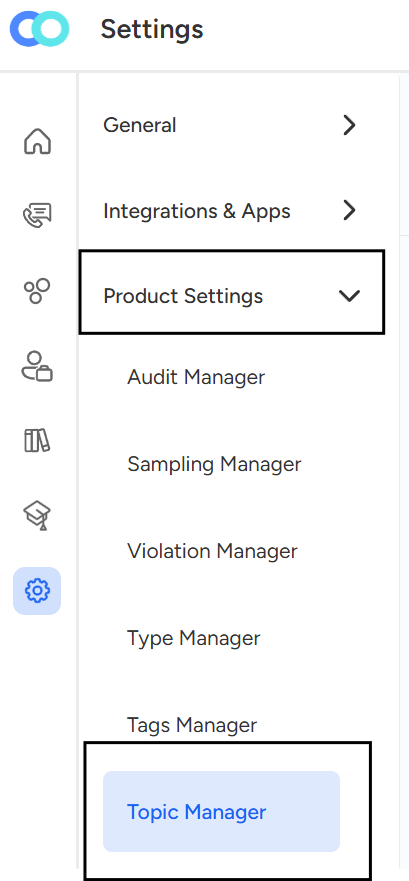
- Navigate to the Settings section within the Convin Dashboard.

- Navigate to Product Settings, then click on Topic Manager.
- Once you click on "Topic Manager" the above overview will reflect.
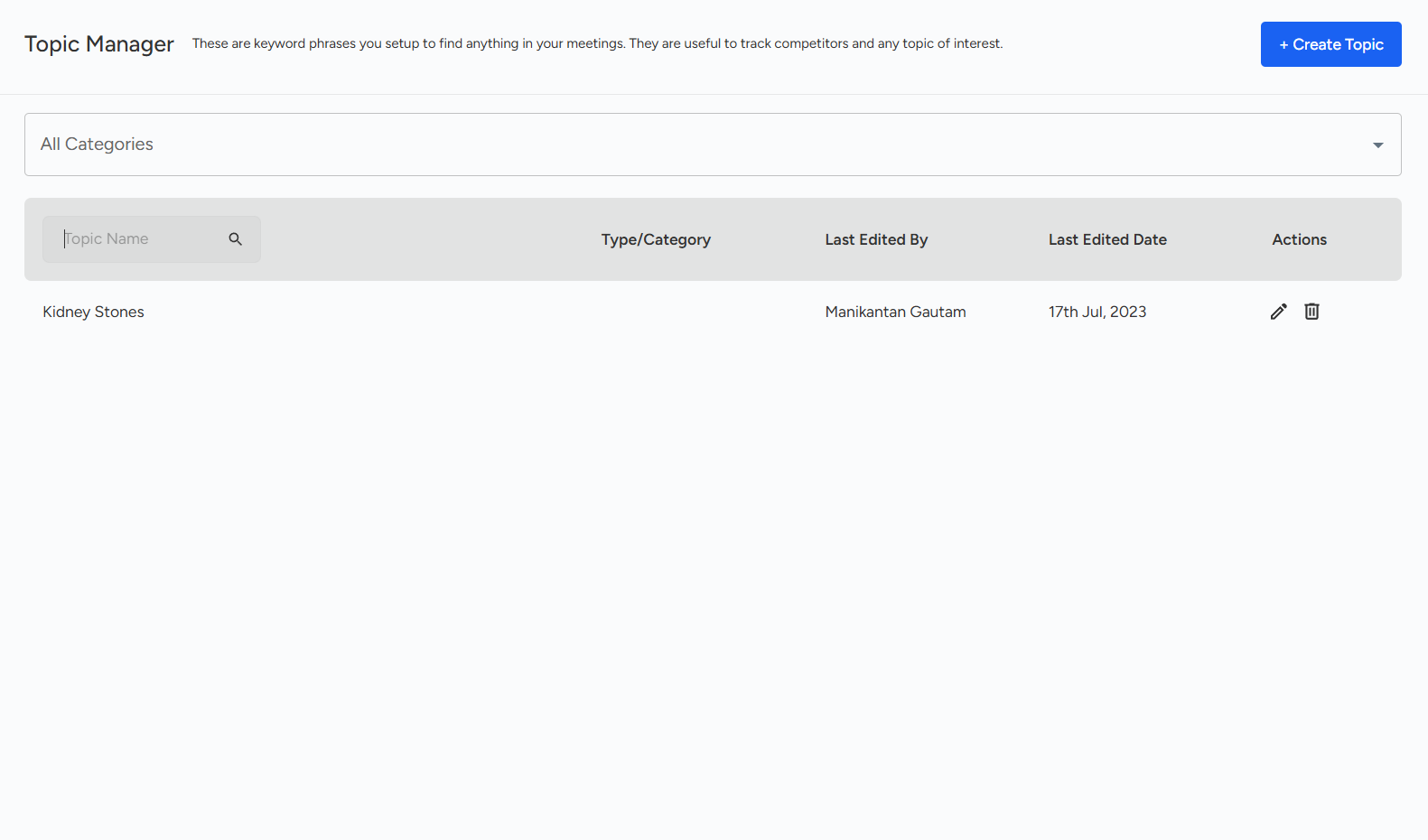
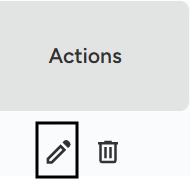
- Click on pencil (edit) icon next to the topic name.
- Once clicked, the topic overview will open.
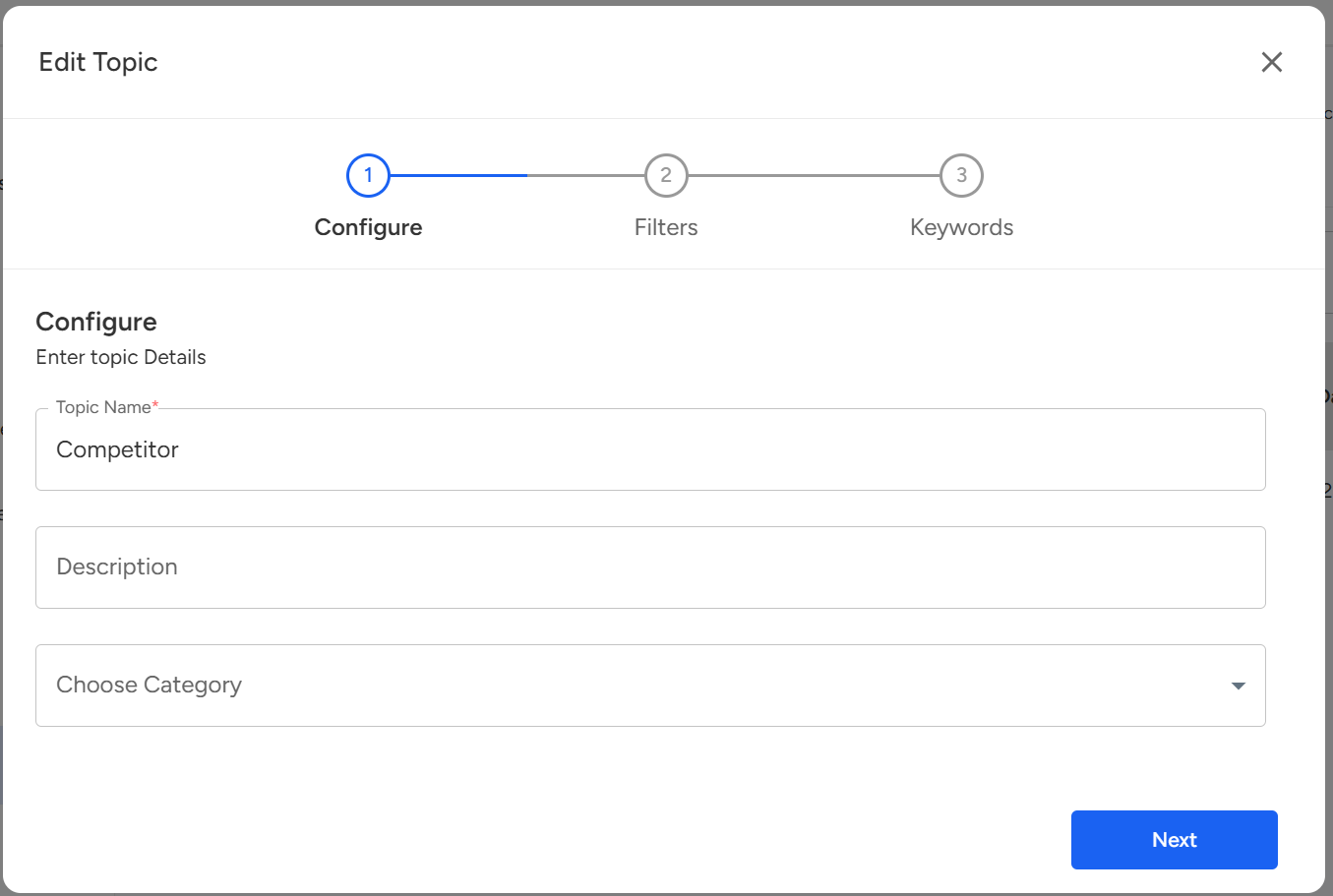
Where users can update the topic name, description, or keywords/phrases as per their requirements. After making changes, click Save button to save them.
How to Delete an Topic:
Users can delete a topic by clicking the trash (delete) icon next to the topic name.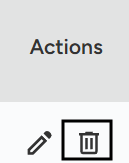
Once clicked, the delete confirmation page will open, where you can simply click Delete to permanently remove the topic.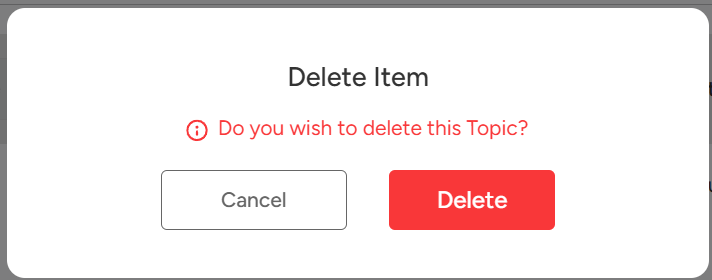
📩 Still need help? Contact our support team at [email protected] —we’re happy to assist!
Good day!