
Kindly navigate to the LMS option as shown in the screenshot.
You will see two categories there: Knowledge Base and Assessment. Please select the Assessment category to view the assessment overview.
All assessments created will be visible in the Assessment Forms section. You can click on the desired form to edit or update the assessment.
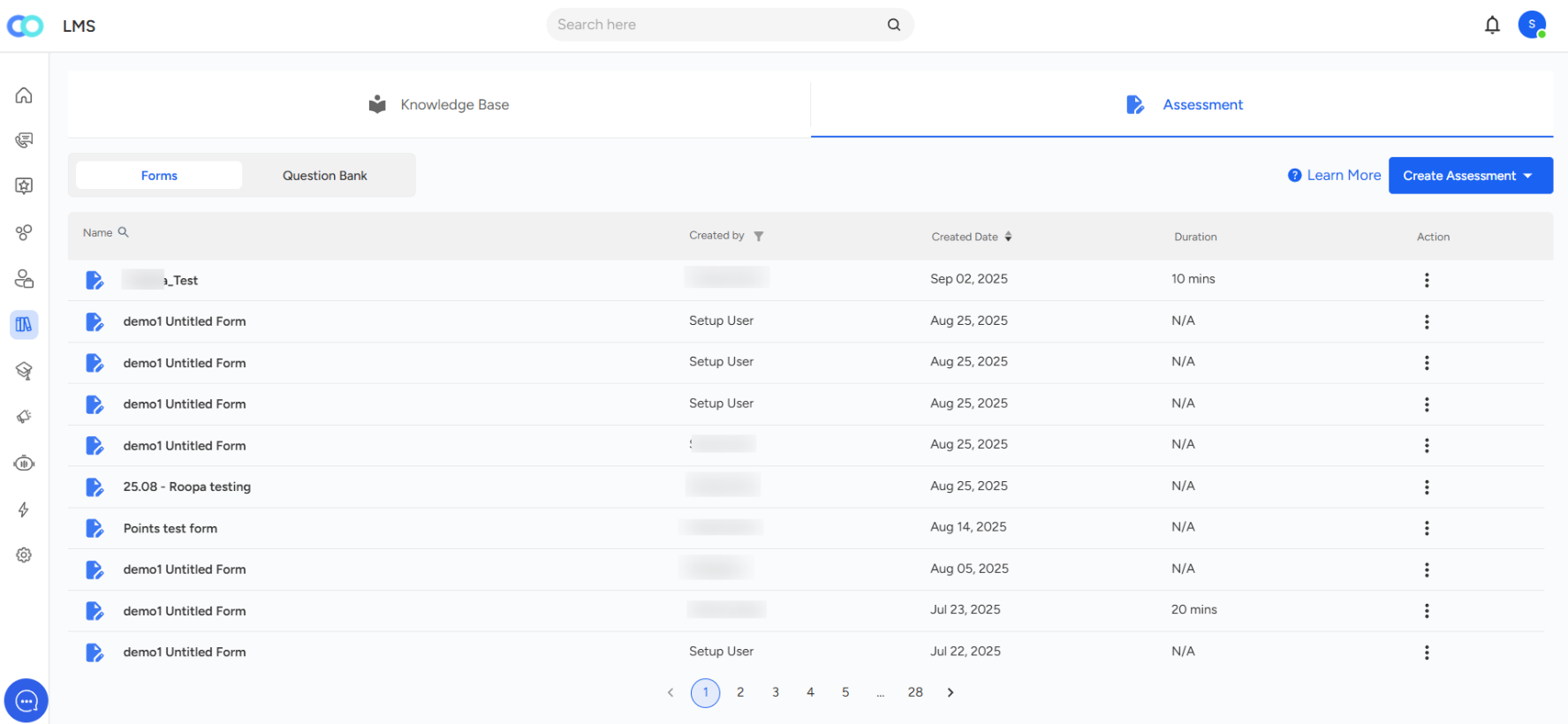
You also have the option to view assessment analysis, rename, clone, or delete the assessment by clicking on the three dots, as shown in the screenshot.
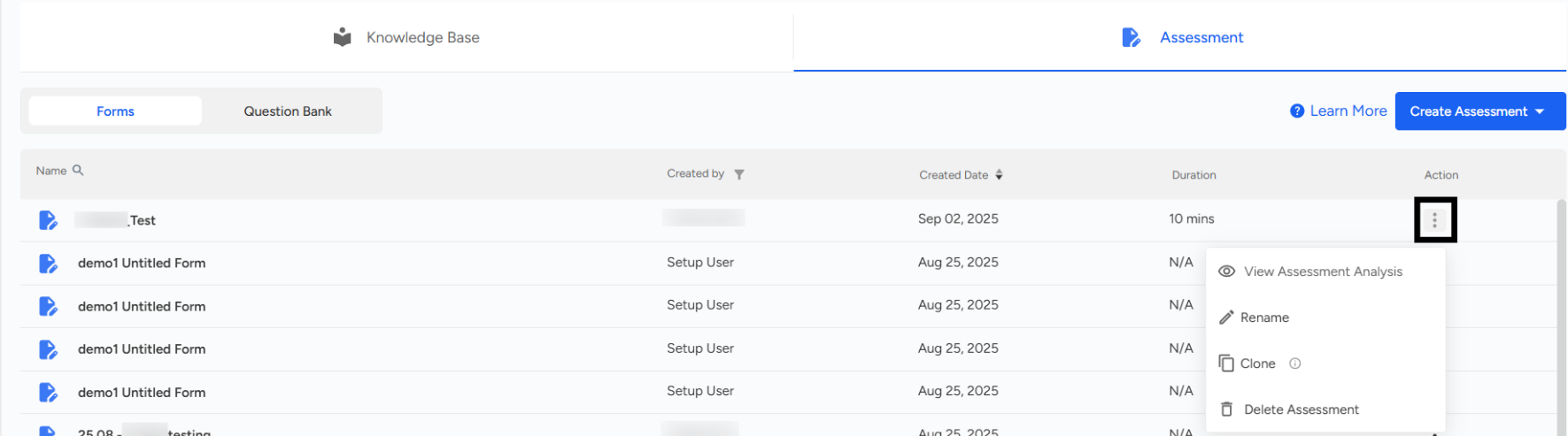
When you click on a particular assessment form, you will find three key tabs at the top: Question, Analysis, and Settings. Each of these sections helps you manage and monitor assessments effectively.
1. Question Tab
In this section, you can create and manage the questions that make up your assessment.
Add Question → You can type your question, select the answer type (e.g., Multiple Choice, Short Answer), and add answer options.
Answer Key → Define the correct answer(s) and assign points for automatic evaluation.
Required Option → Mark a question as mandatory so respondents cannot skip it.
Save Button → Once you add or edit questions, click Save to ensure changes are updated.
3 Dots Menu → Use the three-dot menu beside each question to duplicate or delete questions easily.
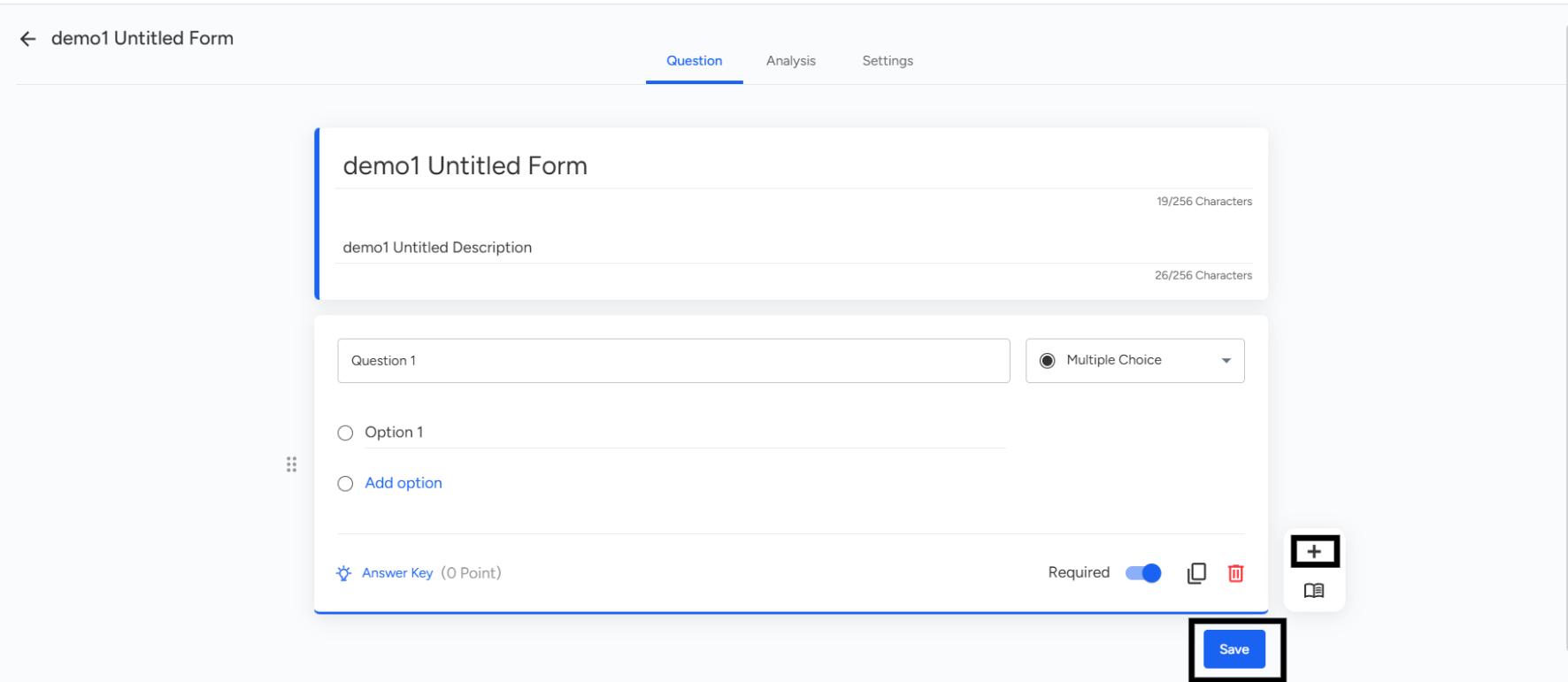
2. Analysis Tab - This tab provides insights into the performance of the assessment.
It shows overall results and breakdowns, such as average score, correct vs. incorrect answers, and individual performance.
You can use this to quickly identify knowledge gaps or patterns in responses.
Essentially, Analysis = Reports & Insights on how the assessment was attempted and how participants performed.
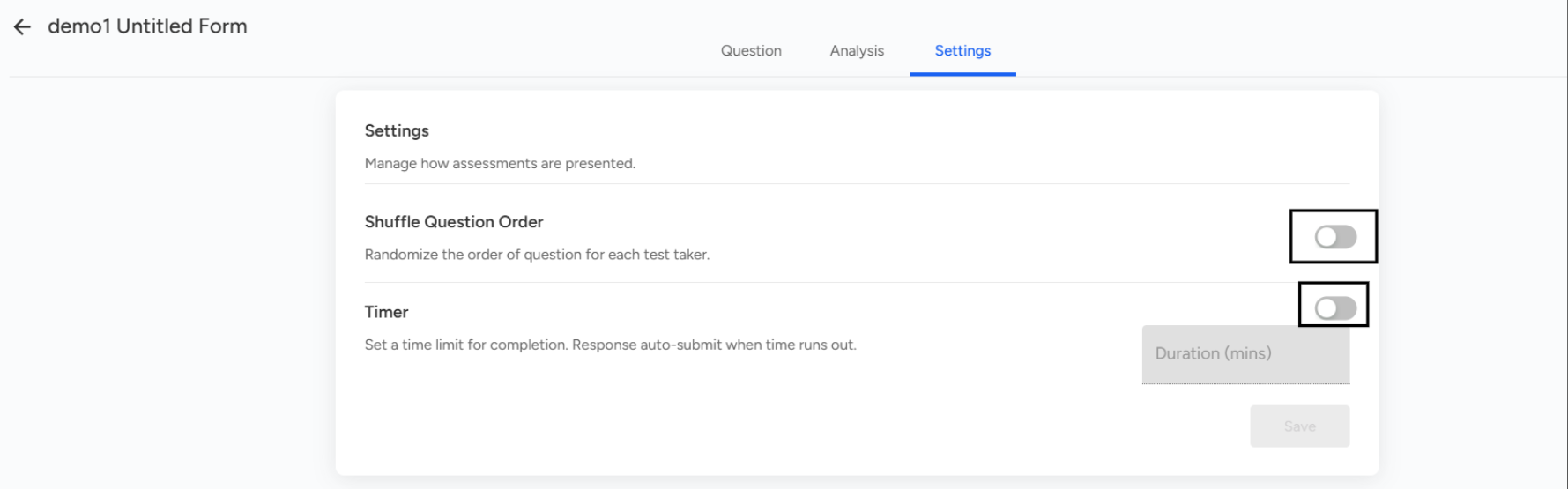
3. Settings Tab - This section controls how your assessment is presented to participants.Shuffle Question Order → Randomizes the order of questions for each participant to avoid repetition patterns.
Timer → Allows you to set a time limit (in minutes). When the time expires, the assessment auto-submits.
📩 Still need help? Contact our support team at [email protected] —we’re happy to assist!
Good day!