
Convin Insights is available under the Advanced Filters section on both the Overall Dashboard and the Conversation Page. This filter allows you to analyze data through three powerful options — Customer Intelligence, AI Insights, and Custom Tracking — helping you uncover business trends, AI-driven predictions, and keyword-specific occurrences for better decision-making.
Steps to Use Convin Insights Filter.
- Customer Intelligence:
Use this option to understand customer-related trends and behaviors at multiple levels.
Steps:
- Go to Home page.

- Navigate to Advance Filters.

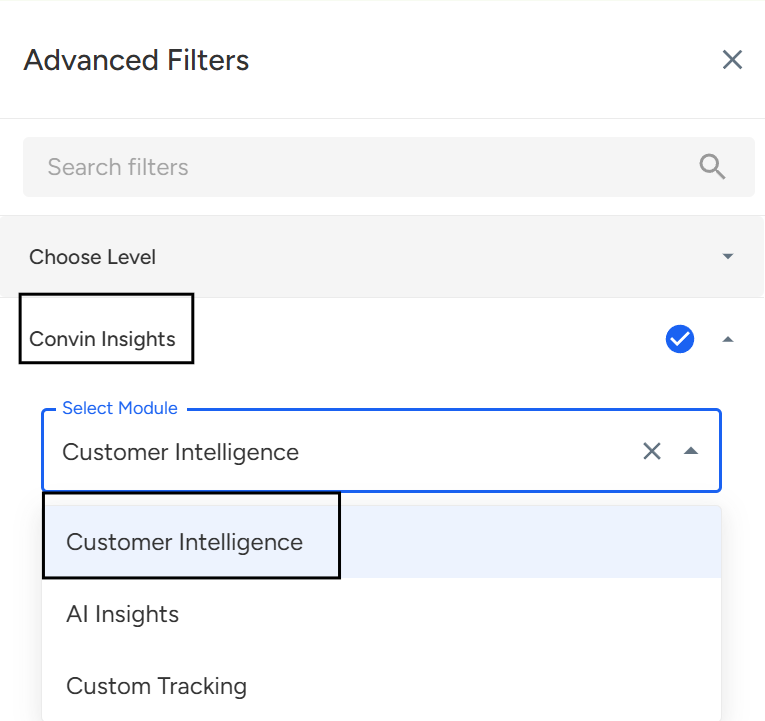
- Click on Convin Insights and Select module Customer Intelligence.
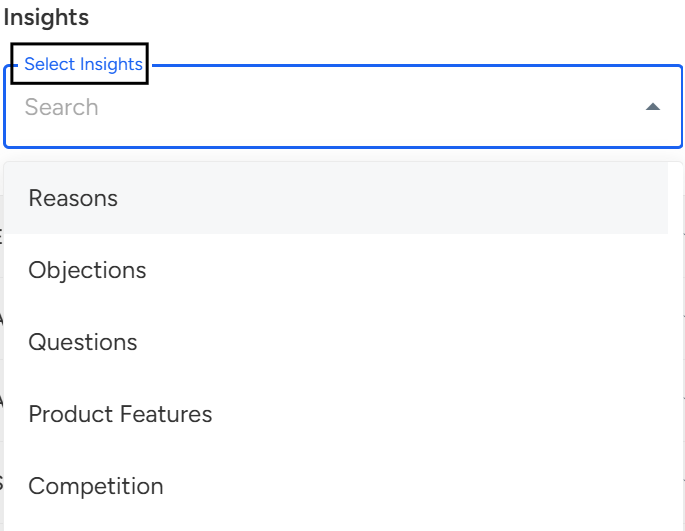
- Select Insights from the dropdown (e.g., Reasons).
- From here, select Level 1, Level 2, and Level 3 according to the chosen insight to drill deeper into customer-related data.
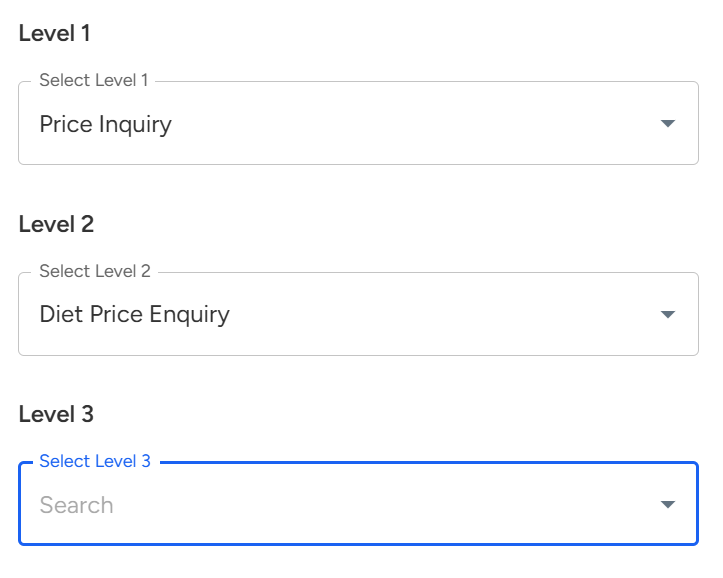
Level 1 → The primary classification. It gives you a broad idea of the reason or category.
Example: Price Inquiry
Level 2 → A sub-category of Level 1, adding more detail and context.
Example: Plan Price Related (a specific type of price inquiry)
Level 3 → The most detailed layer, used to capture the exact or final reason.
Example: Price Extra (pinpointing the exact nature of the price concern)
So, Levels work like Main Category → Sub-Category → Specific Reason, making insights more structured and easier to analyze. - Click Apply Filter to view insights based on your selection.
2. AI Insights:
Use this option to explore AI-powered predictions and intelligence, such as call sentiment, intent classification, or conversion likelihood.
Steps:
- Click on Convin Insights and Select module AI Insights.
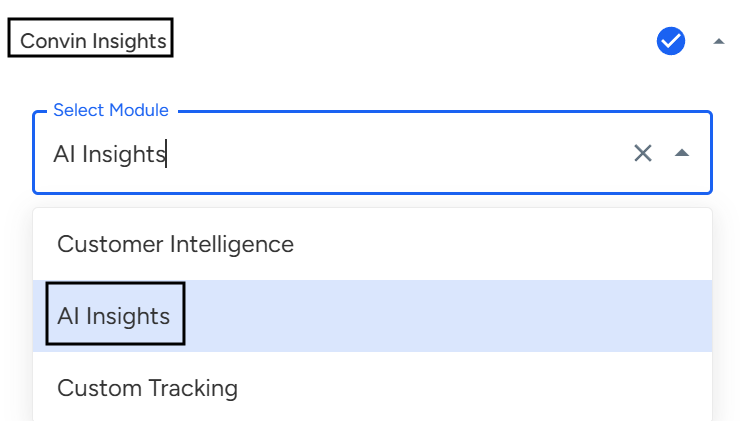
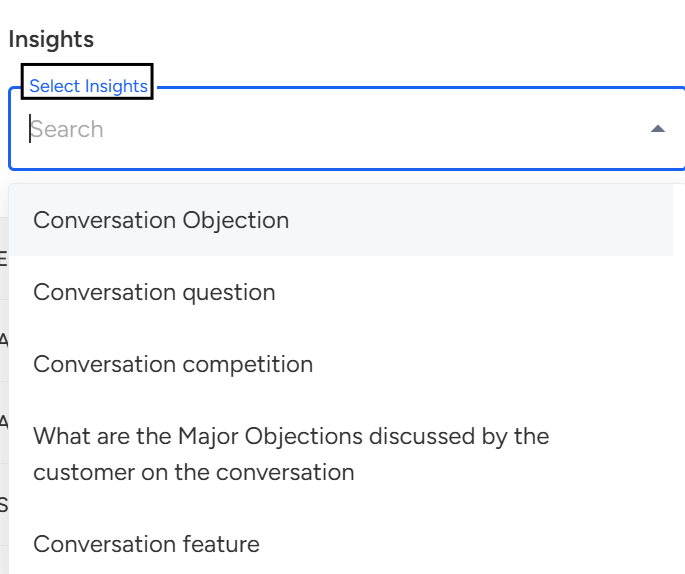
- Select Insights from the dropdown (e.g., Conversation Objection).
- Then select Level 1, Level 2, and Level 3 according to the selected AI insight category to refine your analysis.
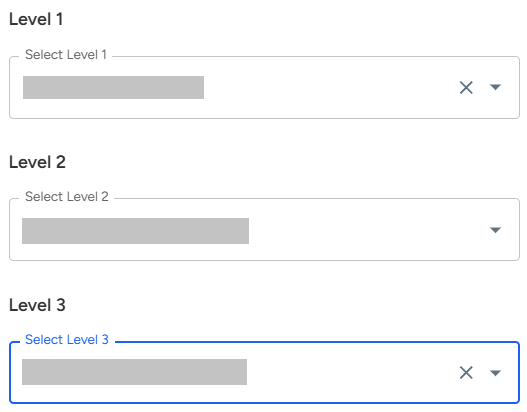
Level 1 → The primary AI-generated classification. Gives you a broad AI-driven view, such as overall sentiment or call outcome. Example: Positive Sentiment
Level 2 → A sub-classification of Level 1.
Adds more granularity to the AI insight, refining the analysis.
Example: Positive – Customer Appreciated Service
Level 3 → The most detailed AI layer.
Captures the most specific AI-predicted insight for deeper understanding.
Example: Positive – Customer Appreciated Pricing Transparency
So, Levels work like Overall AI Classification → Refined Insight → Most Specific Prediction, enabling a detailed AI-driven view of conversations. - Click Apply Filter to view insights based on your selection.
3. Customer Intelligence:
Use this option to understand customer-related trends and behaviors at multiple levels.
Steps:
- Click on Convin Insights and Select module Custom Tracking.
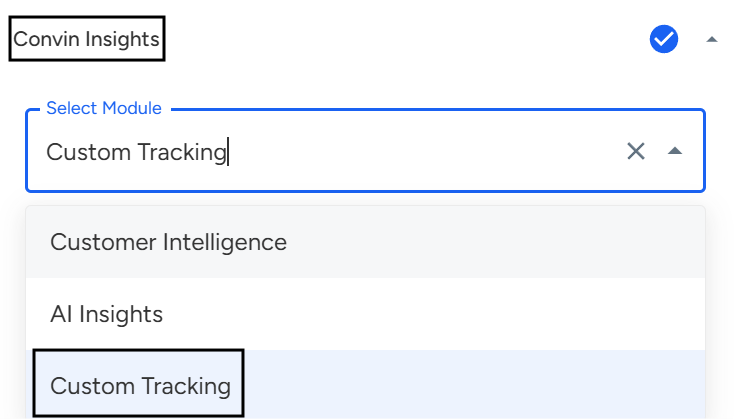
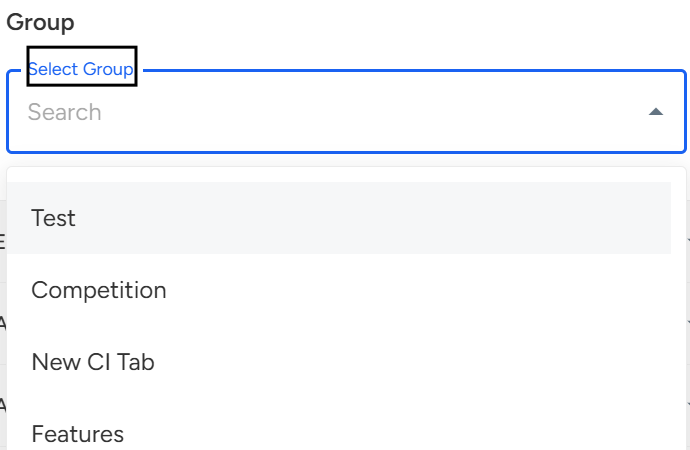
- Choose the Group you want to analyze.
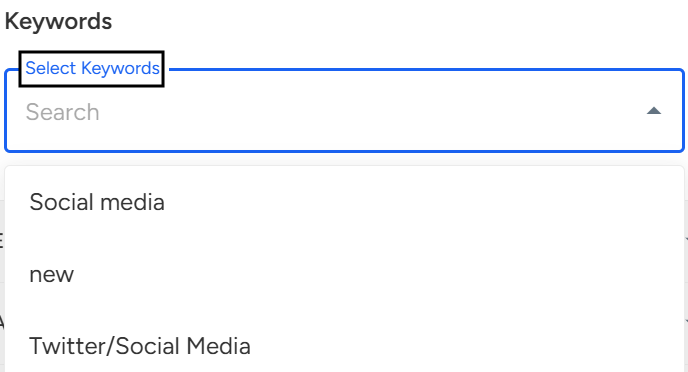
- select the specific Keyword from the list.
Group → The main set of custom keywords or phrases. Represents the broader category of what you are tracking.
Example: Competition
Keyword → The exact phrase or word you want to monitor.
Shows every occurrence of that specific word or phrase in conversations.
Example: “Social Media”
So, Custom Tracking works like Group → Keyword, allowing you to focus on specific terms that matter most to your business. - Click Apply Filter to view insights based on your selection.
Note: For using Convin Insights on Conversation Page, follow these steps: - Navigate to Conversation Page.

- Click on Advanced Filters Icon.

- Click on Convin Insights and select desired Module.
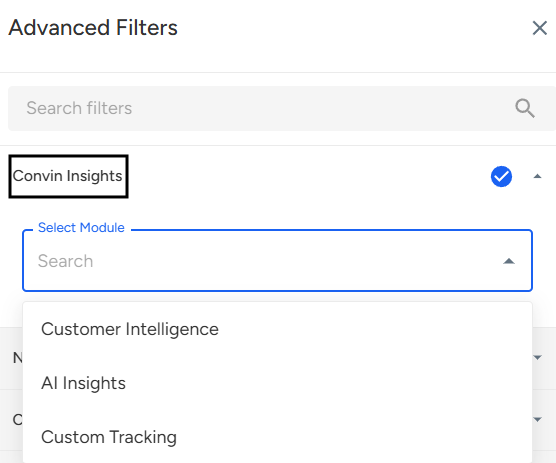
Select the desired option (Customer Intelligence, AI Insights, or Custom Tracking) to begin using this filter. - Click Apply Filter to view insights based on your selection.
📩 Still need help? Contact our support team at [email protected]—we’re happy to assist!
Good day!