
How to Navigate to Advanced Filters: Step-by-Step Guide
Accessing Advanced Filters
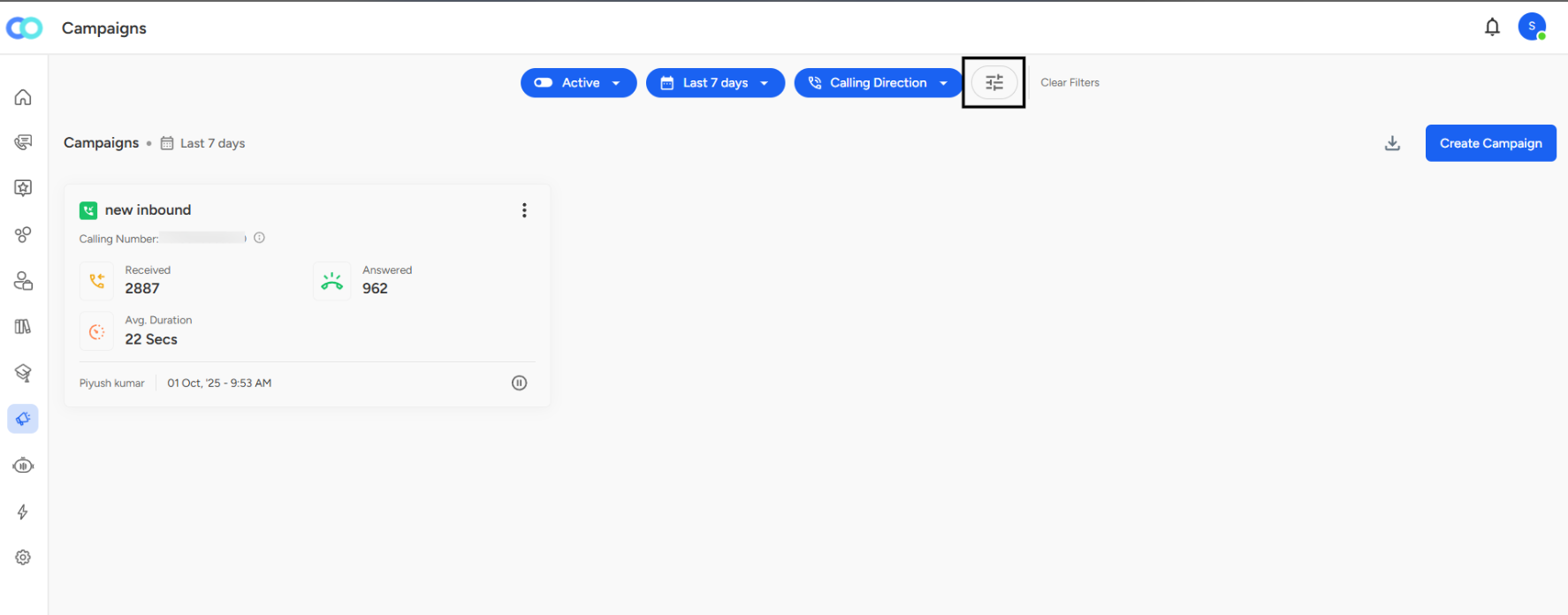
Step 1: Locate the Filter Icon
On the Campaigns page, look at the top filter bar where you see buttons like "Active," "Last 7 days," and "Calling Direction."
Step 2: Click the Advanced Filters Icon
Find the filter icon (looks like horizontal sliders or lines) next to the "Clear Filters" button on the right side of the filter bar.
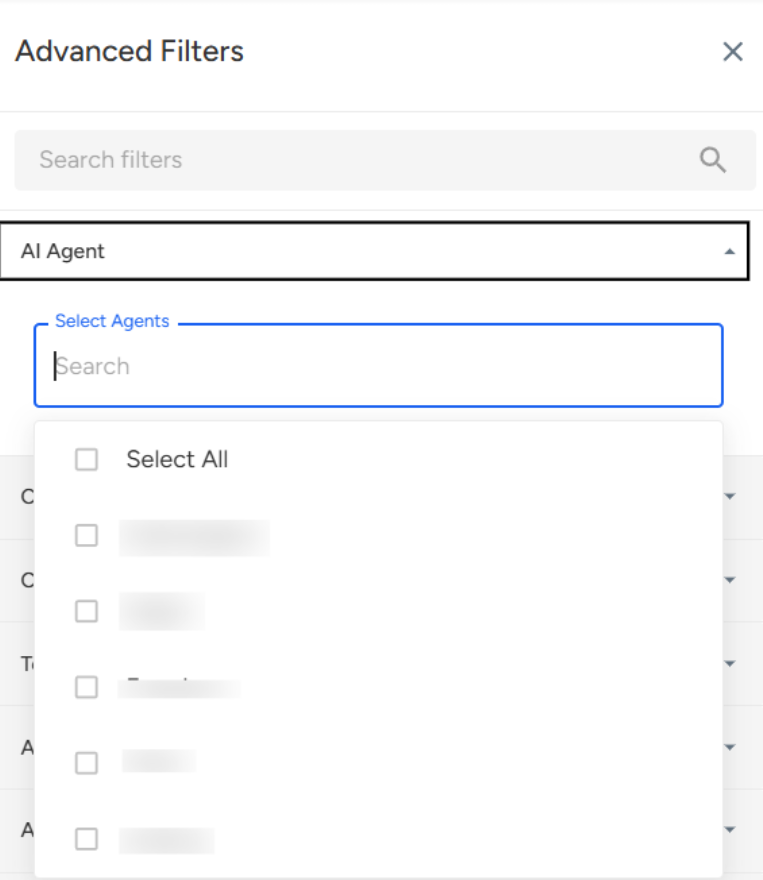
Step 3: Advanced Filters Panel Opens
A side panel titled "Advanced Filters" slides in from the right side of your screen.
AI Agent Filter
What Is It?
The AI Agent filter allows you to view campaigns assigned to specific AI agents in your system.
How to Use
- Click on the "AI Agent" dropdown
- Search or select from available agents
- View campaigns handled by that specific agent
Use Cases
- Compare performance across different AI agents
- Monitor specific agent workload
- Identify top-performing agents
- Troubleshoot agent-specific issues
📩 Still need help? Contact our support team at [email protected]—we’re happy to assist!
Good day!