
How to Navigate to Advanced Filters: Step-by-Step Guide
Accessing Advanced Filters
Step 1: Locate the Filter Icon
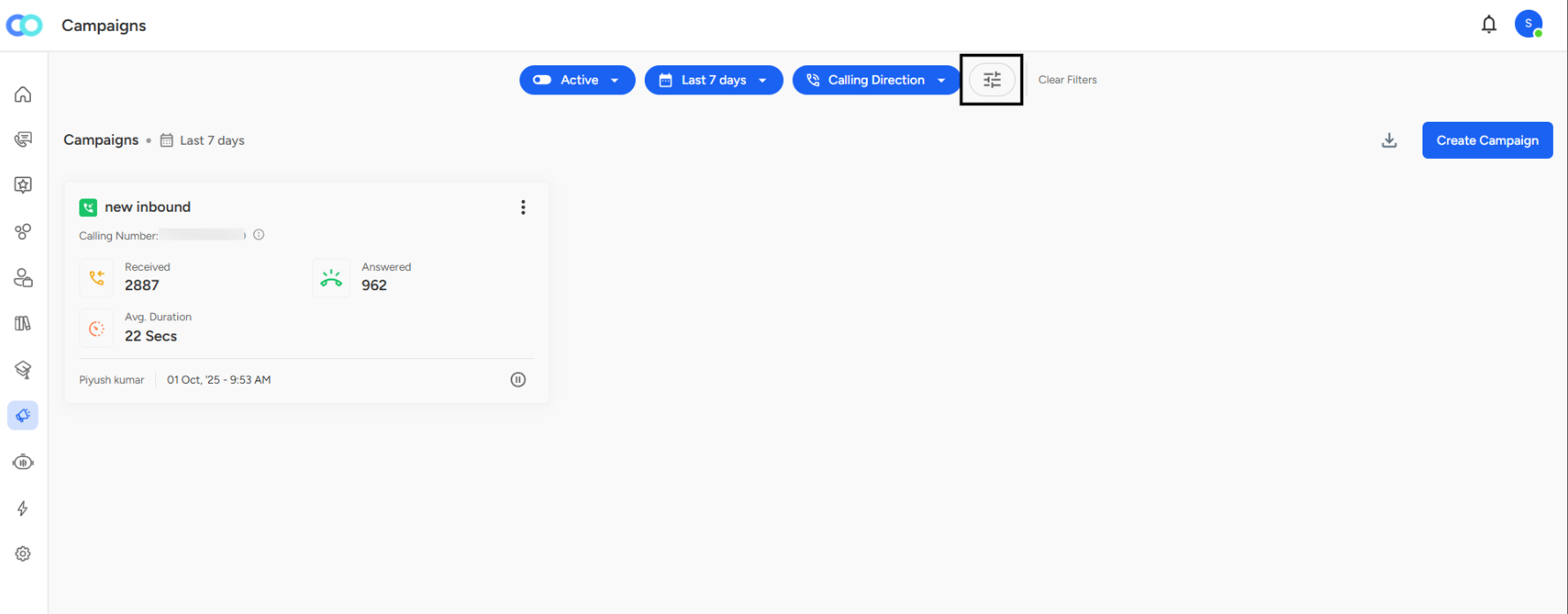
On the Campaigns page, look at the top filter bar where you see buttons like "Active," "Last 7 days," and "Calling Direction."
Step 2: Click the Advanced Filters Icon
Find the filter icon (looks like horizontal sliders or lines) next to the "Clear Filters" button on the right side of the filter bar.
Step 3: Advanced Filters Panel Opens
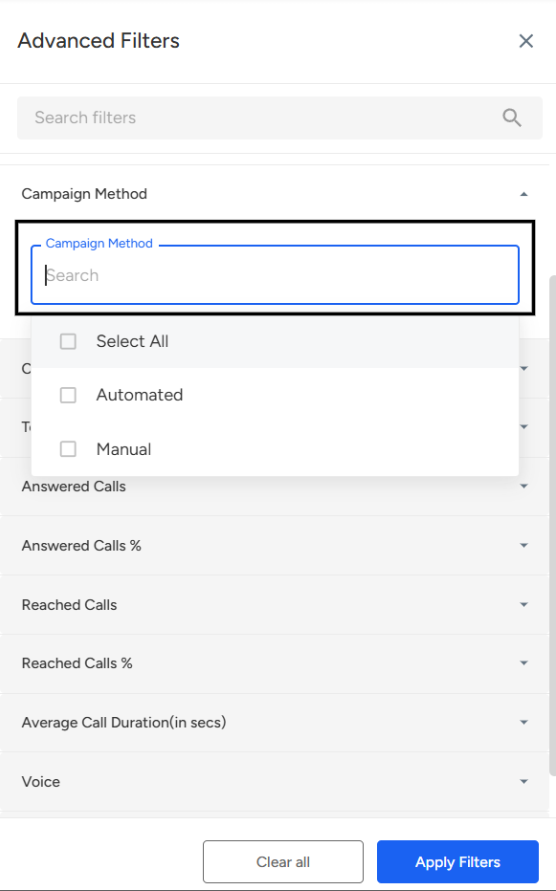
A side panel titled "Advanced Filters" slides in from the right side of your screen.
Campaign Method Filter
Campaign Method distinguishes between how campaigns are executed - either Automated or Manual.
The Two Options
Automated Campaigns:
- System-driven calling without human intervention
- Pre-scheduled with auto-dialing
- AI handles the entire conversation flow
- Runs based on predefined rules and triggers
Manual Campaigns:
- Require human operator involvement
- Agent-initiated calls
- More control over timing and approach
- Flexible, personalized interactions
How to Use
- Click "Campaign Method" dropdown
- Select "Automated" or "Manual"
- Filter campaigns by execution type
Use Cases
- Compare automated vs manual performance
- Track automation adoption rate
- Identify campaigns needing automation
- Monitor manual campaign efficiency
- Budget allocation between methods
📩 Still need help? Contact our support team at [email protected]—we’re happy to assist!
Good day!