
How to Navigate to Advanced Filters: Step-by-Step Guide
Accessing Advanced Filters
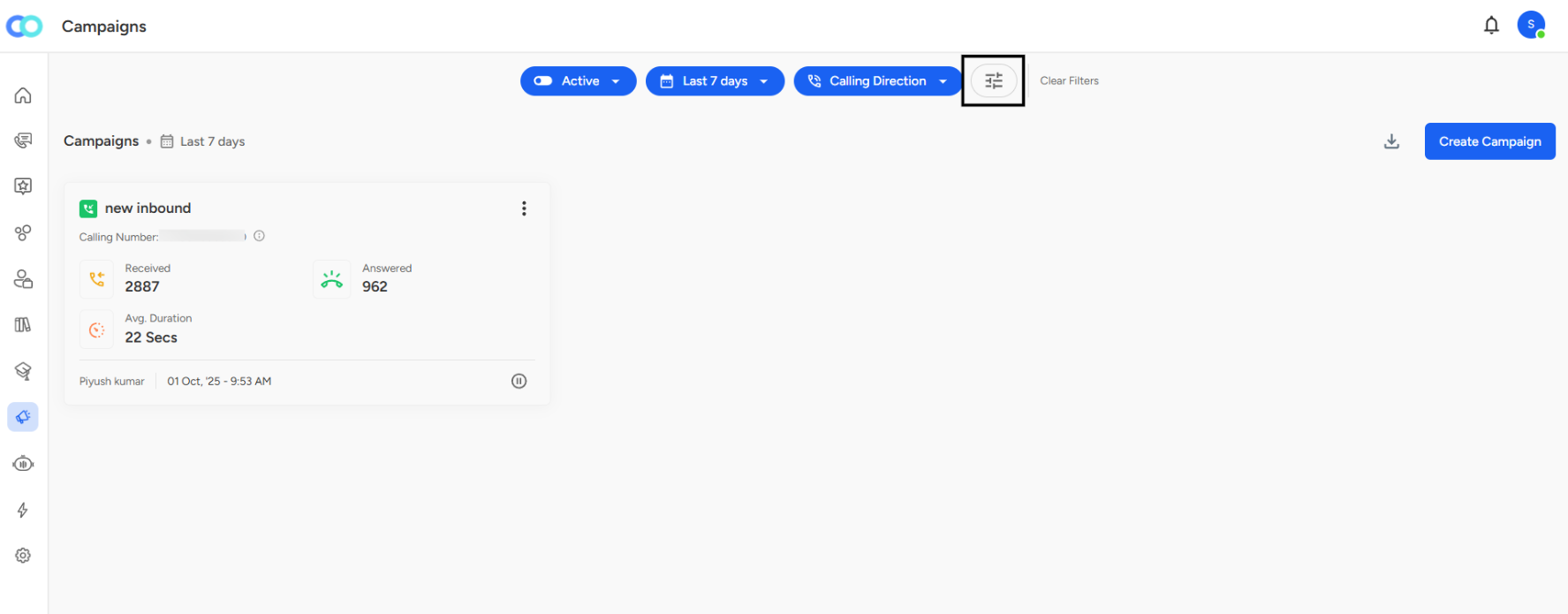
Step 1: Locate the Filter Icon
On the Campaigns page, look at the top filter bar where you see buttons like "Active," "Last 7 days," and "Calling Direction."
Step 2: Click the Advanced Filters Icon
Find the filter icon (looks like horizontal sliders or lines) next to the "Clear Filters" button on the right side of the filter bar.
Step 3: Advanced Filters Panel Opens
A side panel titled "Advanced Filters" slides in from the right side of your screen.
Total Contacts Filter:
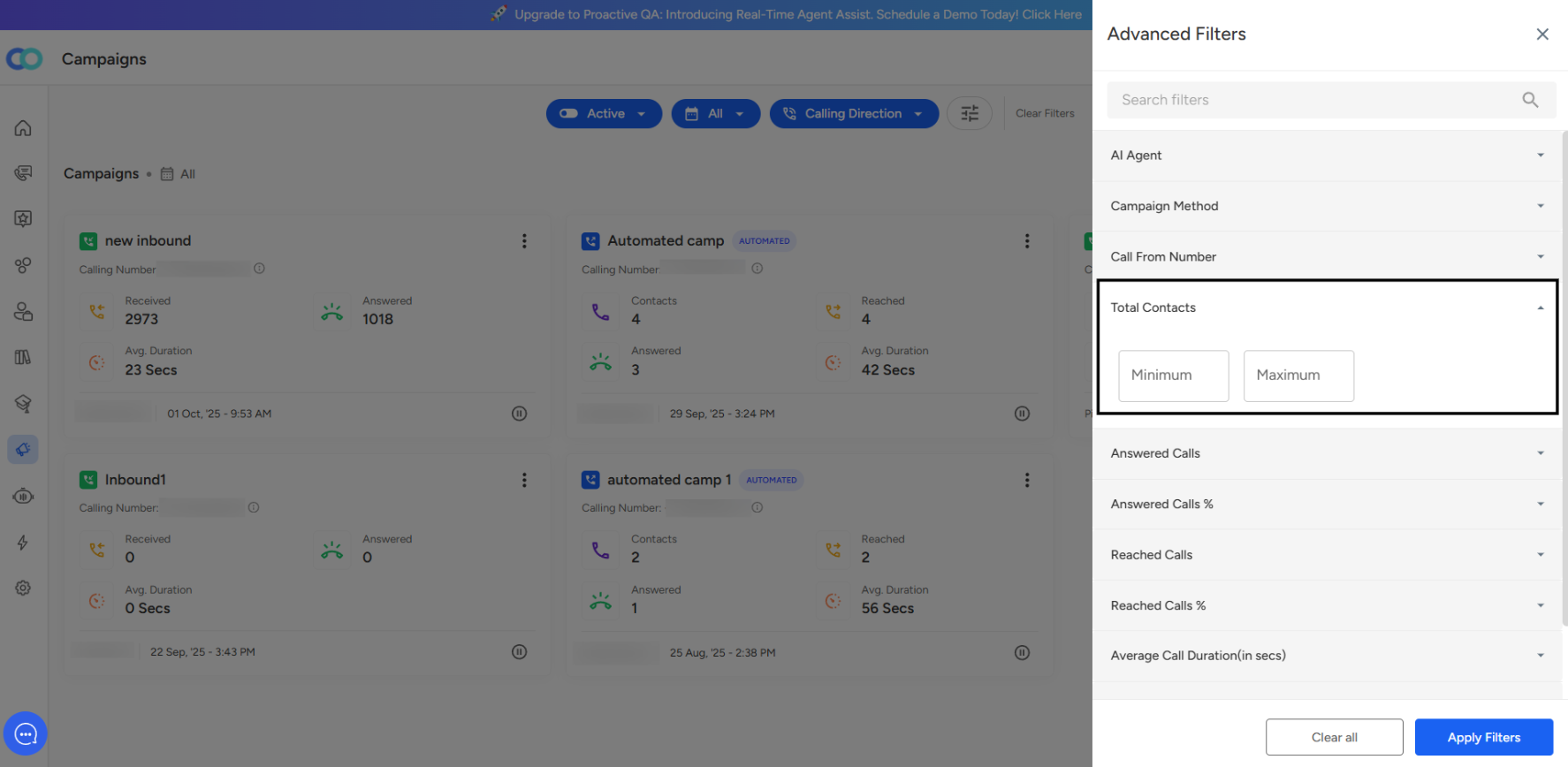
Filter Location:
Found under the Advanced Filters section in the campaign dashboard.Purpose:
Helps users filter and view campaigns based on the size of their contact database.Input Fields:
Two fields: Minimum and Maximum.
Both accept numerical values to define a range.
Usage Examples:
To view large-scale campaigns, set a minimum value (e.g., 1000 contacts).
To view small or targeted campaigns, set a maximum value.
Flexible Filtering:
Leave either field empty to apply only one bound (e.g., only lower or upper limit).
Example: Enter “500” in Minimum to view all campaigns with 500+ contacts.
Benefit:
Enables users to categorize campaigns by scale, helping identify and analyze campaigns based on audience size.Use Case:
Ideal for performance comparison, audience segmentation, and resource allocation based on campaign reach.
📩 Still need help? Contact our support team at [email protected]—we’re happy to assist!
Good day!