
How to Navigate to Advanced Filters: Step-by-Step Guide
Accessing Advanced Filters
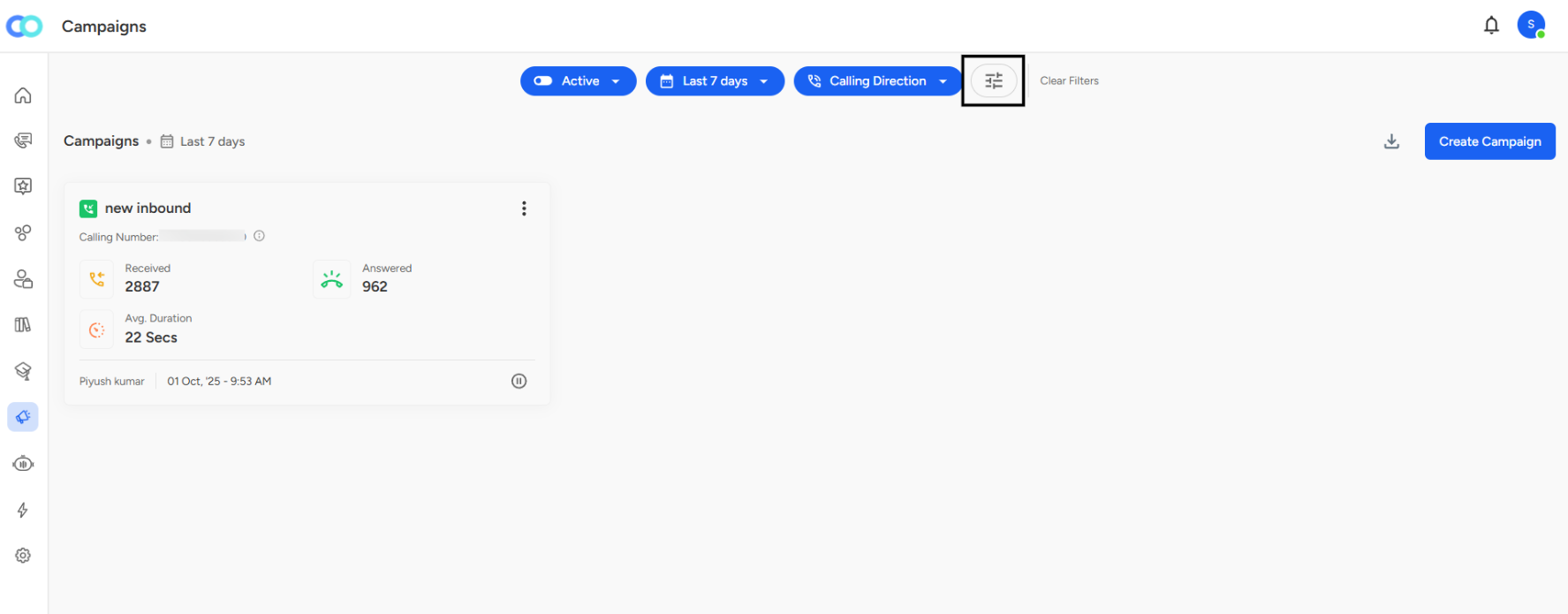
Step 1: Locate the Filter Icon
On the Campaigns page, look at the top filter bar where you see buttons like "Active," "Last 7 days," and "Calling Direction."
Step 2: Click the Advanced Filters Icon
Find the filter icon (looks like horizontal sliders or lines) next to the "Clear Filters" button on the right side of the filter bar.
Step 3: Advanced Filters Panel Opens
A side panel titled "Advanced Filters" slides in from the right side of your screen.
Answered Calls Filter:
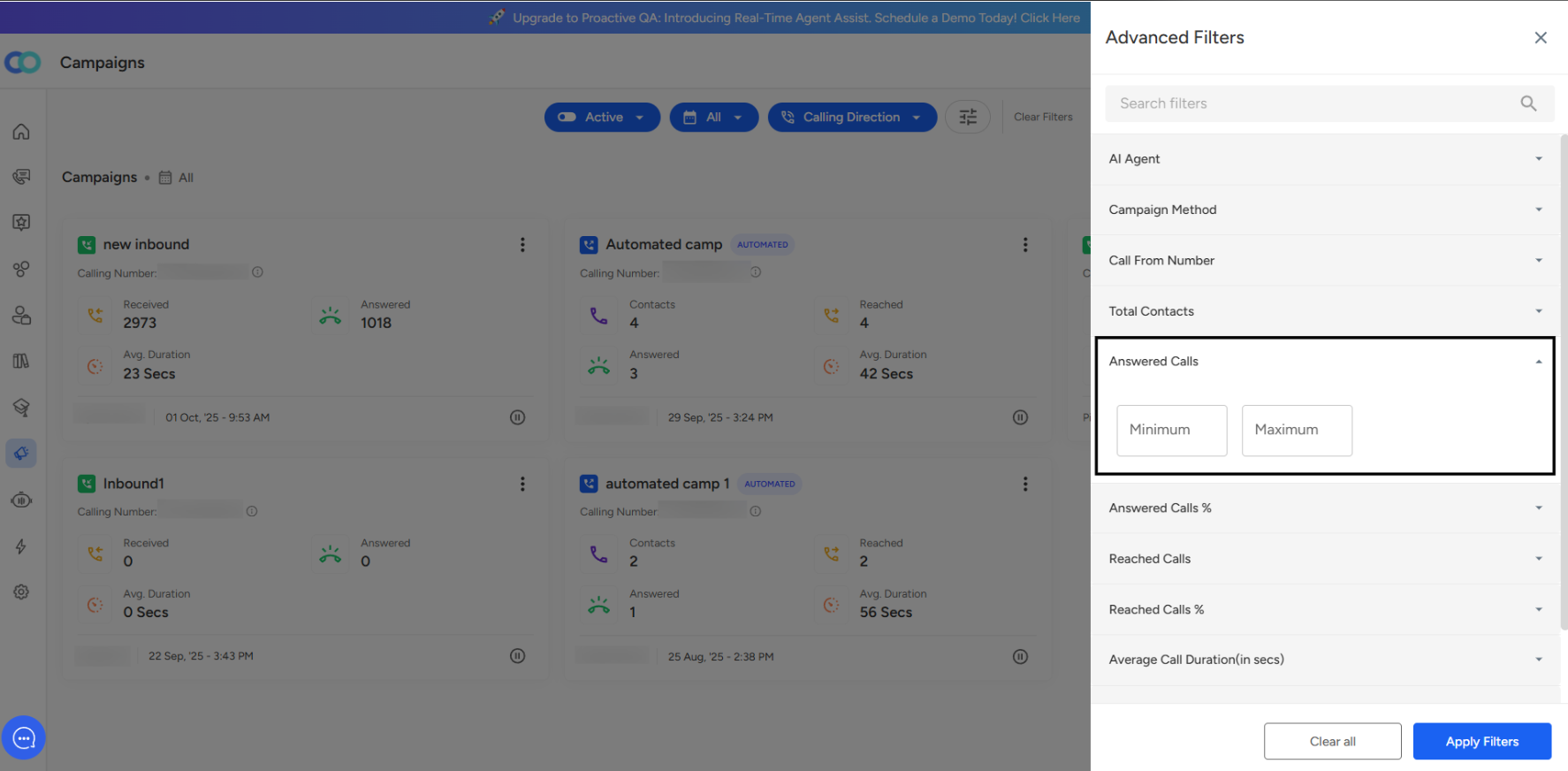
Filter Location:
Available under the Advanced Filters section in the campaign dashboard.Purpose:
Allows users to filter campaigns by the total number of answered calls — calls that received an actual response from contacts.Input Fields:
Two numeric fields: Minimum and Maximum.
Used to define a range for the total count of answered calls.
Usage Examples:
Set a minimum value to view campaigns with high answered call counts (e.g., strong performance).
Set a maximum value to identify campaigns with fewer answered calls (e.g., may need attention).
Distinct Metric:
Focuses on absolute numbers, not percentages — representing real call connections made.Insight Provided:
Helps measure the actual engagement level achieved through phone interactions.
Useful for analyzing campaign effectiveness and reach.
Flexible Use:
Leave either field blank to set only a lower or upper bound based on your analysis needs.Key Benefit:
Enables better performance segmentation, helping teams quickly identify high-engagement or low-response campaigns.
Answered Calls % Filter:
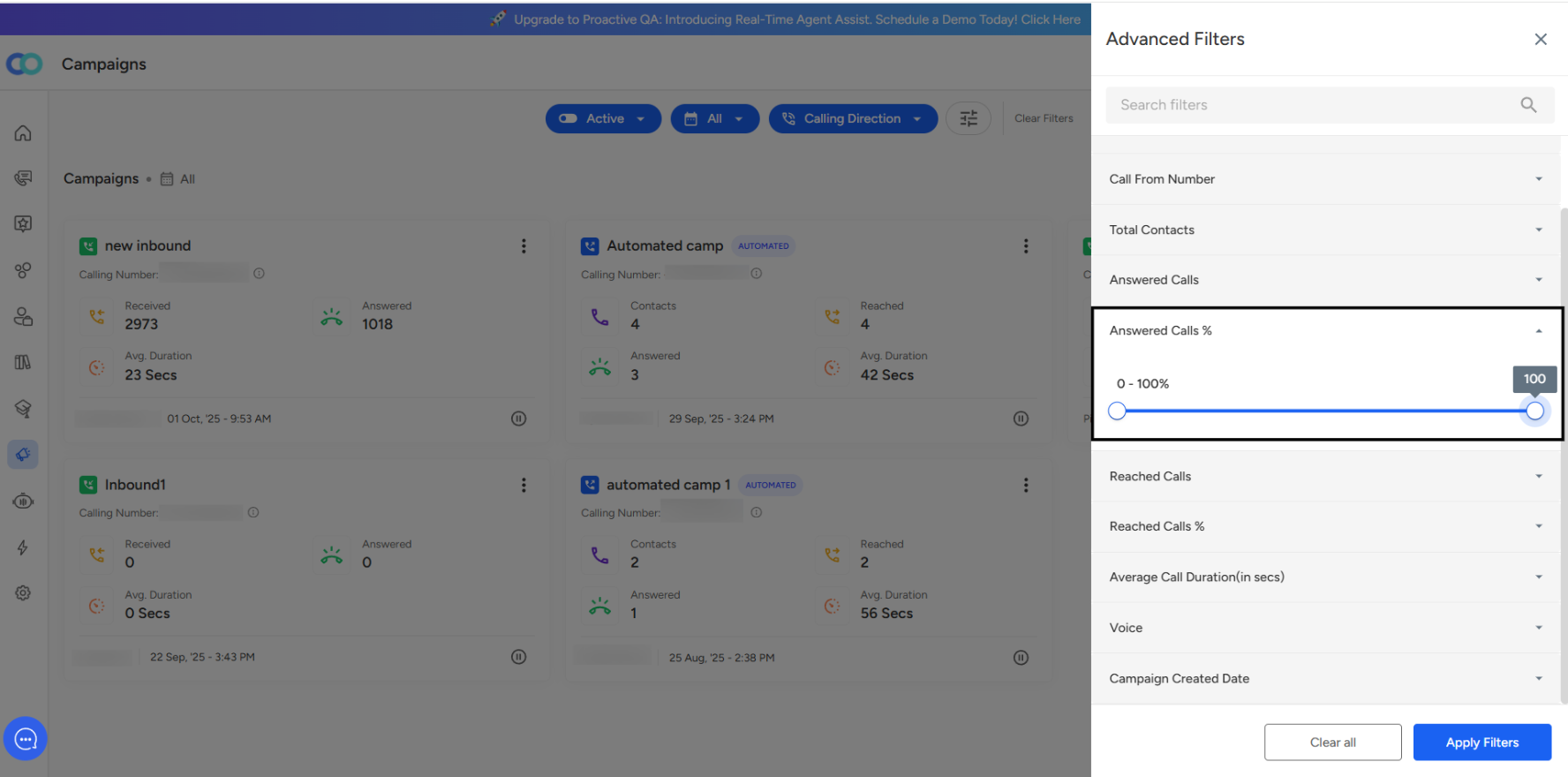
Filter Location:
Positioned below the Answered Calls count filter in the Advanced Filters panel.Interface Type:
Uses a dual-handle slider instead of text input fields.
Slider range: 0% to 100%, with the selected range displayed above.
Purpose:
Filters campaigns based on the percentage of answered calls relative to total call attempts.How It Works:
Represents the answer rate = (Answered Calls ÷ Total Call Attempts) × 100.
Drag either slider handle to set minimum and maximum percentage thresholds.
Usage Example:
Set the minimum to 50% to find campaigns where at least half of the calls were answered.
Value for Analysis:
Normalizes results across campaigns of different sizes.
Allows for fair comparison of performance and engagement rates.
Insights Provided:
Highlights campaigns with high answer percentages, indicating:
Effective call timing
Strong contact list quality
Optimized calling strategies
Key Benefit:
Helps identify successful campaigns and optimize underperforming ones based on relative engagement efficiency.
📩 Still need help? Contact our support team at [email protected]—we’re happy to assist!
Good day