
How to Navigate to Advanced Filters: Step-by-Step Guide
Accessing Advanced Filters
Step 1: Locate the Filter Icon
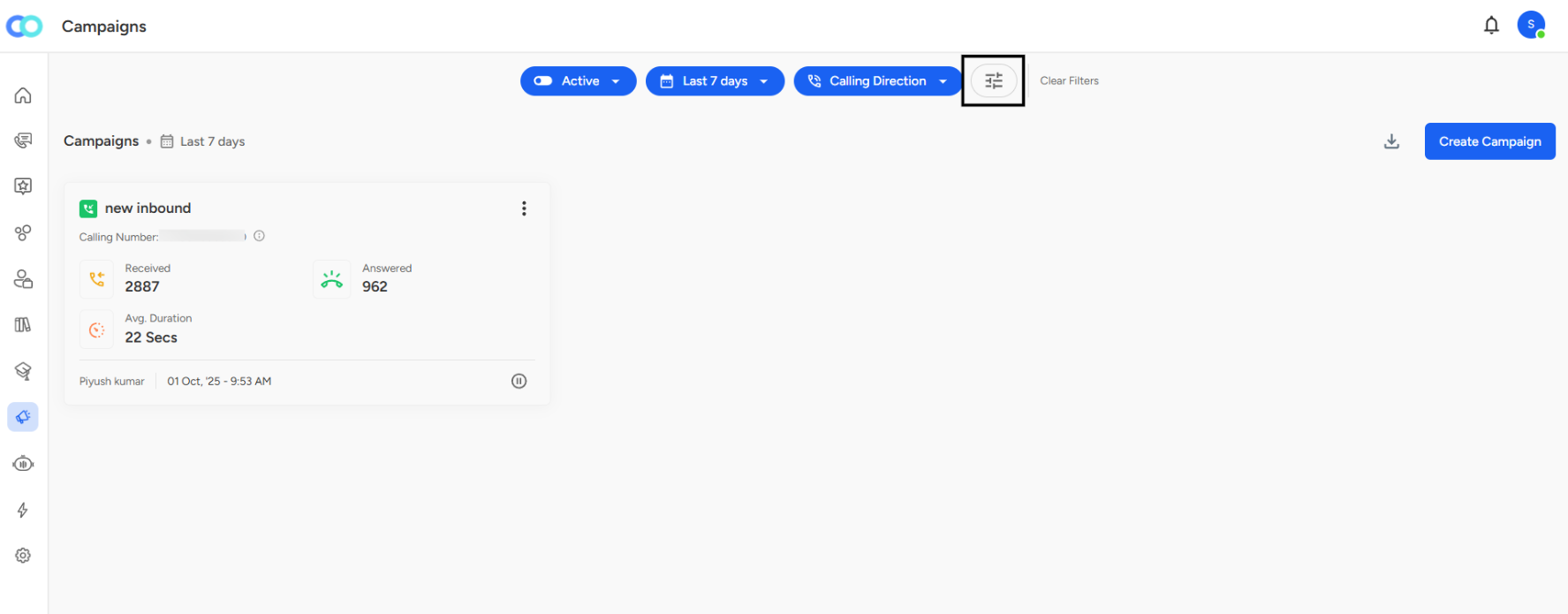
On the Campaigns page, look at the top filter bar where you see buttons like "Active," "Last 7 days," and "Calling Direction."
Step 2: Click the Advanced Filters Icon
Find the filter icon (looks like horizontal sliders or lines) next to the "Clear Filters" button on the right side of the filter bar.
Step 3: Advanced Filters Panel Opens
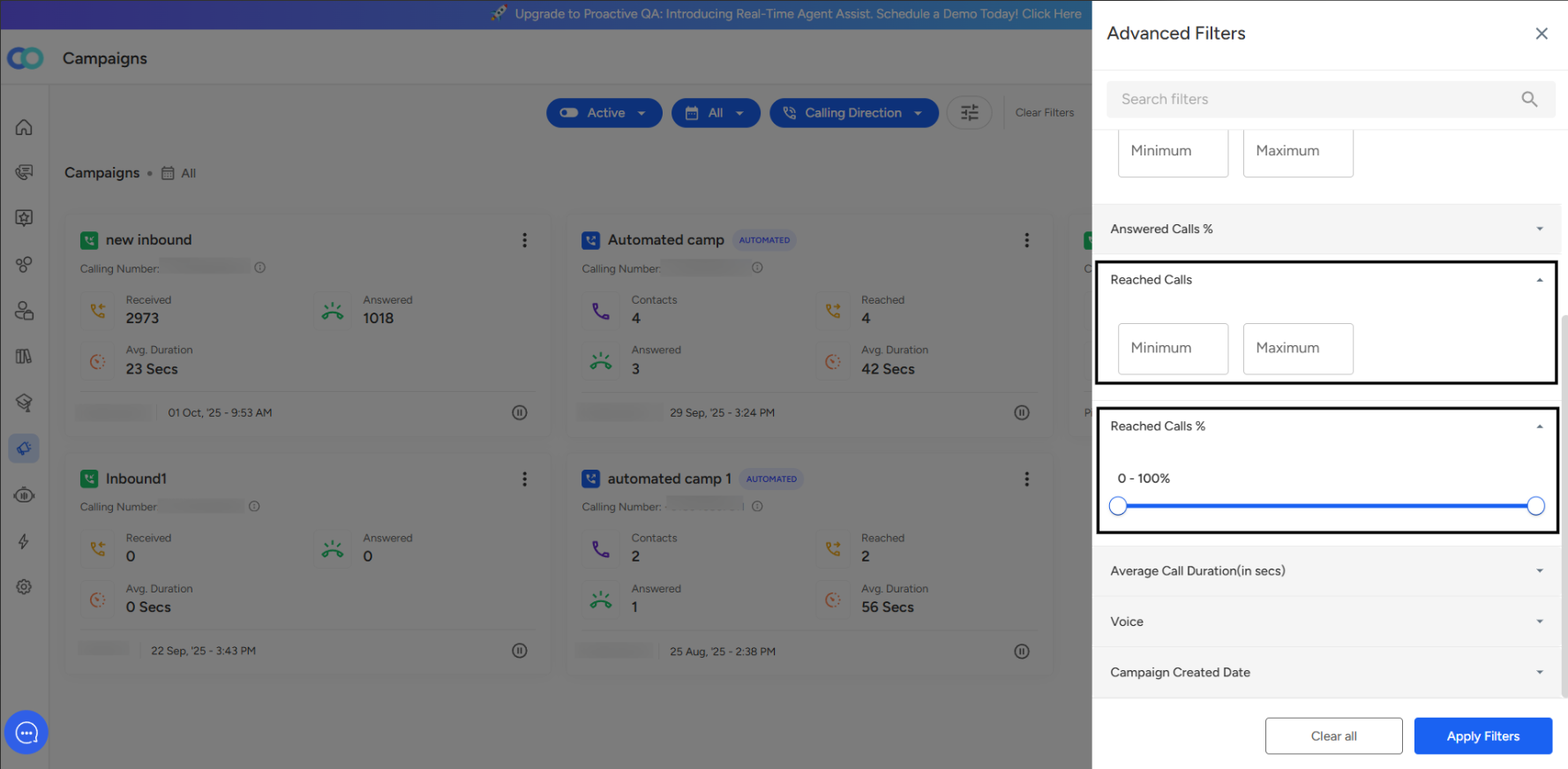
A side panel titled "Advanced Filters" slides in from the right side of your screen.
Reached Calls Filter and Reached Calls % Filter:
Reached Calls Filter
Filter Location:
Found under the Advanced Filters section, alongside filters like Total Contacts and Answered Calls.Input Structure:
Uses Minimum and Maximum numeric input fields.
Allows defining a range for the total number of reached calls.
Definition:
Reached calls are all calls where the system successfully connected to the contact’s phone line.
Includes calls that were answered, went to voicemail, or completed otherwise.
Purpose:
Provides insight into your campaign’s technical reach capacity — how many calls successfully connected.Usage:
Set a minimum value to view campaigns with high technical connectivity.
Set a maximum to find campaigns struggling with reach.
Analytical Value:
Useful for troubleshooting technical issues.
Helps evaluate contact data quality and system connectivity performance.
Insight Example:
Low Reached Call numbers may indicate issues like:Invalid phone numbers
Poor data quality
Network or carrier connectivity problems
Reached Calls % Filter
Filter Type:
Located below the Reached Calls count filter.
Uses a dual-handle slider interface ranging from 0% to 100%.
Displayed Range:
Shows “0 - 100%” above the slider when no specific range is selected.Metric Definition:
Represents the percentage of contacts successfully reached out of total call attempts.Purpose:
Helps analyze the technical effectiveness and data reliability of campaigns.Usage:
Drag the slider handles to set minimum and maximum percentage thresholds.
Use to isolate campaigns within specific performance bands for comparison.
Insight Indicators:
High percentage: Indicates strong contact list quality and reliable technical delivery.
Low percentage: May signal invalid contact data or delivery/network issues.
Key Benefit:
Enables comparative analysis across campaigns of different sizes by focusing on relative connection efficiency.
📩 Still need help? Contact our support team at [email protected]—we’re happy to assist!
Good day!