
The Saved View on the Conversation Page in Convin provides users with a centralized way to save and access a set of filters for future use. It helps users easily retrieve, apply, and manage their personalized conversation views directly from the conversation interface, ensuring a more efficient and organized workflow.
Steps to Creating a Save View:
- Go to the Conversation Page

- Apply Filters:

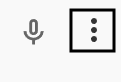
On the Conversation Page, select the filters you want to use (e.g., Team, Rep, Call Duration, Date, etc.). - Click on the three-dot menu (⁝) at the top-right corner of the conversation list.
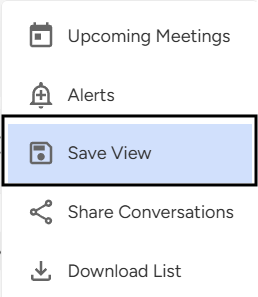
In the dropdown menu, click Save View.
Name Your View & Click Save to store your personalized filter settings.
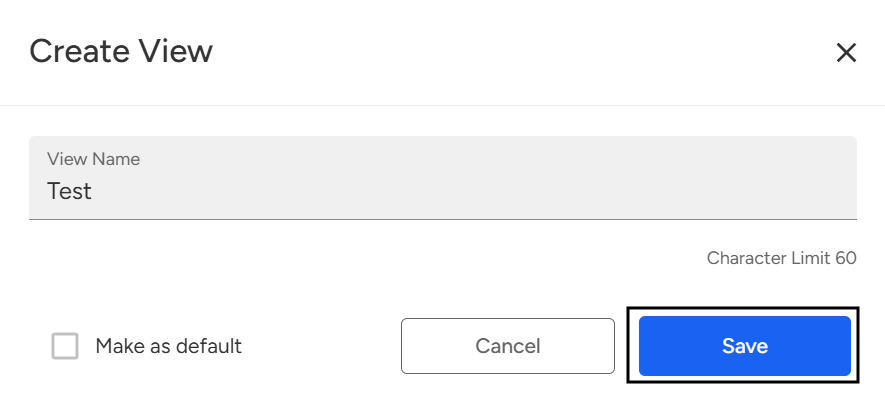
Note: If you want to make this view your default, click the Default checkbox before saving.
How to Access a Saved View:
- On conversation page, at the top left of the page, click on All Conversations to expand the dropdown menu.
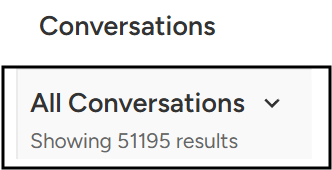
- Click on My Saved view.
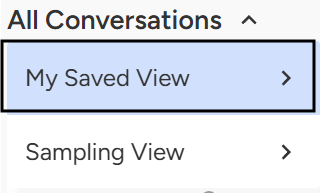
A list of available filters for that saved view will appear. Click on the filter or saved view you want to apply. Once selected, Convin will display all the conversations that match the chosen filters, allowing you to review them directly from the conversation page.
📩 Still need help? Contact our support team at [email protected] —we’re happy to assist!
Good day!