
How to Navigate to Advanced Filters: Step-by-Step Guide
Accessing Advanced Filters
Step 1: Locate the Filter Icon
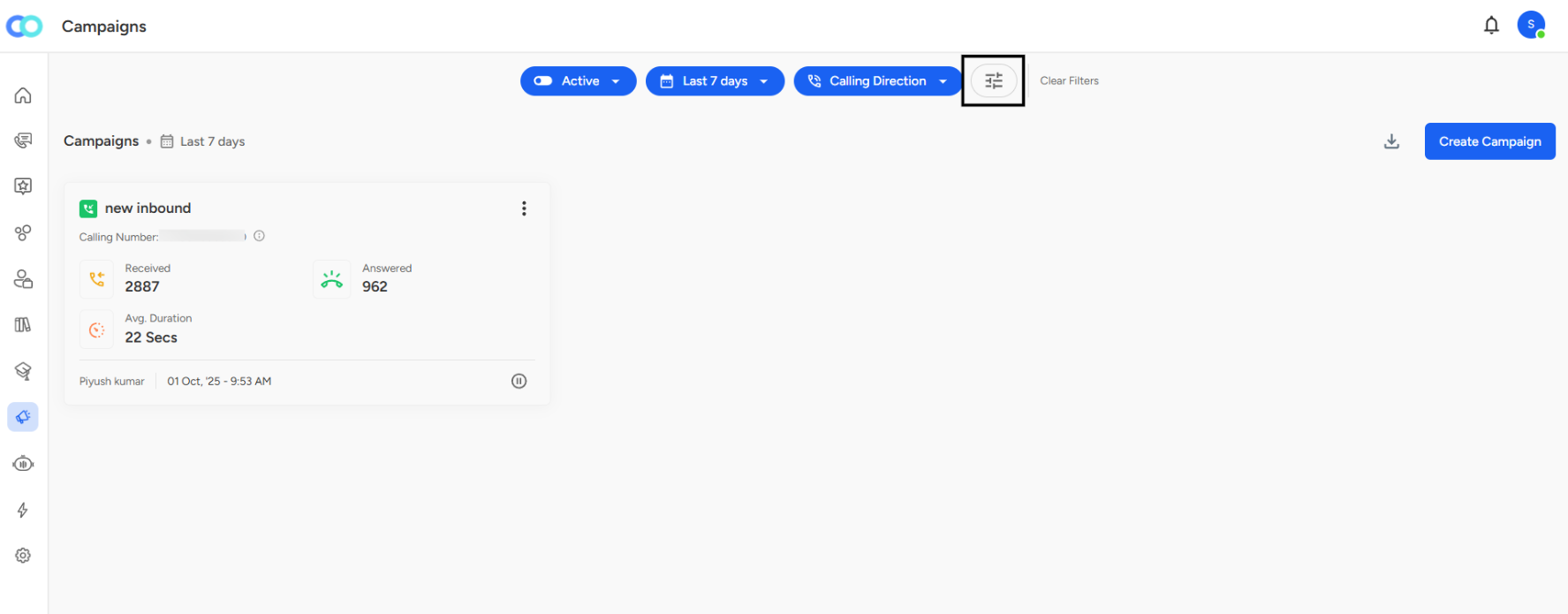
On the Campaigns page, look at the top filter bar where you see buttons like "Active," "Last 7 days," and "Calling Direction."
Step 2: Click the Advanced Filters Icon
Find the filter icon (looks like horizontal sliders or lines) next to the "Clear Filters" button on the right side of the filter bar.
Step 3: Advanced Filters Panel Opens
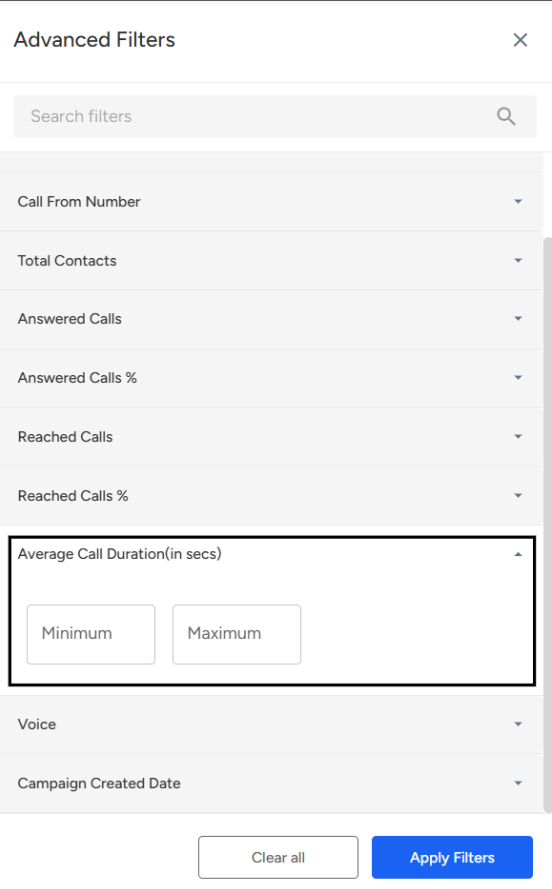
A side panel titled "Advanced Filters" slides in from the right side of your screen.
Average call duration (in seconds):
Average Call Duration (in secs)
Location:
Found in the Advanced Filters panel.Purpose:
Filters campaigns based on the average length of calls handled in each campaign.Input Type:
Two numeric fields: Minimum and Maximum.
Enter duration values in seconds.
Usage:
Set a minimum value to find campaigns with longer or more detailed interactions.
Set a maximum value to identify short-duration campaigns, which may indicate quick resolutions or dropped calls.
Analytical Value:
Helps assess call quality, engagement depth, and agent performance.
Useful for identifying whether calls are being handled efficiently or require improvement.
📩 Still need help? Contact our support team at [email protected]—we’re happy to assist!
Good day!