
Convin’s entity recognition technology identifies and extracts key data points such as names, IDs, dates, product keywords, or custom fields from conversations. This guide explains how these entities are surfaced and used on the Custom Insights page, across Customer Intelligence, AI Insights, and Custom Tracking to help you uncover trends, compare metrics, and analyze conversations more efficiently.
Steps on how to Use Entity Filter on Customer Intelligence:
- Navigate to Custom Insights Module:

- Select Customer Intelligence.

You will see three sections or tabs — Customer Intelligence, AI Insights, and Custom Tracking. Select Customer Intelligence. - Locate to Advanced Filters.

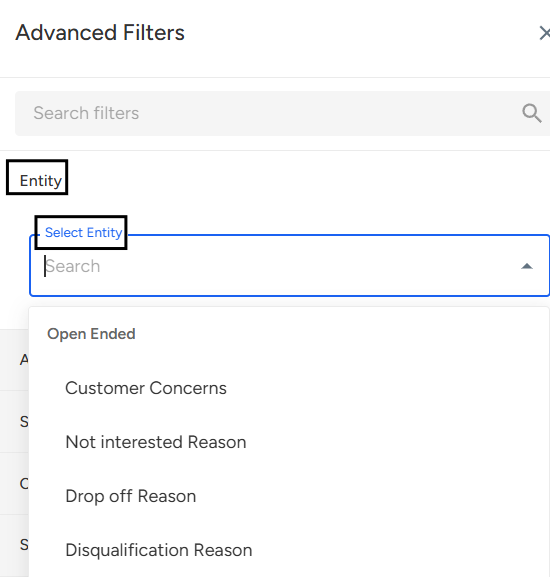
- Locate and Select Entity Filter, and choose the desired entity from the dropdown.
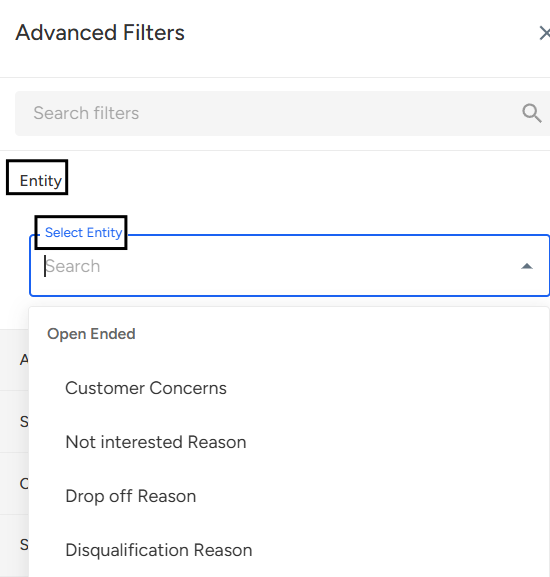
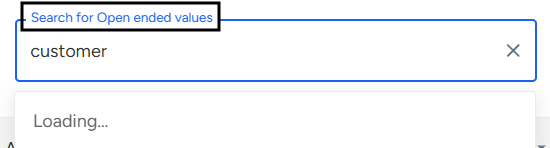
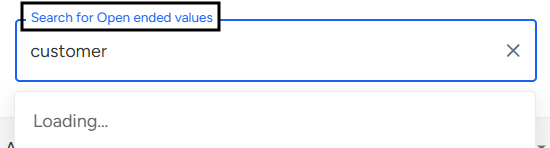
- After selecting an Entity Type, Search and Select Open-Ended Values.
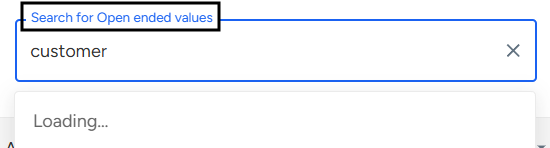
- Click Apply Filters to refresh your dashboard and view insights based on selected entity and values.
Steps on how to Use Entity Filter on AI Insights:
- Navigate to Custom Insights Module:

- Select AI Insights.

You will see three sections or tabs — Customer Intelligence, AI Insights, and Custom Tracking. Select AI Insights. - Locate to Advanced Filters.

- Locate and Select Entity Filter, and choose the desired entity from the dropdown.
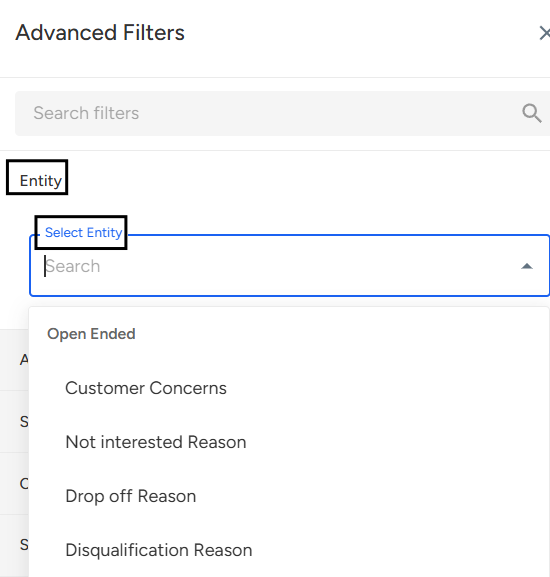
- After selecting an Entity Type, Search and Select Open-Ended Values.
- Click Apply Filters to refresh your dashboard and view insights based on selected entity and values.
Steps on how to Use Entity Filter on Custom Tracking:
- Navigate to Custom Insights Module:

- Select Custom Tracking.

You will see three sections or tabs — Customer Intelligence, AI Insights, and Custom Tracking. Select Custom Tracking. - Locate to Advanced Filters.

- Locate and Select Entity Filter, and choose the desired entity from the dropdown.
- After selecting an Entity Type, Search and Select Open-Ended Values.
- Click Apply Filters to refresh your dashboard and view insights based on selected entity and values.
📩 Still need help? Contact our support team at [email protected]—we’re happy to assist!
Good day!