
Navigation
To access the Live Assist – Battle Cards section within the platform:
Go to the Settings panel from the left-hand sidebar.
Under the Agent Assist tab, select Live Assist – Battle Cards.
Once you enter this section, you’ll find the Battle Cards management interface, where you can view, create, and manage predefined responses or guidance cards designed to assist agents during live interactions.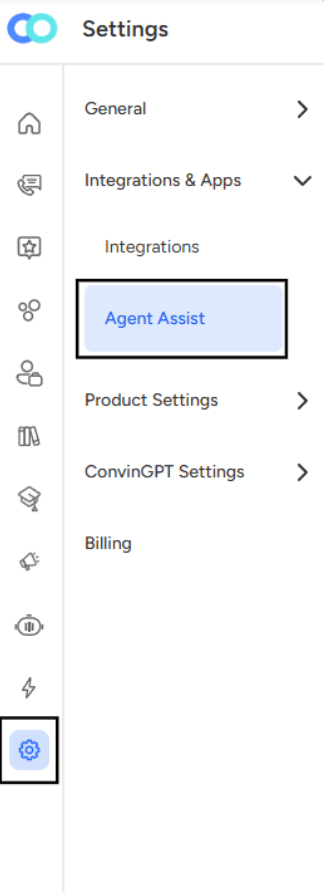
Step 1: Create
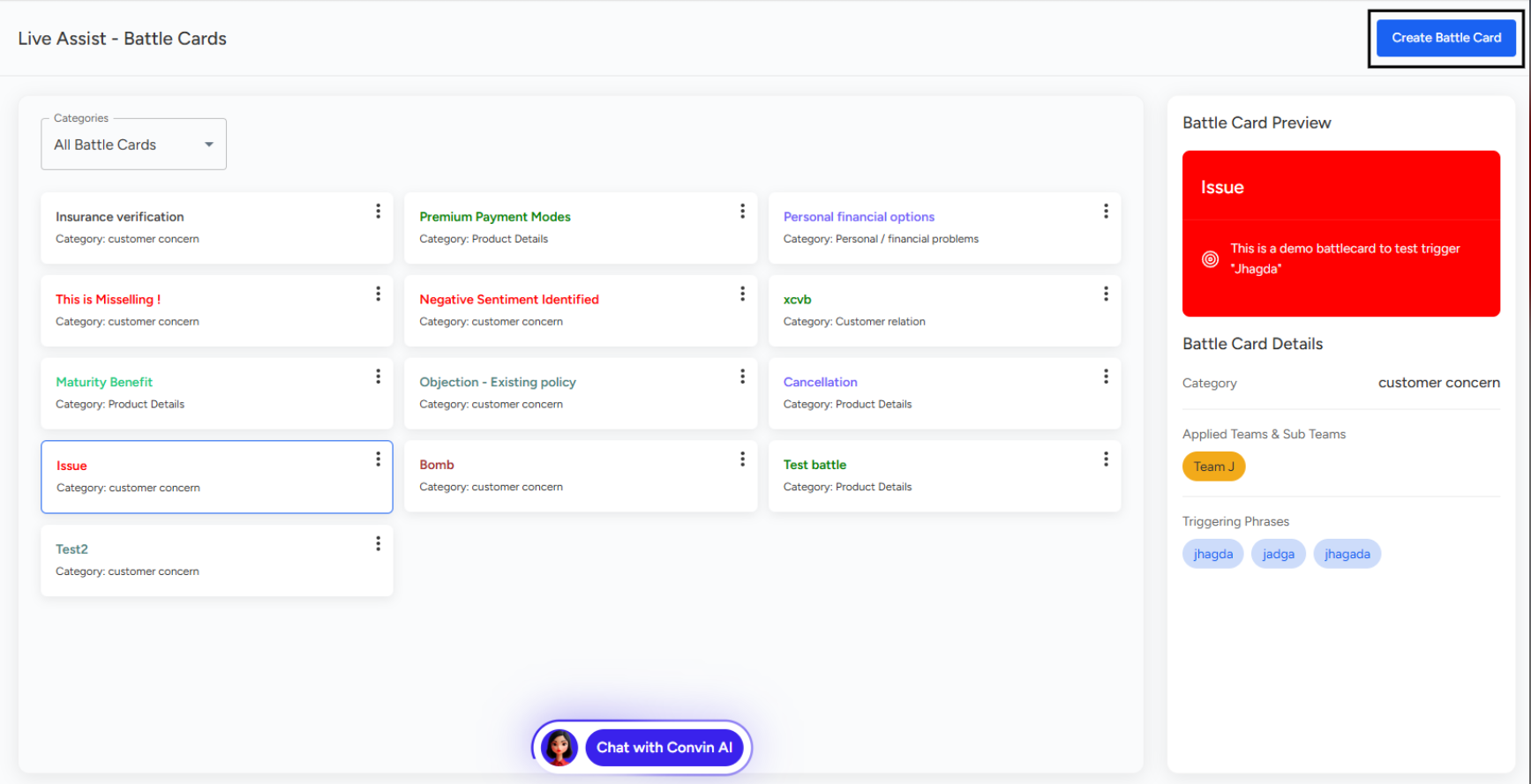
Click on the Create Battle Card button on the top right corner of the Live Assist – Battle Cards page.
In the Create tab, fill in the following details:
Battle Card Name: Enter a suitable name for your battle card.
Choose Category: Select a relevant category from the dropdown (for example, Customer Concern, Product Details, etc.).
Choose Card Color: Pick a color to visually identify your battle card.
Teams and Sub-Teams: Search and assign the teams or sub-teams to which this battle card should be applied.
- Once all details are filled, click Next to proceed.
Step 2: Set Trigger
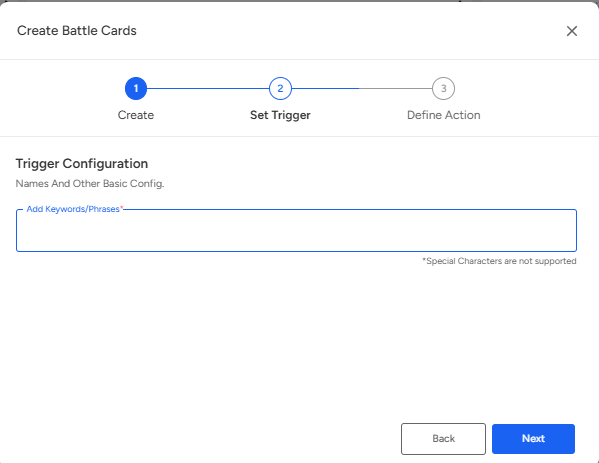
In this step, you will configure the Trigger Keywords or Phrases that will automatically activate the battle card during a live interaction.
Step 3 : Define Action
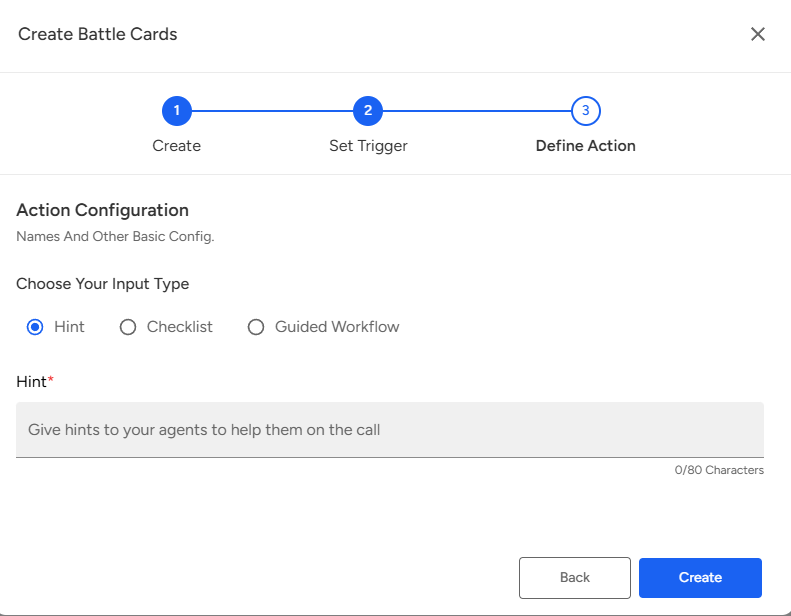
Define Action The final step is to define what action or information the battle card will display when triggered.
Choose the Input Type for the battle card:
Hint: Provides short helpful messages or suggestions to agents.
Checklist: Displays a list of items for the agent to verify or complete.
Guided Workflow: Offers a step-by-step guide for the agent to follow.
If you choose Hint, enter the desired message in the Hint field (up to 80 characters).
Once configured, click on the Create button to finalize and save the battle card.
📩 Still need help? Contact our support team at [email protected]—we’re happy to assist!
Good day!