
ScoreSense in Convin helps users categorize and analyze leads based on their level of interest or intent — such as Hot, Warm, or Cold.
This allows Managers, Team Leads, Admins, and Quality Analysts to quickly prioritize follow-ups, assess lead quality, and improve conversion effectiveness by focusing on leads with the highest engagement potential.
Steps on how to Use ScoreSense Filter on Customer Intelligence Page:
- Navigate to Convin Insight Page.

- Select Customer Intelligence.

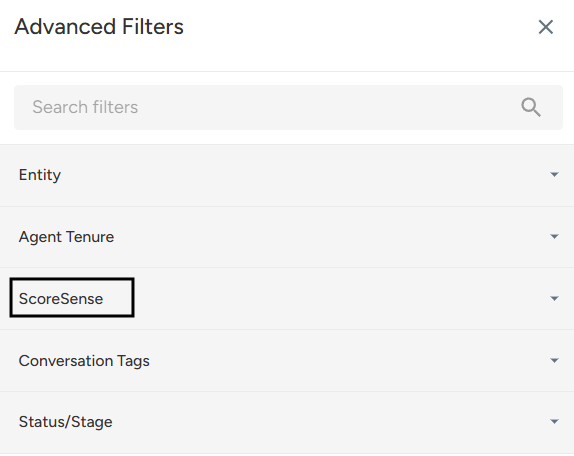
- Locate to Advanced Filters.

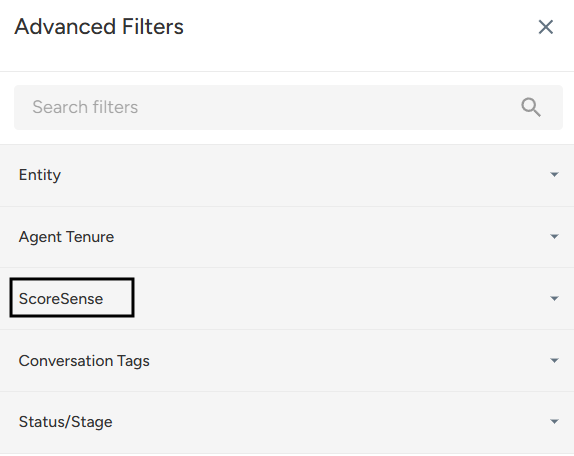
- Locate and select ScoreSense Filter.
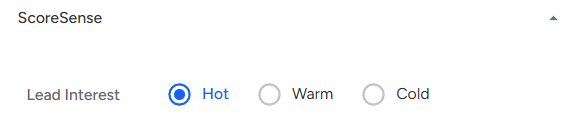
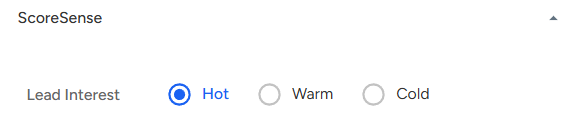
- Choose the desired interest level: Hot, Warm, or Cold.
- Click Apply Filter to view the filtered lead dataset.
Steps on how to Use ScoreSense Filter on AI Insights Page:
- Navigate to Convin Insight Page.

- Select AI Insights.

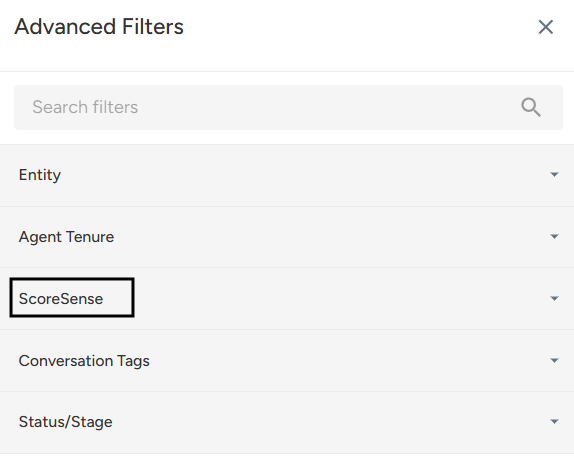
- Locate to Advanced Filters.

Locate and select ScoreSense Filter.
- Choose the desired interest level: Hot, Warm, or Cold.
Click Apply Filter to refine your AI-generated insights and reports.
Steps on how to Use ScoreSense Filter on Custom Tracking Page:
- Navigate to Convin Insight Page.

- Select Custom Tracking Page.

- Locate to Advanced Filters.

- Locate and select ScoreSense Filter.
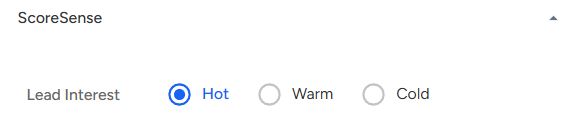
- Choose the desired interest level: Hot, Warm, or Cold.
Click Apply Filter to generate targeted tracking insights.
📩 Still need help? Contact our support team at [email protected] —we’re happy to assist!
Good day!