
Agent Assist – Live Assist Battle Cards
Updating Existing Battle Cards:
Live Assist Battle Cards in the Agent Assist module help agents access quick, contextual guidance during customer interactions. Once a battle card is created, you may need to update it due to changes in business processes, product information, trigger phrases, or assigned teams. Convin allows you to easily edit any existing battle card without recreating it.
This guide explains how to update an existing battle card, continuing from the same flow used during battle card creation.
Accessing the Battle Cards Section
Navigate to Agent Assist from the left-side menu.
Select Live Assist → Battle Cards.
You will see all previously created battle cards listed under different categories (Customer Concern, Product Details, Financial Issues, etc.).
Updating an Existing Battle Card
The process of updating a battle card follows the same structure as creating one. Instead of clicking Create Battle Card, you simply edit the card you want to modify.
Step 1: Select the Battle Card
Browse through the list of battle cards.
Locate the battle card you want to update.
Click on the three-dot menu (⋮) on the card.
Select Edit.
This opens the existing configuration of that Battle Card.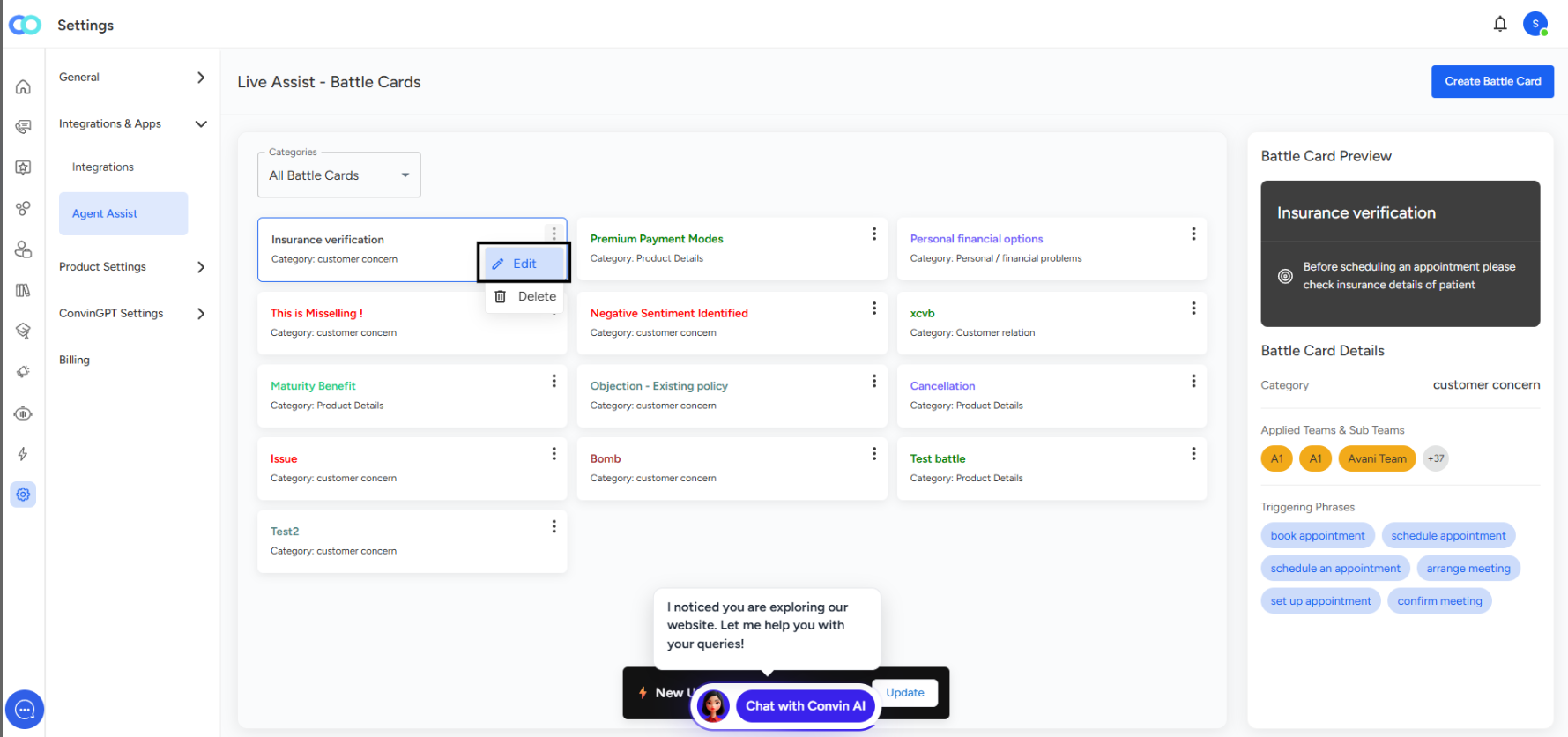
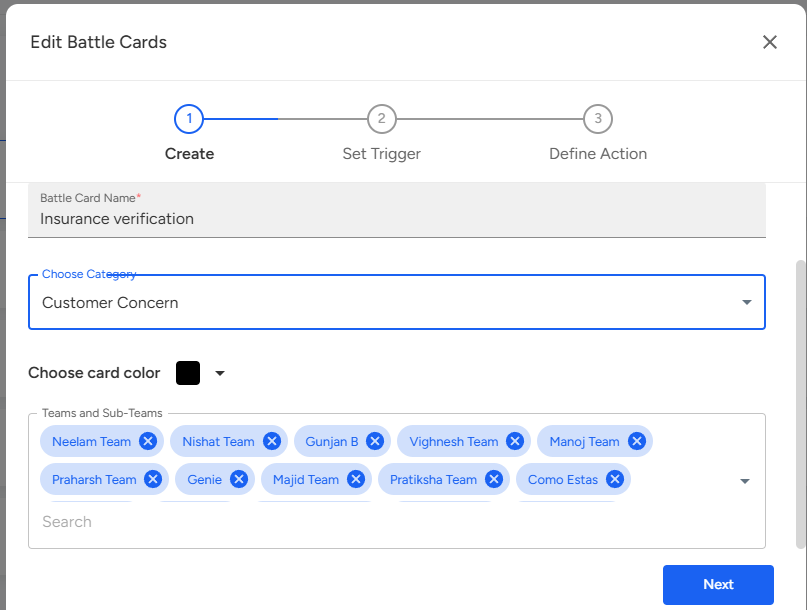
Step 2: Update Battle Card Details
You can now update any of the following fields:
1. Title
Modify the headline/title of the card to reflect the new process or terminology.
2. Category
Reassign the card to the correct category if the business classification has changed.
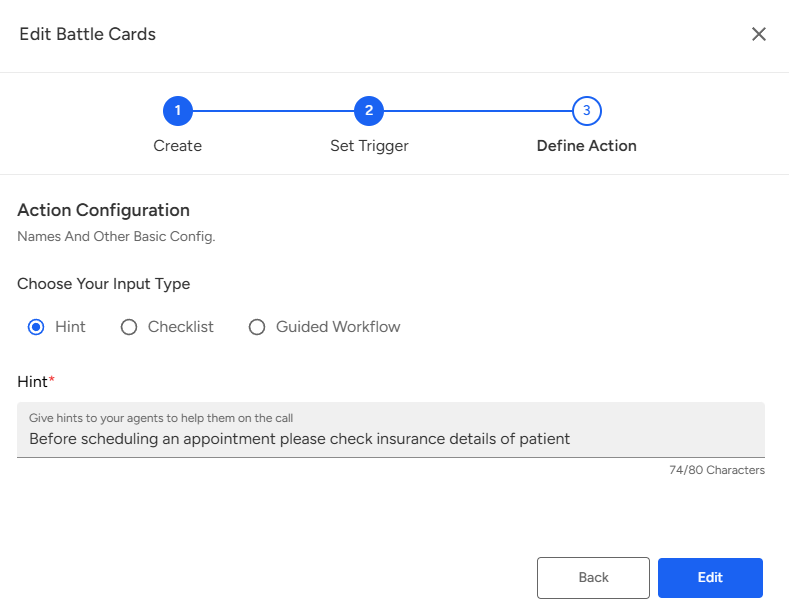
3. Battle Card Content
Update the instructions, guidelines, or scripted responses shown to agents.
This is displayed in the Battle Card Preview on the right side.
4. Applied Teams & Sub Teams
Add or remove the teams who should have access to this card.
Ensure only relevant departments see the card during calls.
5. Triggering Phrases
These determine when the battle card appears automatically in Live Assist.
You can:
Add new trigger keywords/phrases
Remove outdated phrases
Modify existing ones to improve accuracy
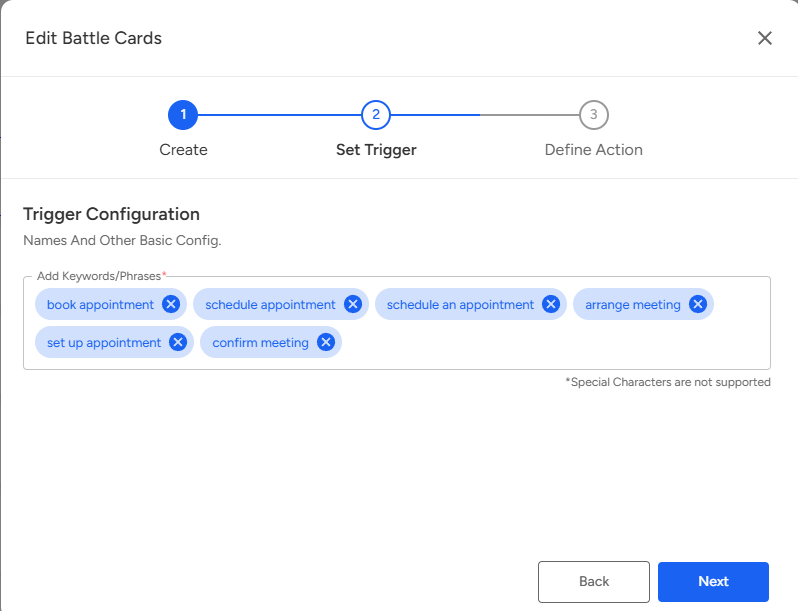
Step 3: Save the Changes
Once you have updated the required fields:
Click Edit to apply the changes.
The updated battle card will instantly reflect for all relevant agents and teams.
📩 Still need help? Contact our support team at [email protected] —we’re happy to assist!
Good day!