
Audit Manager – Overview
The Audit Manager under Product Settings is the central hub where all call audit templates are created, managed, and customized. This module allows Quality Analysts (QAs), team leads, and admins to define scoring structures, evaluation parameters, and compliance checkpoints used during call audits.
To access the Audit Manager:
Go to:
Settings → Product Settings → Audit Manager
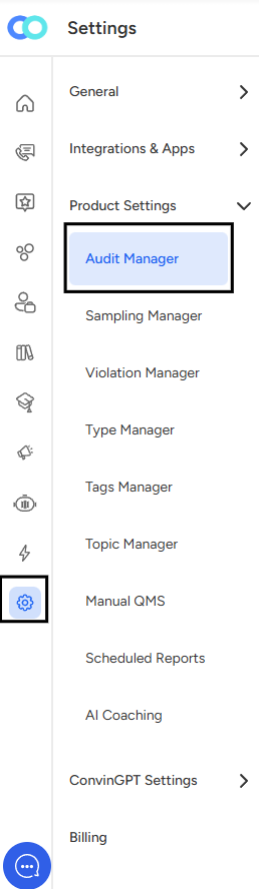
Once you open Audit Manager, you will see a complete list of all Audit Templates that have been created in the system.
Dashboard Overview
The Audit Manager dashboard provides an organized, easy-to-navigate view of every audit template. Each card in the list represents a single template along with key details such as:
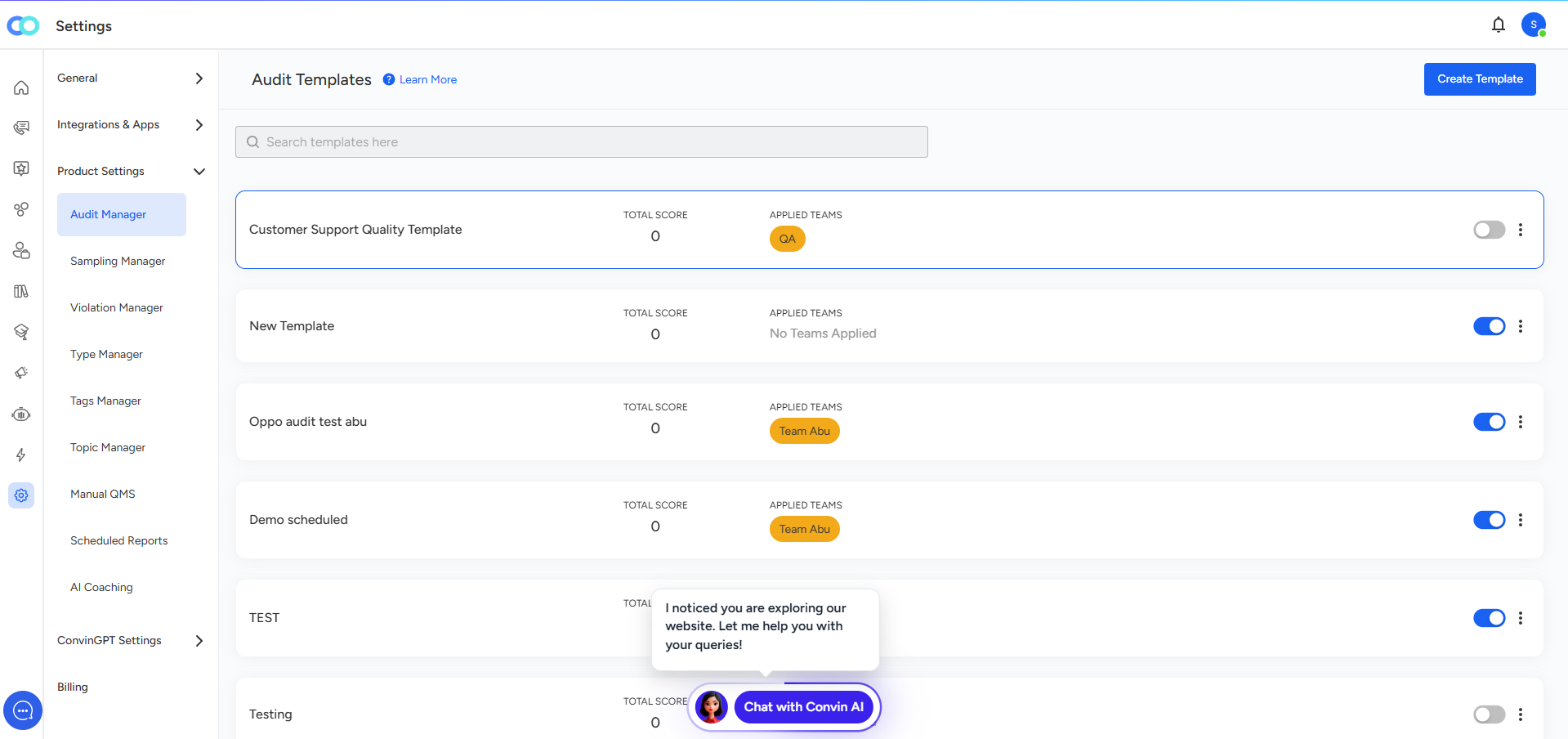
1. Template Name
This is the name assigned to the audit template—for example:
Customer Support Quality Template
New Template
Oppo Audit Test
Demo Scheduled
These names help QAs easily identify the purpose and scope of each template.
2. Total Score
Each audit template displays its Total Score, which is the maximum score an agent can achieve for that particular audit format.
If a template still needs scoring elements configured, the total score may appear as 0.
3. Applied Teams
This section shows which team(s) the audit template is assigned to.
For example:
QA
Team Abu
Assigning templates to specific teams ensures that agents are evaluated using relevant and consistent parameters.
4. Template Status (Toggle Button)
On the right side of each template, you’ll find an on/off toggle:
Blue Toggle (On): Template is active and available for use in auditing
Grey Toggle (Off): Template is inactive and temporarily hidden from use
This gives admins full control over when a template should be available.
5. Options Menu (⋮)
Each template has a three-dot menu where you can:
Edit the template
Clone it (if supported)
Accuracy Report
This helps in quick updates, clean-up, or reusing existing structures.
📩 Still need help? Contact our support team at [email protected] —we’re happy to assist!
Good day!