
AI Summary – Overview, Navigation & Functionality
The AI Summary feature helps teams automatically generate structured summaries for every call using AI. These summaries extract key insights, call outcomes, and relevant information without requiring manual effort from agents.
Below is a detailed explanation along with navigation steps to help you locate and configure AI Summary settings.
How to Navigate to AI Summary
Follow the steps below to access the AI Summary page: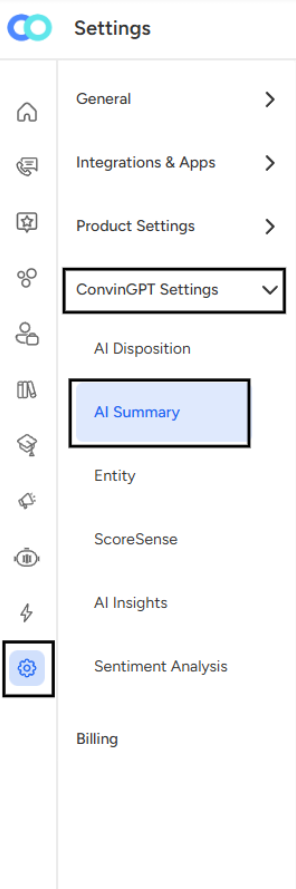
Go to Settings
Click the gear icon on the left sidebar.
Select "ConvinGPT Settings"
This section contains all AI-related automation and summary configurations.
Click on “AI Summary”
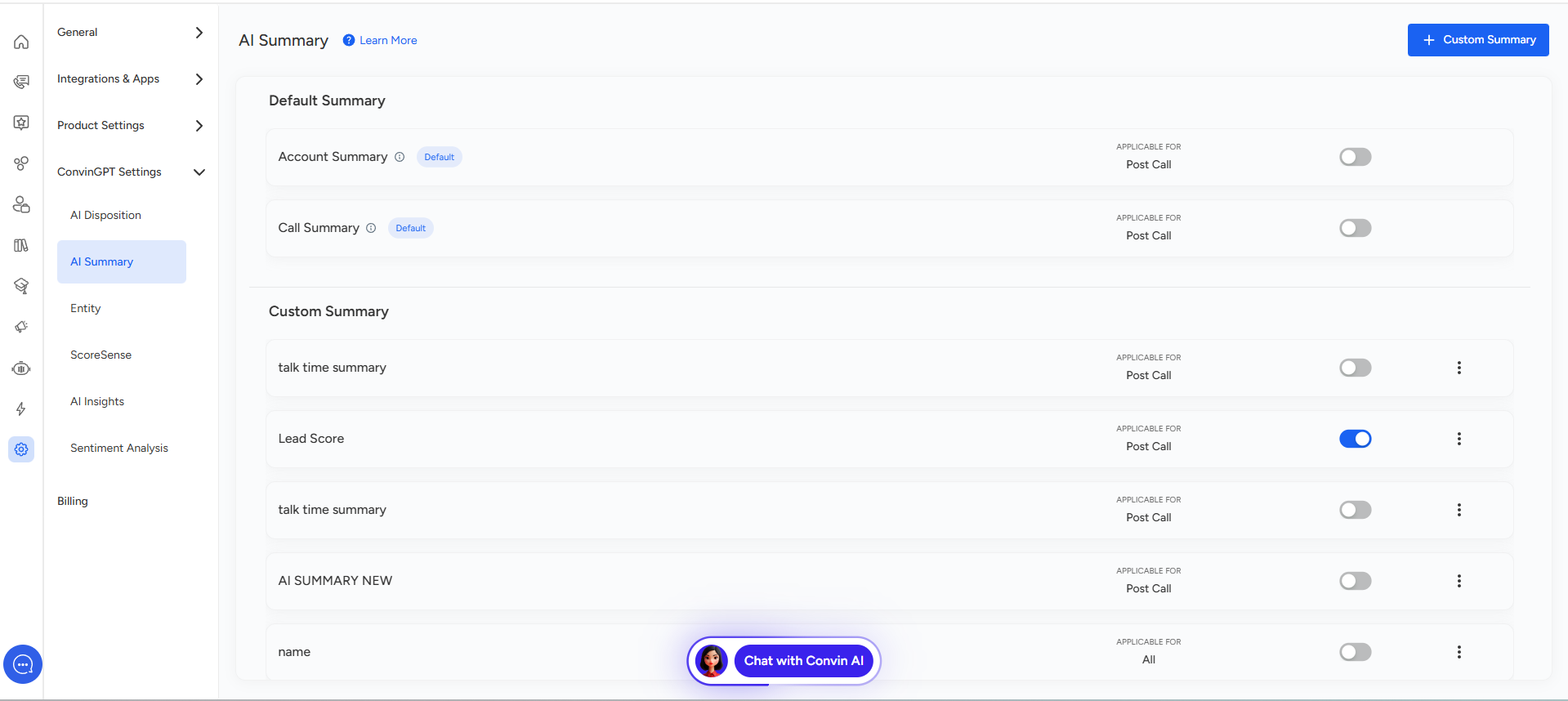
You will now see the AI Summary dashboard with Default and Custom Summaries.
Sections Inside AI Summary
The AI Summary screen has two main sections:
Default Summary
Custom Summary
1. Default Summary
These are pre-built, system-generated summaries that come with every account. You can enable or disable them depending on your workflow.
a. Account Summary
Provides an overall summary of the customer account-related details discussed in the call.
Ideal for high-level reporting.
Navigation:
Settings → ConvinGPT Settings → AI Summary → Default Summary → Account Summary
b. Call Summary
Offers a detailed call-level summary including queries, responses, and final outcomes.
Used commonly in support and sales teams.
Navigation:
Settings → ConvinGPT Settings → AI Summary → Default Summary → Call Summary
Both summaries include a toggle button allowing you to enable them for Post Call workflows.
2. Custom Summary
Custom summaries allow teams to create their own summary templates based on specific requirements like sales qualification, lead scoring, talk-time analysis, etc.
Examples from your configuration:
Talk Time Summary
Lead Score
AI Summary New
Name
Each custom summary contains:
Title (name of the summary)
Applicability (e.g., Post Call / All)
Toggle Switch (enable/disable)
Menu Option (3 dots) for editing or deleting the summary
Navigation:
Settings → ConvinGPT Settings → AI Summary → Custom Summary
Use Cases
Sales: Lead qualification summary
Support: Issue-specific summary
QA: Score or performance-based summary
Operations: Compliance-related insights
📩 Still need help? Contact our support team at [email protected] —we’re happy to assist!
Good day!