
Step-by-Step Navigation
1. Access Settings
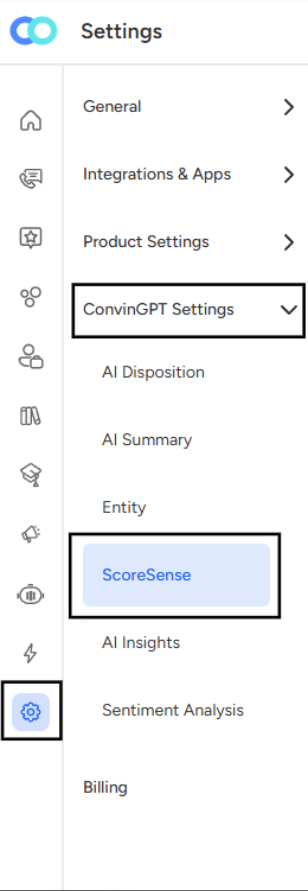
Click on the Settings option in your main navigation menu. This will open the settings panel.
2. Locate ConvinGPT Settings
In the left sidebar, find and click on "ConvinGPT Settings". This section may be expandable, indicated by a dropdown arrow.
3. Select ScoreSense
Once you've expanded the ConvinGPT Settings menu, you'll see several options listed beneath it, including:
- AI Disposition
- AI Summary
- Entity
- ScoreSense
- AI Insights
- Sentiment Analysis
Click on "ScoreSense" to access the ScoreSense configuration page.
The ScoreSense page displays three main analysis features: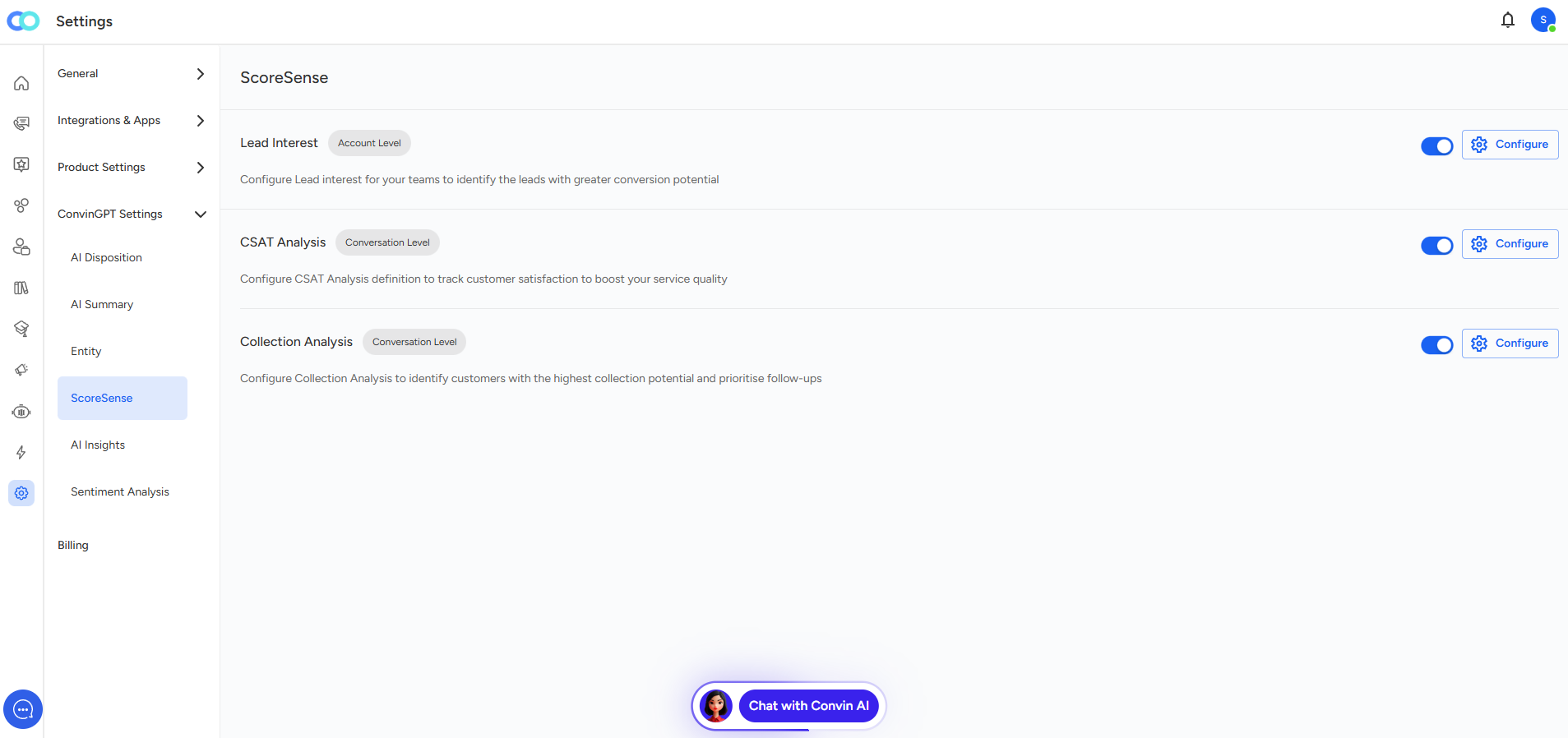
- Lead Interest (Account Level) - with a toggle switch and Configure button
- CSAT Analysis (Conversation Level) - with a toggle switch and Configure button
- Collection Analysis (Conversation Level) - with a toggle switch and Configure button
Each feature can be enabled or disabled using the toggle switch on the right side of the screen, and you can customize settings by clicking the "Configure" button next to each feature.
📩 Still need help? Contact our support team at [email protected] —we’re happy to assist!
Good day!