
Understanding AI Insights in ConvinGPT: How to Enable and Disable Insights
AI Insights play a crucial role in helping organizations analyse conversations, identify patterns, and drive actionable improvements. In ConvinGPT, the AI Insights module allows teams to define, customize, and manage insights that the AI should extract from customer interactions. Each insight can be toggled on or off depending on your workflow and business requirements.
This guide provides an overview of the AI Insights section and explains how to enable or disable specific insights from the settings panel.
Navigate to:
Settings → ConvinGPT Settings → AI Insights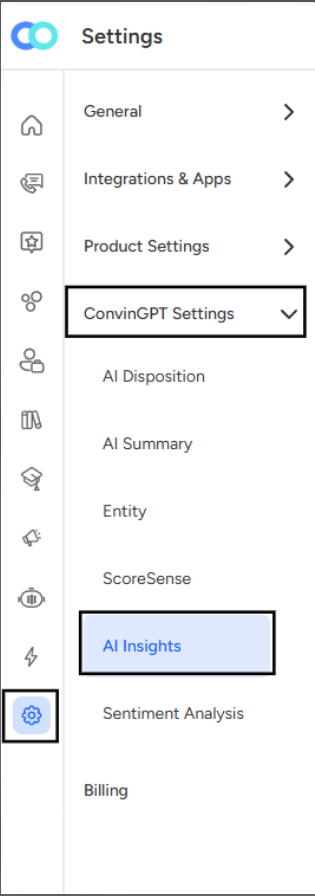
This section displays a list of predefined and custom insights created for your account. Each insight represents a specific analytical question or observation the system can generate for example:
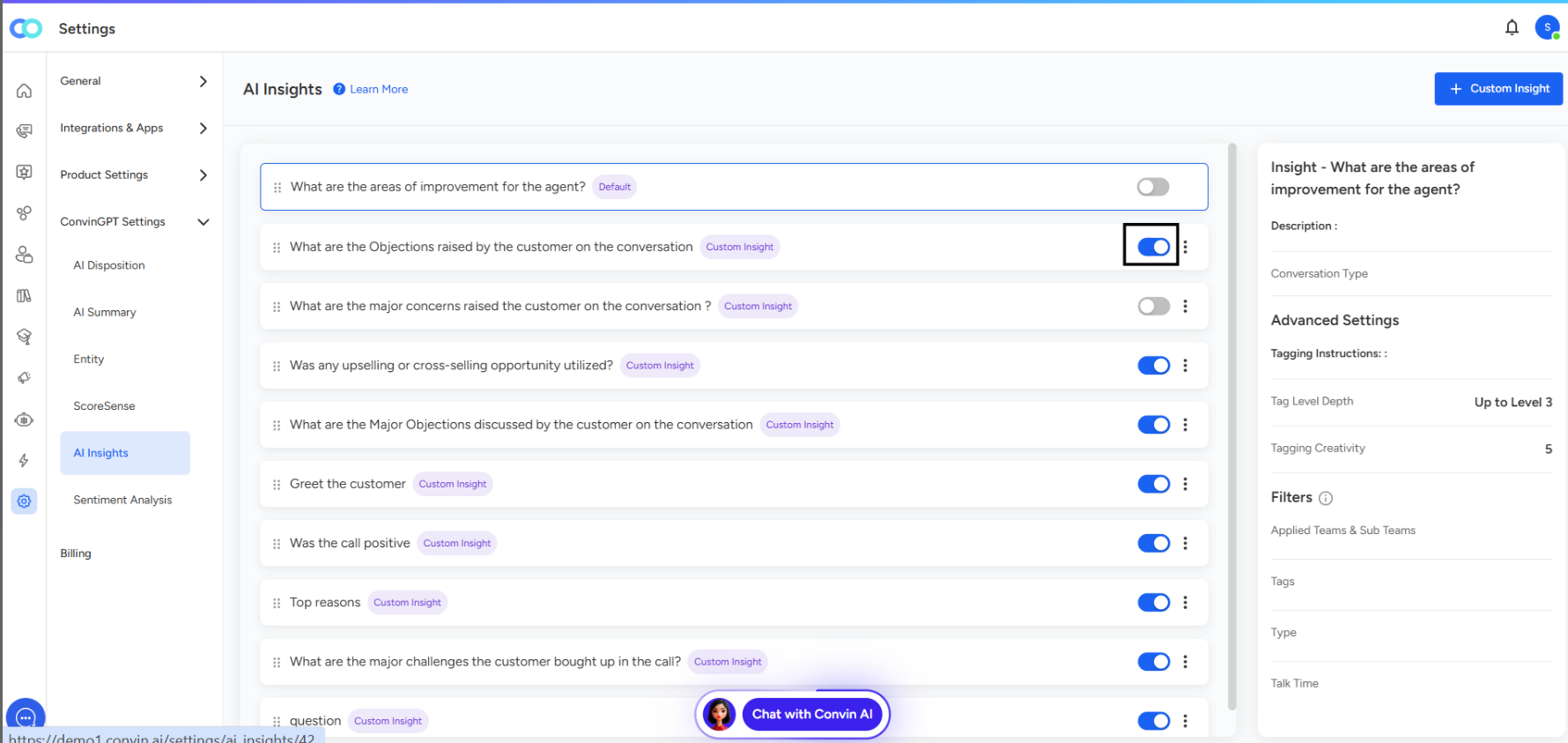
Each insight is labeled as either Default (system-created) or Custom Insight (user-created).
Enabling or Disabling Insights
Next to each insight, you’ll find a toggle button that controls whether the insight is active.
Enable Insight
Switching the toggle ON (highlighted in blue) activates the insight.
Once enabled, the AI will start identifying and displaying this insight across relevant calls and conversations.
Disable Insight
Switching the toggle OFF deactivates the insight.
A disabled insight won’t be analyzed or shown in your conversation results until re-enabled.
This feature gives complete flexibility to streamline your analysis based on what’s most relevant for your team.
📩 Still need help? Contact our support team at [email protected] —we’re happy to assist!
Good day!