
Navigate to:
Settings → ConvinGPT Settings → AI Insights 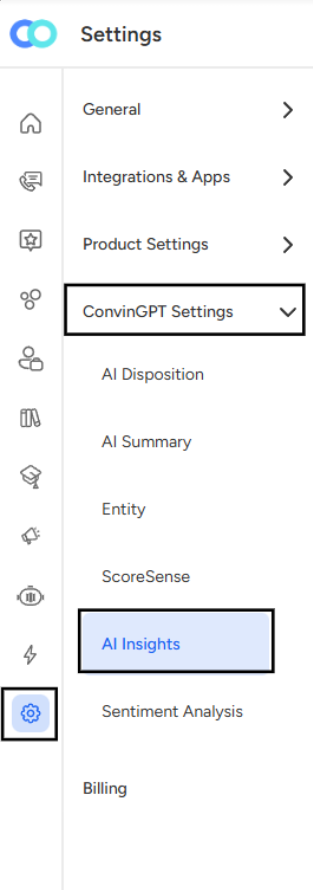
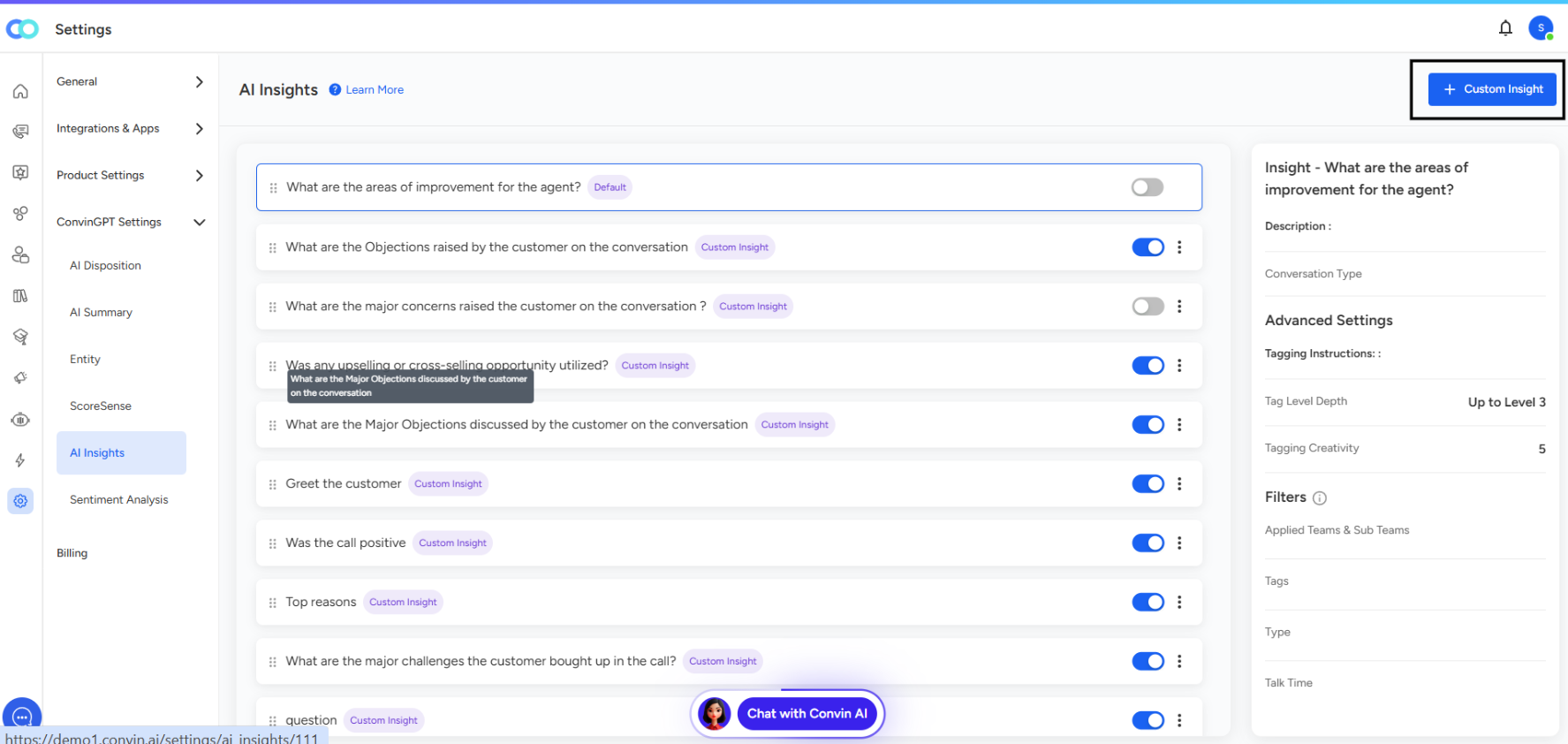
Kindly click on the “+ Custom Insight” option to create a new insight.
The Three-Step Process
Step 1: Basic Info
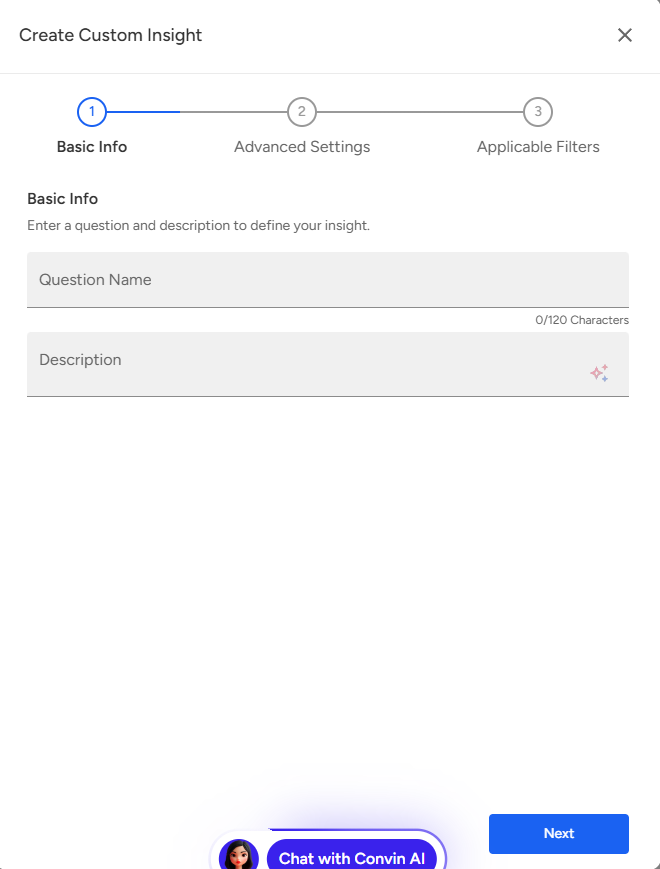
The first step involves defining your insight's foundation:
Question Name: Enter a clear, descriptive question that defines what you want to learn. Examples include:
- "What are the areas of improvement for the agent?"
- "What objections did the customer raise during the conversation?"
- "What are the major concerns the customer discussed?"
Description: Provide context about your insight. This optional field helps team members understand the purpose and scope of the question. The description is limited to 120 characters.
Step 2: Advanced Settings
Fine-tune how your insight generates responses:
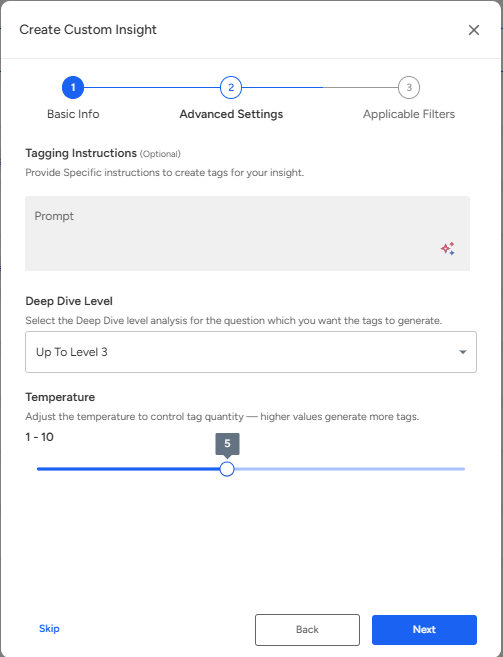
Tagging Instructions (Optional): Provide specific instructions to guide how tags are created for your insight. This helps ensure the AI extracts information in the format and focus you need.
Deep Dive Level: Select how thoroughly you want the AI to analyze conversations:
- Up to Level 3 provides detailed, multi-layered analysis
- Higher levels capture more nuanced information but may take longer to process
Temperature (1-10): Control the creativity and quantity of generated tags:
- Lower values (1-3): More focused, consistent tags with less variation
- Higher values (7-10): More diverse tags, capturing broader patterns
- Default setting of 5 balances precision and variety
Step 3: Applicable Filters
Define which conversations should be analyzed:
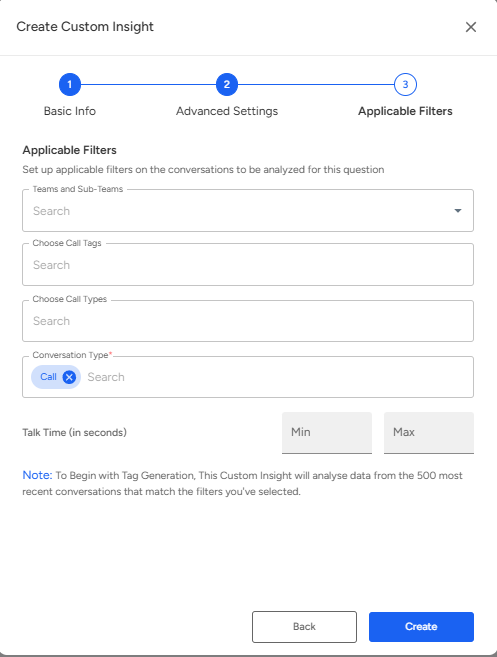
Teams and Sub-Teams: Select specific teams whose conversations should be included in the analysis.
Choose Call Tags: Filter by existing tags to narrow your analysis scope.
Choose Call Types: Specify particular call types to analyze.
Conversation Type: Select the channel for analysis (calls, chats, emails, etc.). By default, "Call" is selected.
Talk Time: Set minimum and maximum conversation duration in seconds to focus on conversations of specific lengths.
Important Note: The system analyzes data from the 500 most recent conversations that match your selected filters, ensuring insights remain current and relevant.
Managing Custom Insights
Once created, your custom insights appear in the AI Insights dashboard where you can:
- Toggle insights on/off: Use the switch next to each insight to activate or deactivate analysis
- View insight details: Click on any insight to see its configuration, description, and results
- Edit insights: Modify questions, settings, or filters as your analysis needs evolve
- Monitor results: Review generated tags and patterns identified across conversations
Insights marked as "Custom Insight" are distinguished from default system insights, making it easy to identify your custom analyses.
📩 Still need help? Contact our support team at [email protected] —we’re happy to assist!
Good day!