
Navigating to AI Conversations
Step 1:
- Click on Conversation icon
Step 2:
At the top of the page, you'll see two tabs:
- Agent Conversations: Shows conversations organized by agent
- AI Conversations: Shows AI-analyzed conversations with advanced filtering

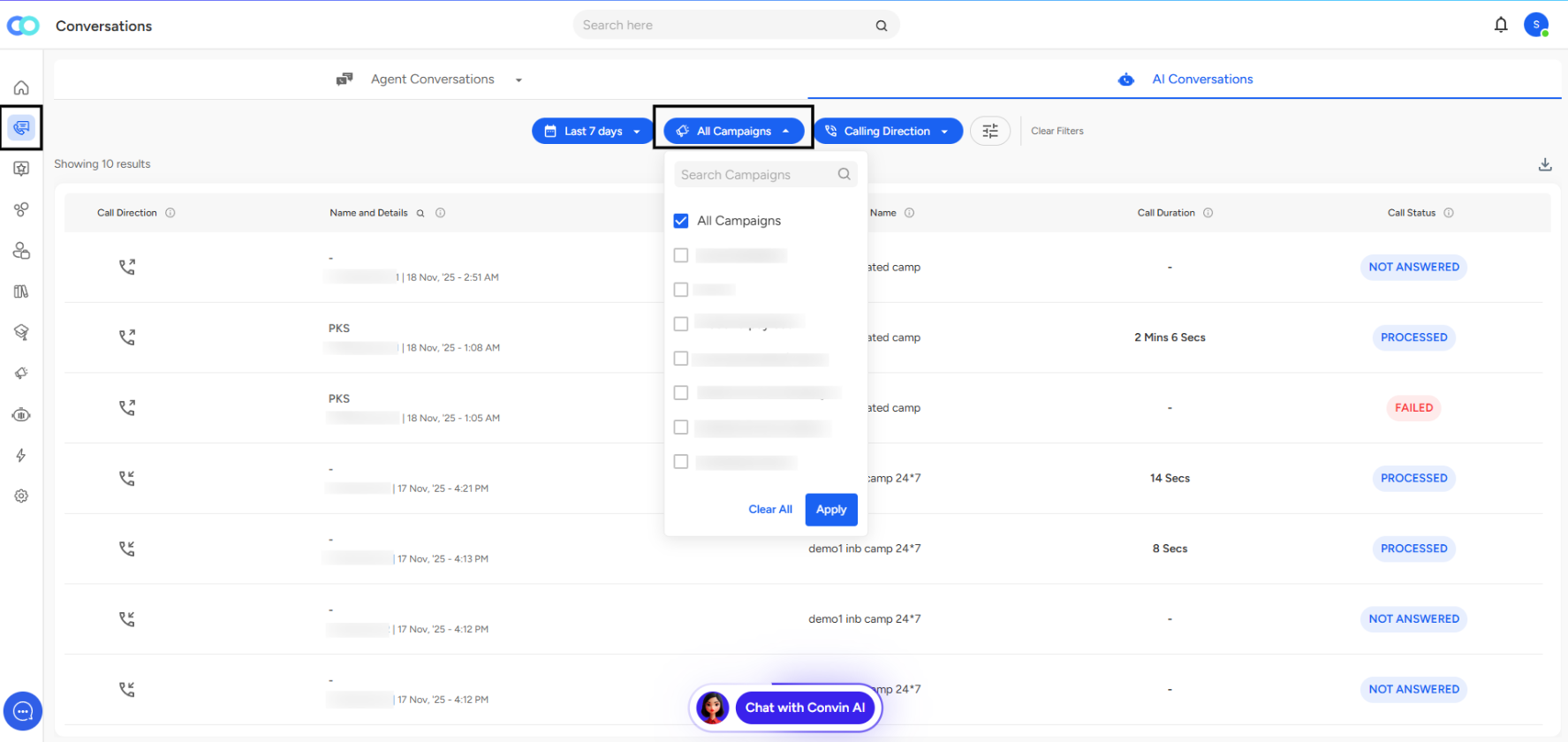
Click on the AI Conversations tab to access the campaign filtering feature.
Understanding the Filter Bar
The AI Conversations view includes a comprehensive filter bar with three main filter options:
- Time Period (Last 7 days): Filter conversations by date range
- AI Campaigns: Filter by specific campaigns
- Calling Direction: Filter by inbound or outbound calls
- Additional Filters: Access more filtering options via the filter icon
Filtering Conversations by Campaign
Opening the Campaign Filter
Locate the AI Campaigns dropdown button in the filter bar (it has a sparkle icon next to it)
- Click on the dropdown to open the campaign selection menu
Campaign Selection Interface
When you click the AI Campaigns filter, a dropdown menu appears with:
Search Functionality: A search bar at the top labeled "Search Campaigns" allows you to quickly find specific campaigns by name
All Campaigns Option: The first checkbox option is "All Campaigns" (checked by default), which shows conversations from all campaigns
Individual Campaign List: Below "All Campaigns," you'll see a list of all available campaigns with individual checkboxes
Selecting Campaigns
You have two ways to filter by campaign:
Option 1: View All Campaigns
- Keep the "All Campaigns" checkbox selected to view conversations across all campaigns
- This is the default view when you first access AI Conversations
Option 2: Select Specific Campaigns
- Uncheck "All Campaigns" to enable individual campaign selection
- Check the boxes next to the specific campaigns you want to analyze
- You can select multiple campaigns simultaneously to compare their performance
Applying Campaign Filters
Once you've made your campaign selections:
- Click the Apply button at the bottom right of the dropdown menu
- The conversation list will refresh to show only conversations from your selected campaigns
- The filter button will update to reflect your selection (e.g., showing the campaign name if you selected a single campaign)
Clearing Campaign Filters
To reset your campaign selection:
- Click Clear All at the bottom left of the dropdown menu
- This will deselect all individual campaigns and return to the "All Campaigns" view
Understanding the Conversation List
After applying campaign filters, the conversation list displays key information for each conversation:
Call Direction: Icon indicating whether the call was inbound or outbound
Name and Details: Contact information and conversation participants, along with the timestamp (e.g., "18 Nov, '25 - 2:51 AM")
Campaign Name: Shows which campaign the conversation belongs to (e.g., "automated camp," "demo1 inb camp 24*7")
Call Duration: Length of the conversation (e.g., "2 Mins 6 Secs," "14 Secs," or "-" for unanswered calls)
Call Status: Current processing status with color-coded labels:
- PROCESSED (blue): Successfully analyzed
- NOT ANSWERED (blue): Call was not picked up
- FAILED (red): Processing encountered an error
Campaign Filter Use Cases
Filtering conversations by campaign enables several valuable workflows:
Campaign Performance Analysis: Compare conversation outcomes, duration, and success rates across different campaigns to identify top performers
Quality Assurance: Review conversations from specific campaigns to ensure messaging consistency and agent adherence to campaign scripts
Issue Investigation: When a campaign shows unexpected results, filter to isolate and examine those specific conversations
Training and Coaching: Pull conversations from particular campaigns to create training materials or coaching sessions focused on specific scenarios
Reporting and Analytics: Generate campaign-specific reports by filtering conversations and exporting the relevant data
A/B Testing Review: When running multiple campaign variants, filter by each version to compare performance and conversation quality
Combining Filters for Advanced Analysis
The campaign filter works in conjunction with other available filters for more granular analysis:
Time Period + Campaign: View a specific campaign's performance over the last 7 days, 30 days, or custom date ranges
Calling Direction + Campaign: Analyze only inbound or outbound conversations for a particular campaign
Multiple Filters: Use the additional filters icon to combine campaign selection with call status, duration, or other criteria
📩 Still need help? Contact our support team at [email protected] —we’re happy to assist!
Good day!