
Navigating to AI Conversations
Step 1:
- Click on Conversation icon
Step 2:
At the top of the page, you'll see two tabs:
- Agent Conversations: Shows conversations organized by agent
- AI Conversations: Shows AI-analyzed conversations with advanced filtering

Accessing the Calling Direction Filter
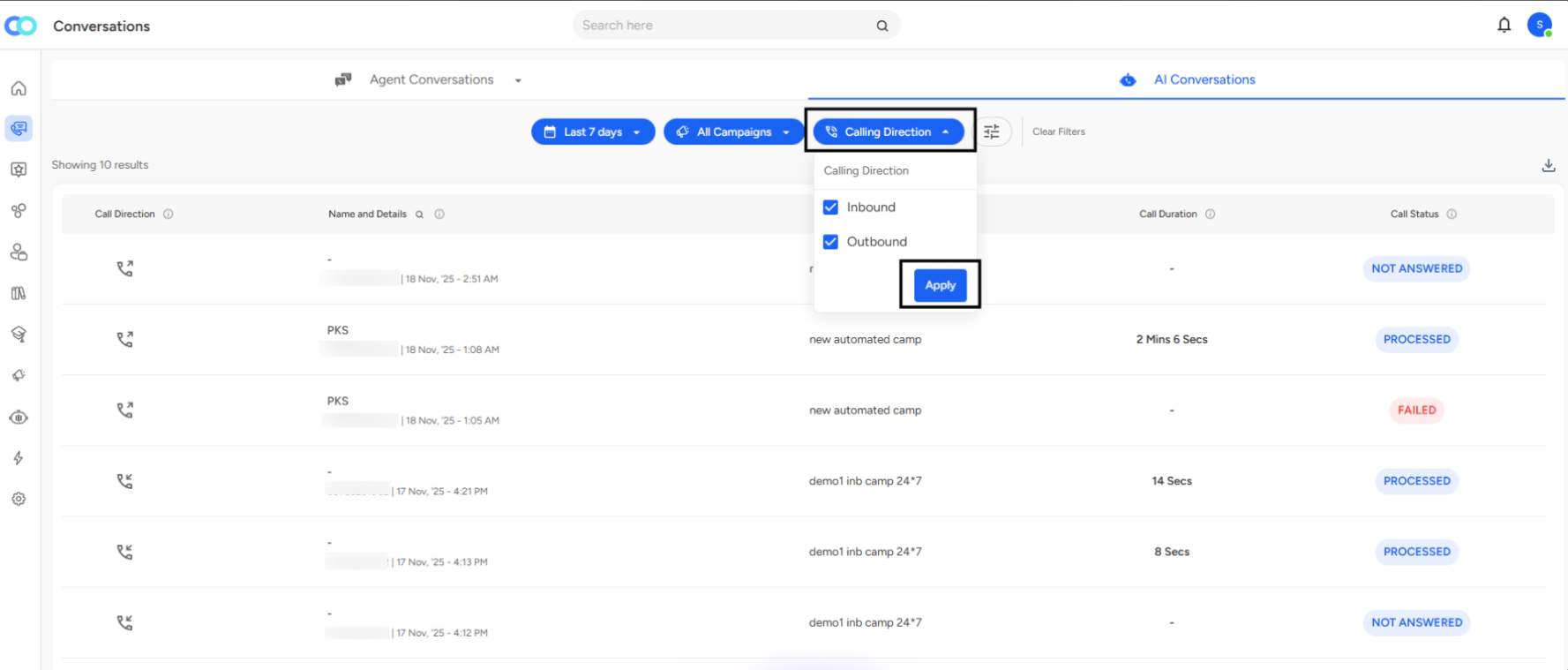
Location in the Interface
The Calling Direction filter is located in the filter bar at the top of the AI Conversations page, positioned as the third filter option from the left:
- Last 7 days (time period filter)
- All Campaigns (campaign filter)
- Calling Direction (direction filter)
Opening the Filter
- Navigate to the Conversations module from the left sidebar
- Click on the AI Conversations tab
- Locate the Calling Direction dropdown button in the filter bar
- Click the button to open the calling direction selection menu
Using the Calling Direction Filter
Filter Options
The Calling Direction dropdown presents two checkbox options:
Inbound: Select this to view only calls where customers or prospects initiated contact with your organization
Outbound: Select this to view only calls where your team reached out to customers or prospects
Both Selected (Default): By default, both checkboxes are selected, showing all conversations regardless of direction
Selecting a Direction
You have three filtering scenarios:
View All Conversations
- Keep both "Inbound" and "Outbound" checkboxes selected
- This displays the complete conversation list without direction-based filtering
- Useful for overall performance monitoring
View Inbound Only
- Check only the "Inbound" checkbox
- Uncheck the "Outbound" checkbox
- Click Apply to filter the conversation list to show only incoming calls
View Outbound Only
- Check only the "Outbound" checkbox
- Uncheck the "Inbound" checkbox
- Click Apply to filter the conversation list to show only outgoing calls
Applying the Filter
After making your selection:
- Click the Apply button at the bottom of the dropdown menu
- The conversation list will refresh immediately to show only conversations matching your selected direction(s)
- The "Calling Direction" button will update to reflect your active filter
📩 Still need help? Contact our support team at [email protected] —we’re happy to assist!
Good day!