
The Learning Management System (LMS) functions as a comprehensive knowledge repository, enabling the creation and storage of various training resources. These resources can be effectively assigned to contact center agents during coaching and assessment sessions to enhance their learning experience and performance.
Convin supports a wide range of document formats, including audio, video, documents, and snippets extracted from existing meetings, ensuring flexibility and accessibility in delivering training materials.
To add a document to the knowledge base, follow the below-mentioned steps:
- Go to the "LMS" module in the Convin platform.

- In the "Knowledge Base" tab, create a new folder or open an existing folder in which you want to add the document.
To create a new folder, click on the "Create Folder" button.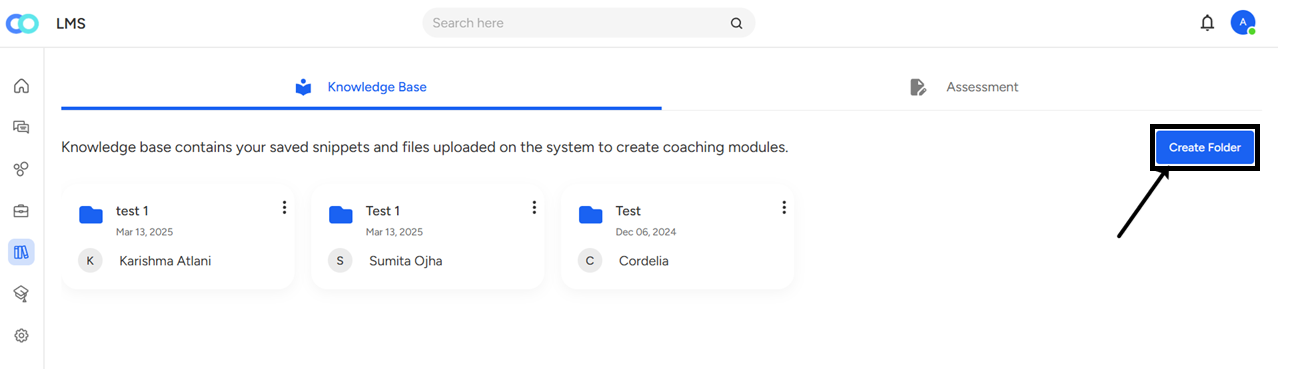
- Once you open a folder, you will see an intuitive list view of the knowledge base. In addition to the resources, columns indicating the upload date, uploader's name, and file types enhance navigation and accessibility.

- To generate a document within the platform, select "New Document."

- The following interface will be displayed.

- You can insert a video, image, or table using the insert option.

- Upon completing the document edits, download it to your system by clicking the Download icon.

- Publish your document by clicking the "Publish Document" button.

- To upload an existing file from your system, use the "Upload" button.

- Select the file to upload.

- After a successful load, click the "Upload" button.

You can now easily access and view all the documents within the designated folder.
Need Additional Assistance?
📩 Still need help? Contact our support team at [email protected] —we’re happy to assist!
Good day!