
Navigating to AI Conversations
From your main dashboard, locate the conversations icon in the left sidebar - it's the second icon from the top, featuring a chat bubble with AI symbols. Click this icon to open the Conversations section.
Once inside, you'll see two tabs at the top: Agent Conversations and AI Conversations. Select the AI Conversations tab to view all calls processed and analyzed by your AI system.
Understanding the Interface
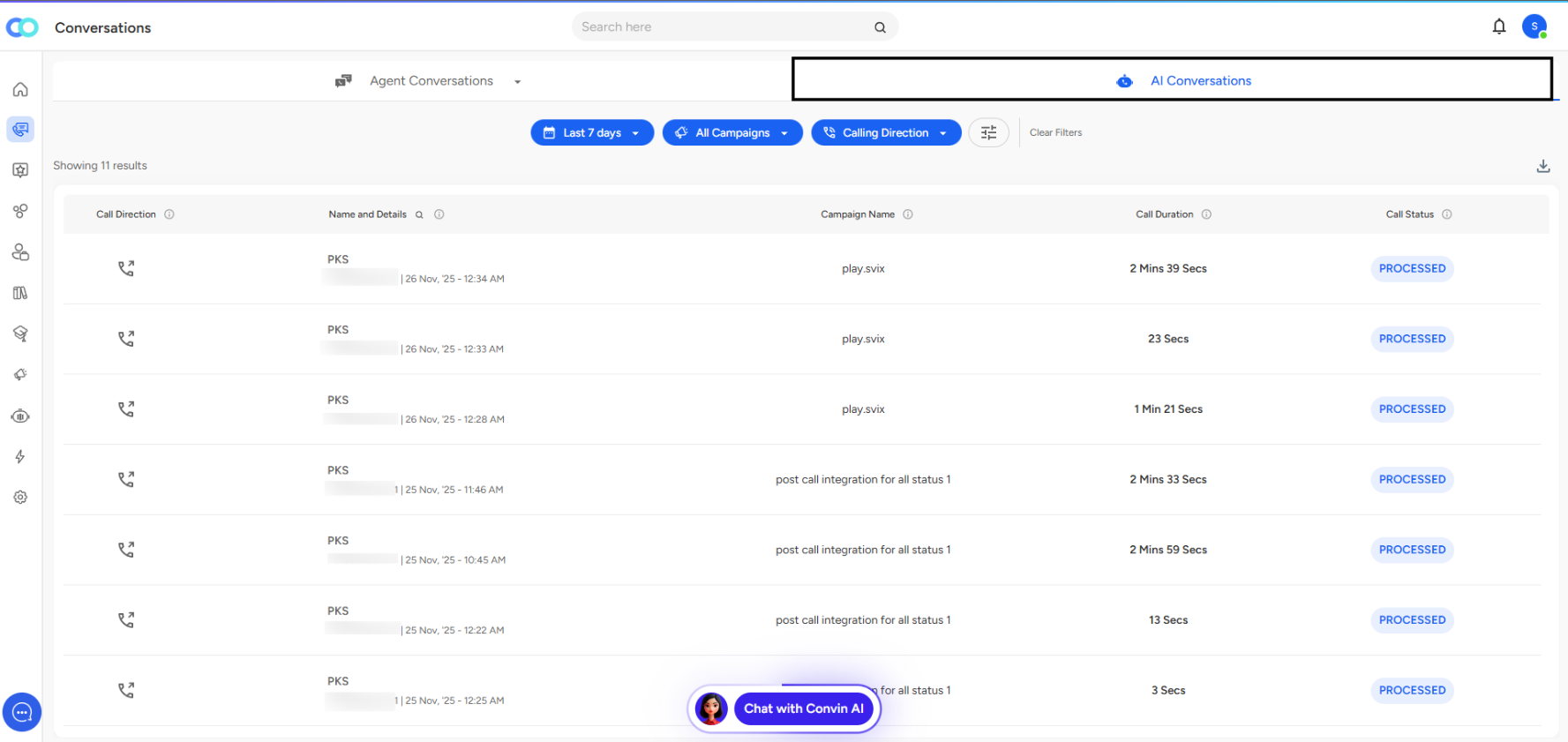
The AI Conversations page displays a comprehensive table with all your call data. Each row represents a single conversation, showing:
- Call Direction: Icons indicate whether calls are inbound or outbound
- Name and Details: Contact identifier and phone number with timestamp
- Campaign Name: The campaign associated with each call
- Call Duration: Length of the conversation
- Call Status: Processing state (e.g., "PROCESSED")
At the top, you'll find "Showing X results" to indicate how many conversations match your current filters.
Using Filters to Find Conversations
Three quick filters help you narrow your search:
Time Range (e.g., "Last 7 days") lets you focus on recent or specific time periods.
Campaign Filter ("All Campaigns") allows you to view calls from particular marketing or outreach initiatives.
Calling Direction distinguishes between inbound and outbound calls.
For more detailed filtering, click the advanced filters icon to access options like Call Status, AI Agent, Campaign Method, and other parameters. Use "Clear Filters" to reset and view all conversations.
Accessing Individual Conversations
To review a specific call, simply click anywhere on the conversation row. This opens a detailed view with the full transcript, audio/video playback, AI insights, sentiment analysis, and more.
Search Functionality
Use the search bar at the top of the page to quickly locate conversations by contact name, phone number, or other identifiers.
📩 Still need help? Contact our support team at [email protected]—we’re happy to assist!
Good day!