
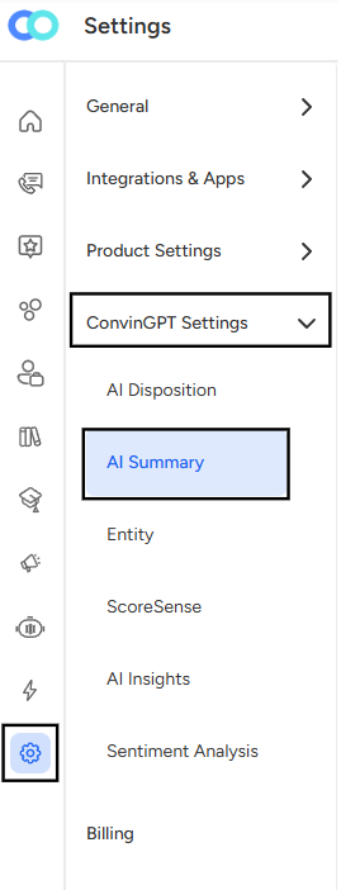
Navigation: Go to Settings → Product Settings → Convin GPT Settings → AI Summary.
Click on custom summary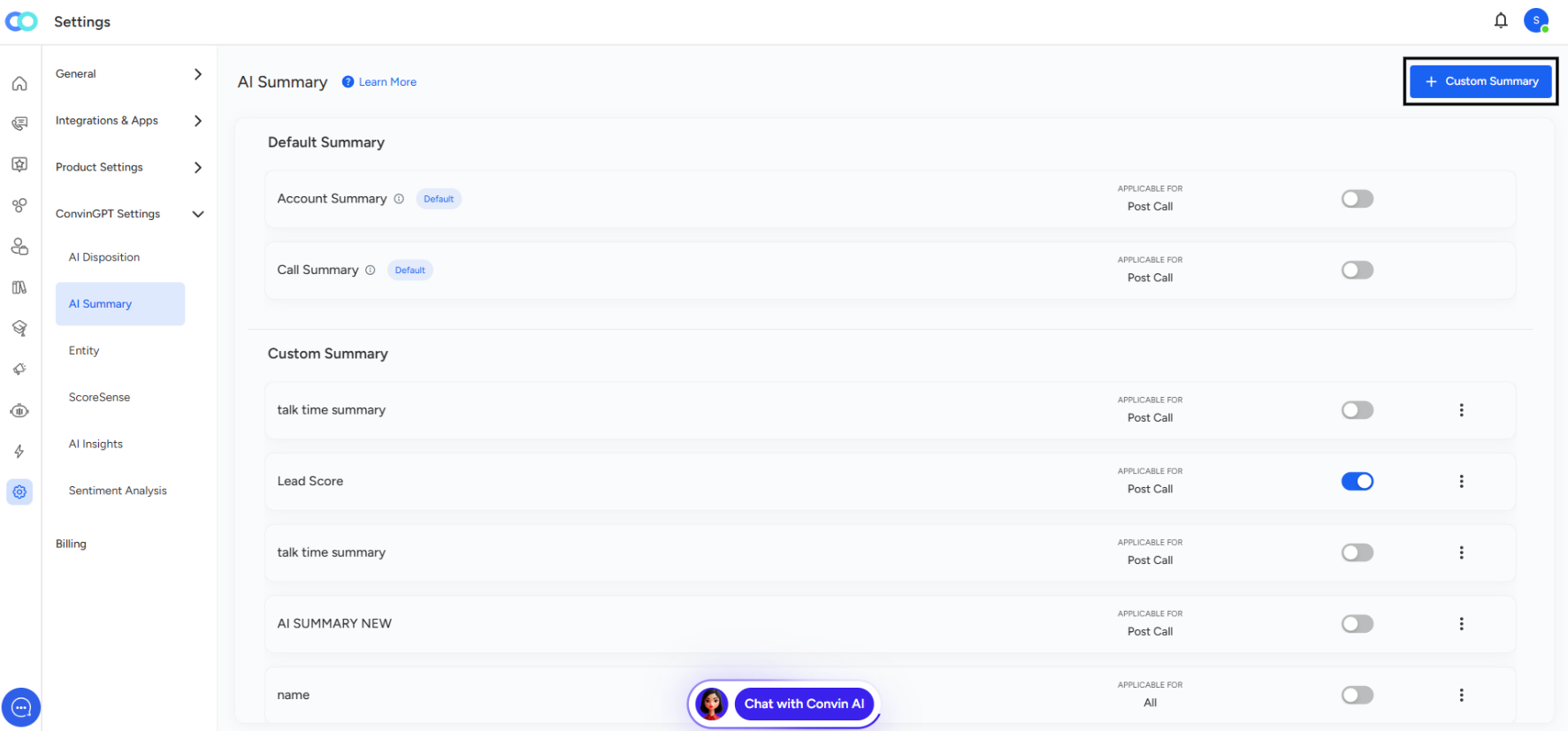
How to Create Custom AI Summaries
Custom AI summaries let you extract specific insights from conversations by defining exactly what information you want the AI to capture. Here's how to set them up.
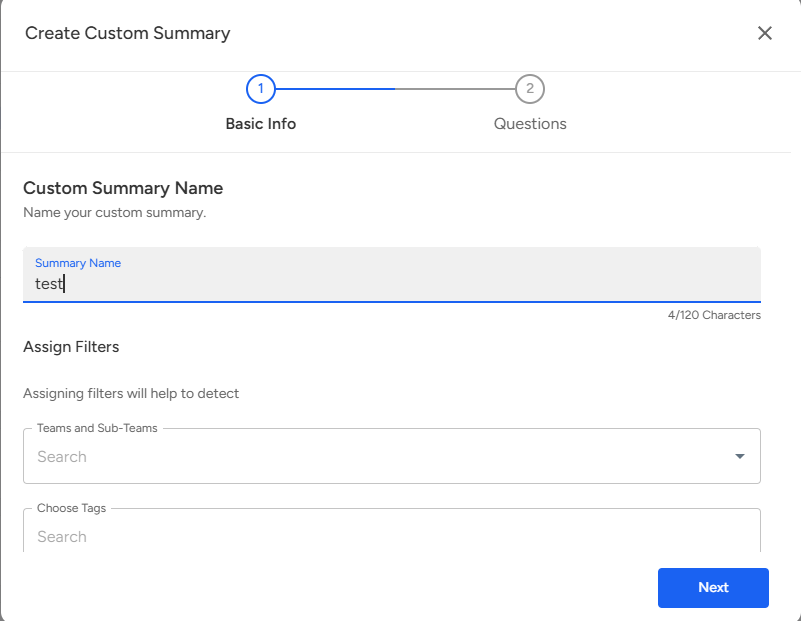
Step 1: Basic Information
Configure which conversations to analyze:
Choose Tags - Filter by specific conversation tags
Choose Types - Select particular interaction types
Conversation Type - Specify the channel (e.g., "Call")
Talk Time Range - Set minimum and maximum duration in seconds to focus on conversations of specific lengths
Applicability - Choose where to apply your summary:
- Post Conversations (completed calls)
- Live Conversations (real-time analysis)
- Both
Click "Next" to proceed.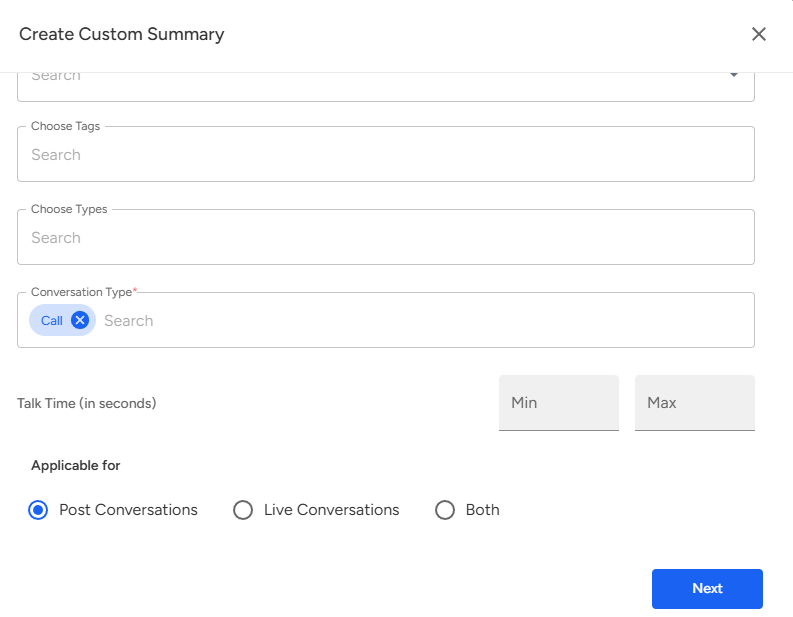
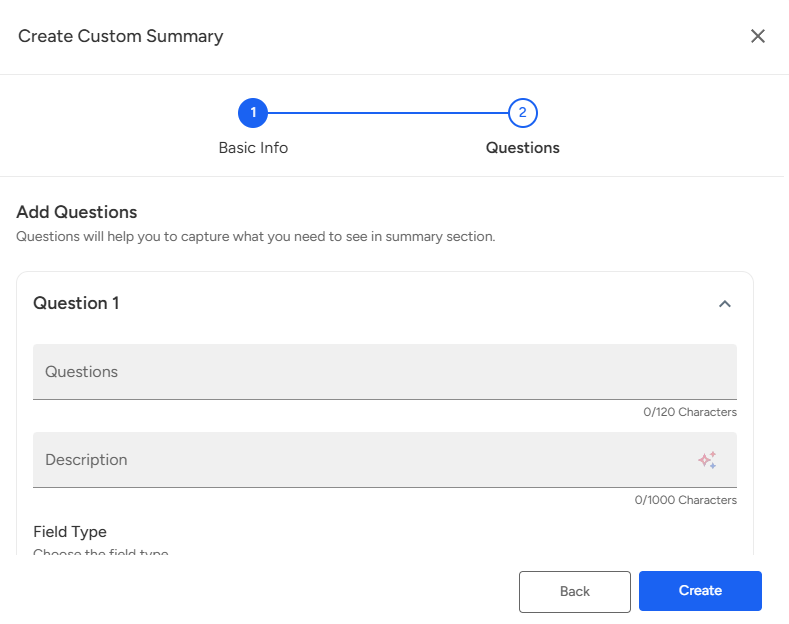
Step 2: Add Questions
Create questions that the AI will answer for each conversation.
Questions Field - Enter your question clearly (up to 120 characters). Examples:
- "Did the customer mention their budget?"
- "What objections were raised?"
- "Was a follow-up scheduled?"
Description Field - Add context or instructions for the AI (up to 1,000 characters)
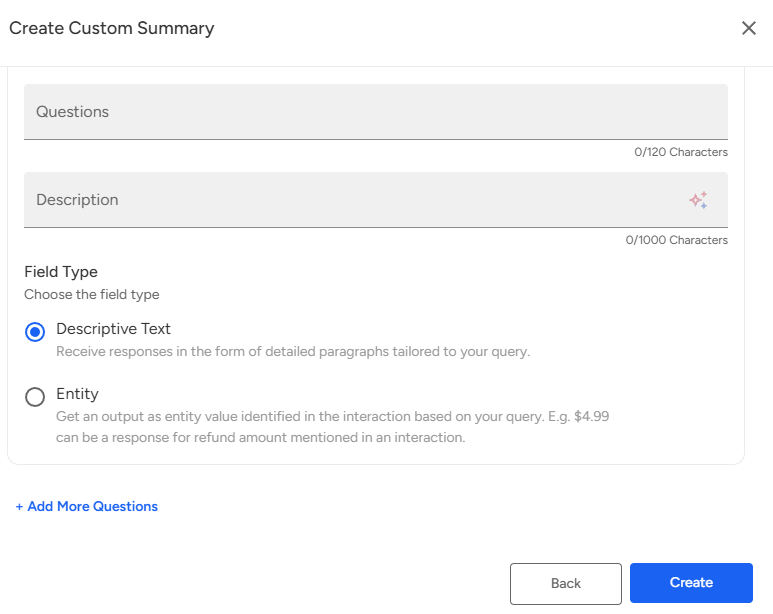
Field Type - Choose how the AI responds:
- Descriptive Text: Detailed paragraph responses for open-ended questions
- Entity: Extracts specific values like prices, dates, or names (e.g., "$4.99")
Click "+ Add More Questions" to include additional questions in your summary.
Finalize and Create
Review your configuration, then click "Create". Your custom summary will automatically analyze matching conversations, and the AI's answers will appear in each conversation's summary section.
Finalize and Create
Review your configuration, then click "Create". Your custom summary will automatically analyze matching conversations, and the AI's answers will appear in each conversation's summary section.
📩 Still need help? Contact our support team at [email protected]—we’re happy to assist!
Good day!