
Managers can now easily create custom Manual QMS fields tailored to the specific needs of their organization. With just a few simple steps, you can customize your auditing process for greater flexibility and efficiency.
The Manual QMS feature in Convin allows users to conduct audits directly within the platform eliminating the need to manage multiple Excel sheets.
Steps to Create Custom Manual QMS Fields:
- Navigate to the Settings page on your Convin Dashboard.

- Go to the Product Settings section.
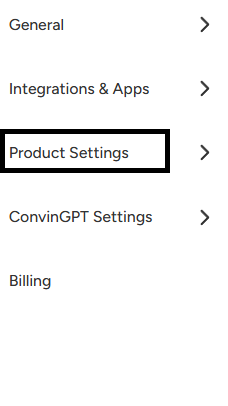
- Under Product Settings, navigate to the Manual QMS tab.
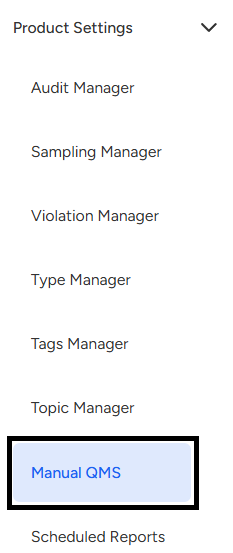
Click on the + Custom Field button to create a new field.

Managers can create three types of custom fields based on their audit requirements:
Text Field: Allows auditors to manually enter information, similar to typing a message. This is ideal for capturing specific details related to the use case of the custom field.
Multiple Options: Enables managers to set predefined choices for auditors to select from. You can add as many options as needed, and auditors simply choose the most relevant one.
Date & Time Picker: Provides a calendar view for auditors to quickly select the desired date and time, making it easy to log time-specific details accurately.
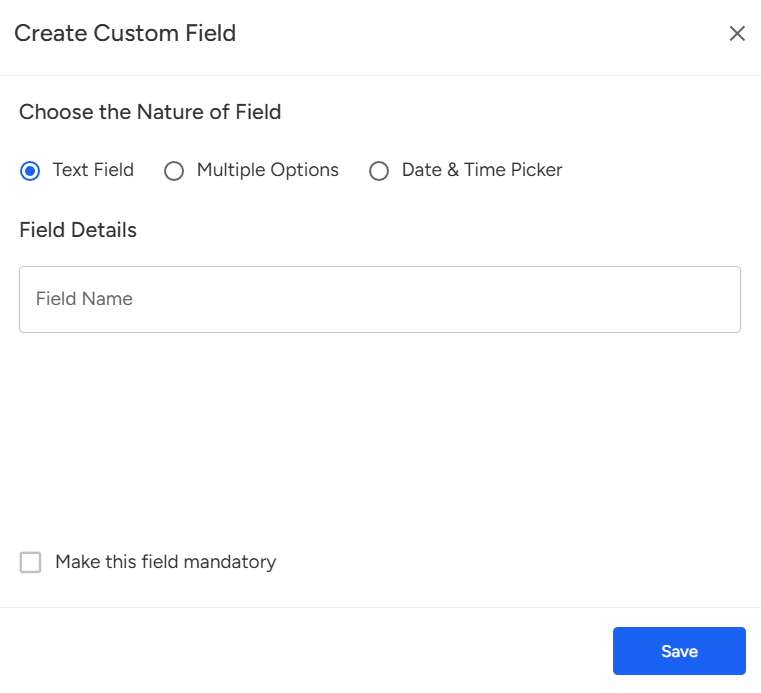
Additionally, managers can assign custom names to QMS fields and choose whether a field should be mandatory by selecting the “Make this field mandatory” checkbox.
Managers can conveniently enable or disable configured fields at any time using the toggle switch.

To assess the manual QMS fields, follow the below steps:
Go to the "Conversations" module in the Convin platform.

Click on the New Audit option located on the right side of the Conversation Dashboard.

Within the “Details” card of each manual audit, you can view the associated custom QMS fields.
 Summary:
The Manual QMS feature in Convin allows managers to create and customize audit fields directly within the platform. With options like text fields, multiple-choice selections, and date & time pickers, you can tailor audits to your organization’s needs—no more switching between Excel sheets.
Still need help? Contact our support team at [email protected]—we’re happy to assist!
Good day!