
The All Leads page in Convin Sense provides a centralized view of all leads across campaigns. It allows users to track lead interactions, monitor engagement, and access detailed information for each lead in a structured manner.
How to Navigate to All Leads
- Navigate to the Customers section from the main menu.
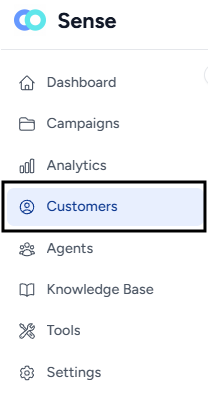 The All Leads page will open by default, displaying the complete list of leads.
Key Sections on the All Leads Page
1. Leads List Panel (Left Section)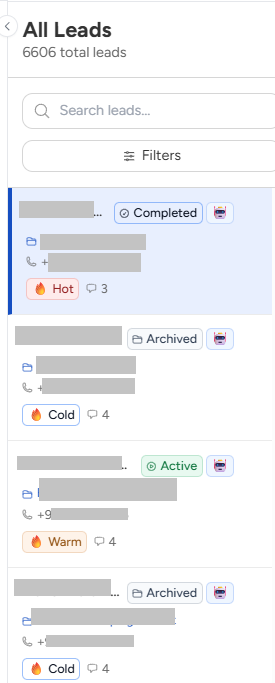
- Displays a list of all leads with basic details such as:
- Lead Name
- Campaign Name
- Contact Number
- Lead Status (e.g., Active, Archived, Completed)
- Interest tags (Hot, Warm, Cold)
- Helps in quickly browsing and selecting a specific lead.
2. Interaction Panel (Center Section)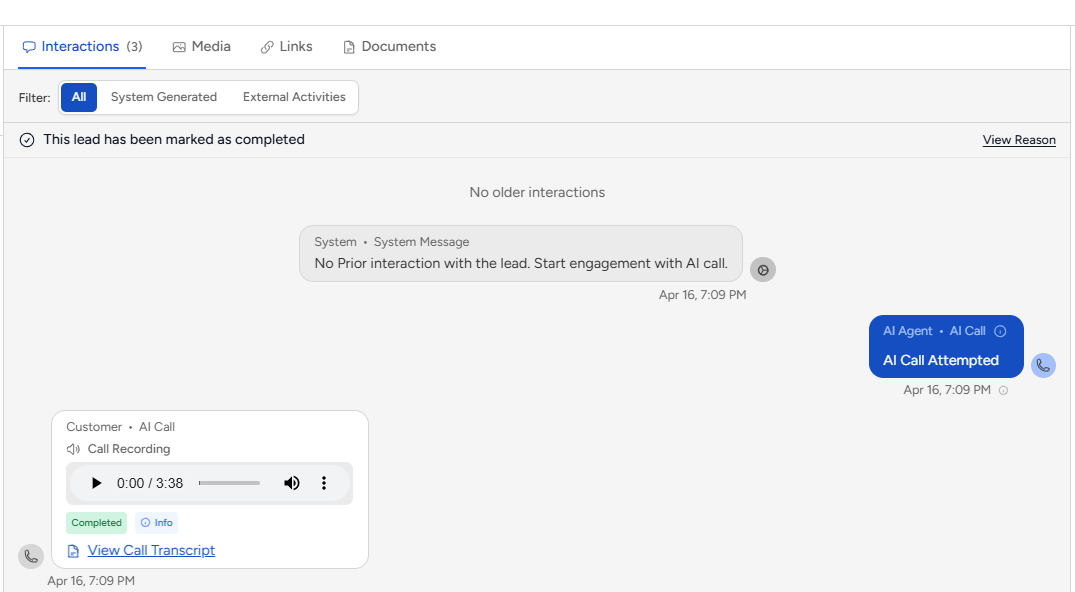
- Shows all interactions related to the selected lead.
- Includes:
- AI Call activities
- Call recordings
- System messages
- Interaction timeline
- Tabs like Media, Links, and Documents for additional interaction data
- Options available:
- View call transcripts
- Filter interactions (System Generated / External Activities)
3. Lead Details Panel (Right Section)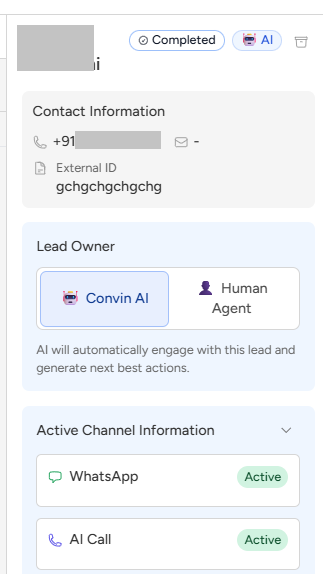
Provides detailed information about the selected lead:
- Contact Information
Displays phone number and external ID - Lead Owner
Shows whether the lead is handled by AI or a Human Agent - Active Channel Information
Displays active communication channels such as WhatsApp and AI Calls - Lead Metrics
Shows key insights including:- Goal Achievement
- Lead Qualification
- Interest Level
4. Search and Filters
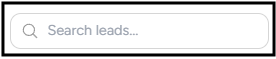
- Use the Search bar to find specific leads quickly
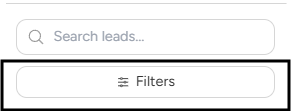
- Apply Filters to refine the lead list based on criteria
5. Additional Options
- Report Download option available for exporting lead data

📩 Still need help? Contact our support team at [email protected] —we’re happy to assist!
Good day!