
This article will guide users on how to easily access and download reports from the notification panel in Convin.
The notification panel serves as a centralized location for managing all reports that have been generated and downloaded in Convin. It is accessible from any module or page across the platform.
Steps for Accessing and Downloading Reports:
1. Click on the Download Button:
When you request a report to be generated, click on the download button. A pop-up notification will inform you that the report is being processed.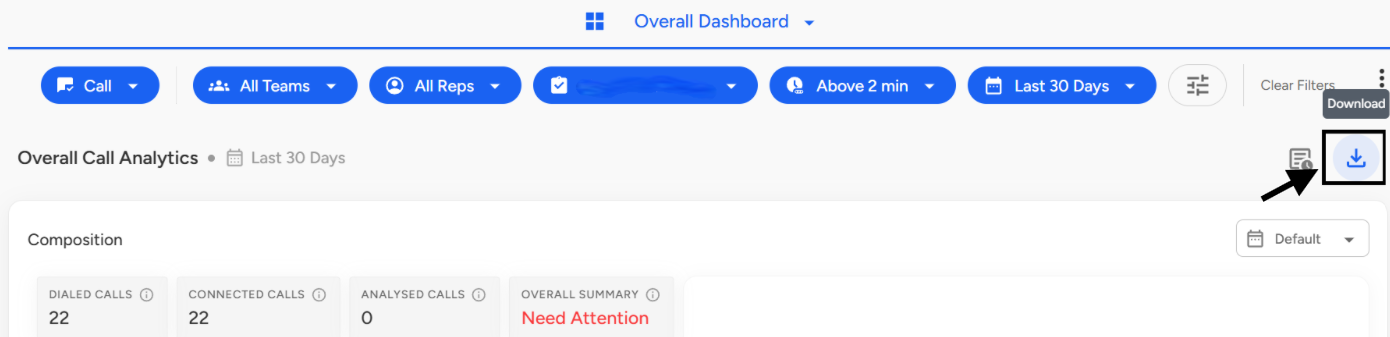
- During Report Generation: A pop-up will notify you: "Your report is generating. You will be notified once it is ready."
- Once Report is Ready: Once the report is ready for download, another pop-up will appear, saying: "Your report is ready. Download it from the notification tab."

2. Locate the Bell Icon:
To access the notification panel, click on the bell icon located at the top-right corner of the platform.

3. View Available Reports:
Upon opening the notification panel, you will see two tabs:
- General: This tab shows the status of any data uploaded to the tool (e.g., if a user list is uploaded, it will display the number of successful and failed entries).
- Downloads: This tab lists all the reports you have requested and downloaded. You can check the status and download the reports from here.
-Uploads: This tab displays the status of uploaded files, including the number of successful and failed entries.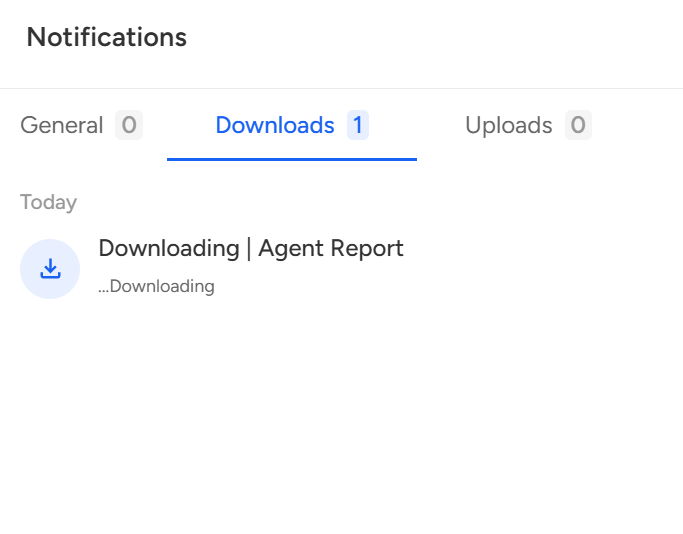 4. Select a Report:
Choose the specific report you want to download from the Downloads tab into your system.

5. Download the Report:
Click on the Download button next to the selected report to save it to your device.

6. Clear the Notification Queue:
Once you've downloaded all the reports, you can clear the notification queue by clicking on the Clear Downloads option.

Need Additional Assistance?
📩 Still need help? Contact our support team at [email protected] —we’re happy to assist!
Good day!