
The Dispute option is exclusively available to the rep/agent whose call has been manually analyzed by a Quality Analyst.
This feature becomes relevant when the rep/agent disagrees with the assigned score or audit outcome. By raising a dispute, the system notifies the respective auditor to re-analyze the call.
How to Raise a Dispute on a Manually Audited Call:
- Go to the "Conversations page" in the dashboard.

- Click on the Call/Chat/Email option.

- Apply relevant filters to locate the specific meeting.

- Click on the meeting that has been manually audited to view the details and access the Dispute option.

- Now click on the Score. This will take you to the manually audited call-level page.
- On the right-hand side, you’ll see a flag icon this is the "Raise Dispute" option.

- Click on the flag icon to initiate the dispute process.
- Once clicked, a pop-up window will appear, allowing you to submit your dispute request.
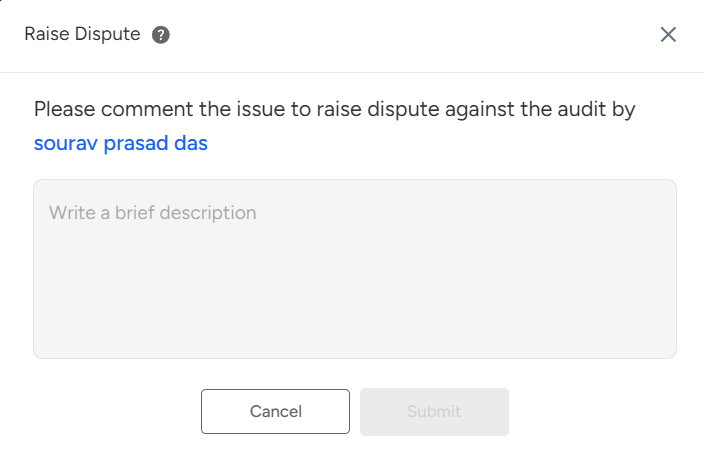
- In the pop-up window, the user can enter the dispute details and submit the request.
- This action will trigger an email notification to the assigned auditor, prompting them to re-audit the call along with the submitted dispute comments.
⚠️ Note: The representative should not click "I acknowledge" if a dispute has been raised, as it may override the dispute process.
Need Additional Assistance?
📩 Still need help? Contact our support team at [email protected] —we’re happy to assist!
Good day!