
This article will help you understand how to upload both QMS and Call data in bulk, streamlining the process and saving time by avoiding manual, one-by-one uploads.
1. How to upload QMS:
- Firstly, Navigate to the conversations module present on the left side of the dashboard.

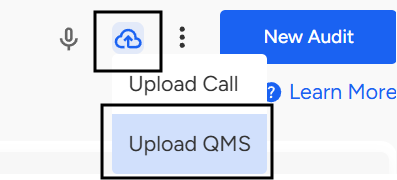
- Tap the upload button in the top right corner. Then click on "Upload QMS Data"
Then a window will appear where we must upload an Excel/CSV file containing the metadata of the respective conversations. Once you have uploaded the Excel/CSV file, tap Next.
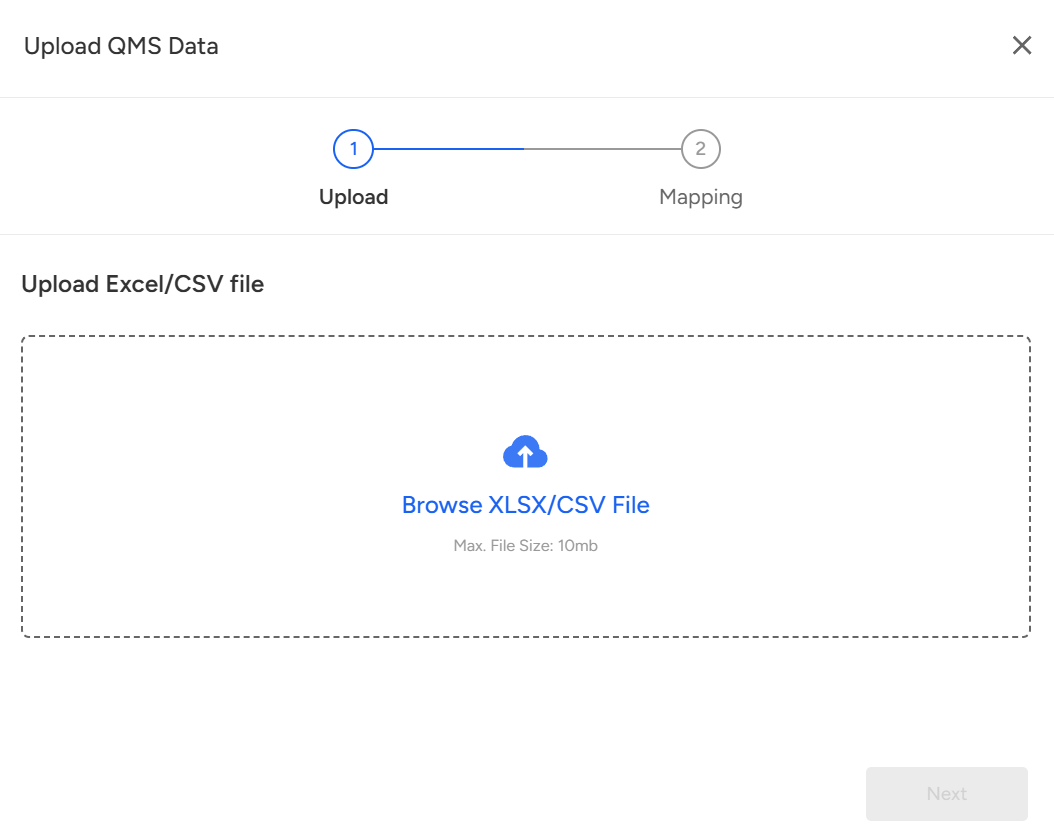
After you upload the Excel/CSV File, Convin identifies the fields in your file; you have to ensure that the areas in your database correspond to the exact bulk upload fields needed by the platform to list the calls.
HOW TO MAP THE DATA:
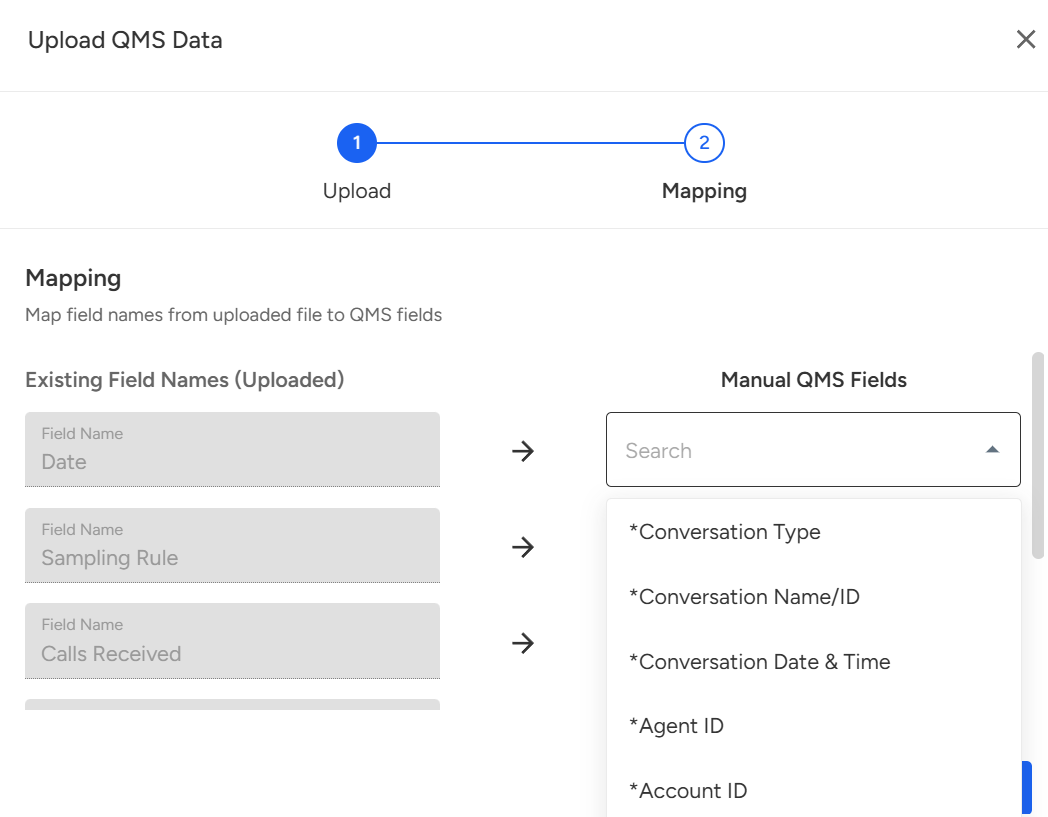
Map your existing field names with the manual QMS fields by selecting the appropriate option from the drop menu. Follow the same for each parcel.
Once you have selected the correct QMS fields corresponding to existing fields, tap on the Upload option. After some time, all the call entries will be populated with the relevant call data and displayed on the conversations page.
1. How to upload Calls:
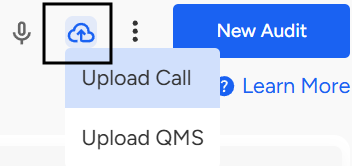
- On the Conversations page, tap the upload button in the top right corner. Then click on "Upload Call"
Then a window will appear where we must upload an Excel/CSV file containing the metadata of the respective conversations. 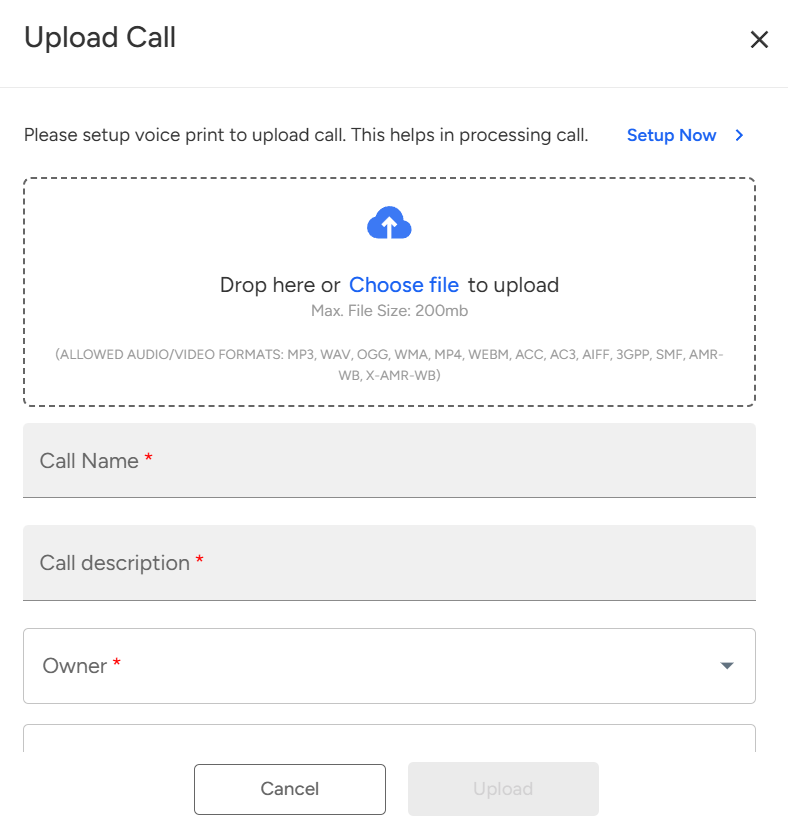
Once you have uploaded the Excel/CSV file, Fill in all the required fields, including Call Name, Call Description, Owner, and any other necessary details. Once completed, click on the Upload button. After a short processing time, all the call entries will be populated with the relevant data and displayed on the Conversations page.
📩 Still need help? Contact our support team at [email protected] —we’re happy to assist!
Good day!