
Many organizations conduct Process Knowledge Tests to check whether employees are familiar with the product or process.
Creating an assessment in the Convin dashboard will help the Learning and Development team centralize the process and track everything on the same dashboard, making it a one-stop solution.
- Navigate to the "Library" option.

- Click on "Assessment".

- To create a new assessment Click on "Create Assessment".

- You will able to see two options 1. Build from scratch 2. Import from question bank.
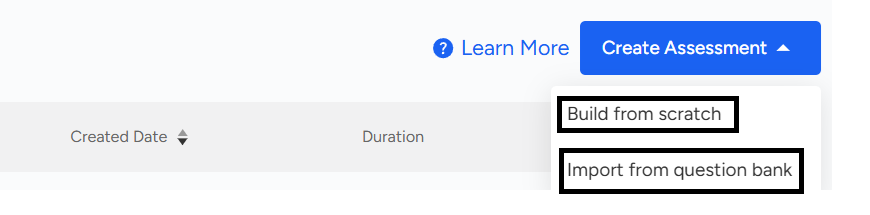
- We will go with first option - Build from scratch. This will show up in a form where the team can create a questionnaire.
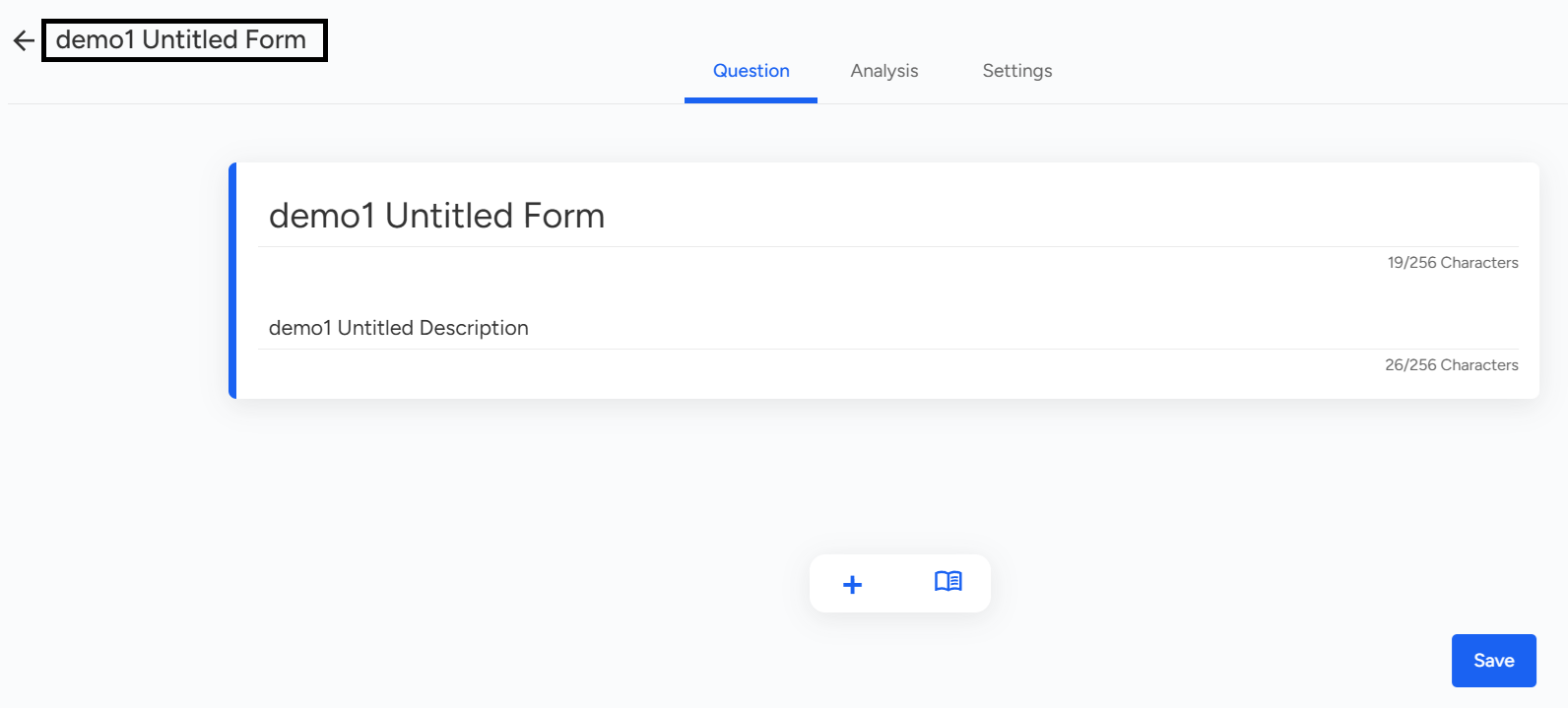
- Click on add sign. You will be able to see the below form.
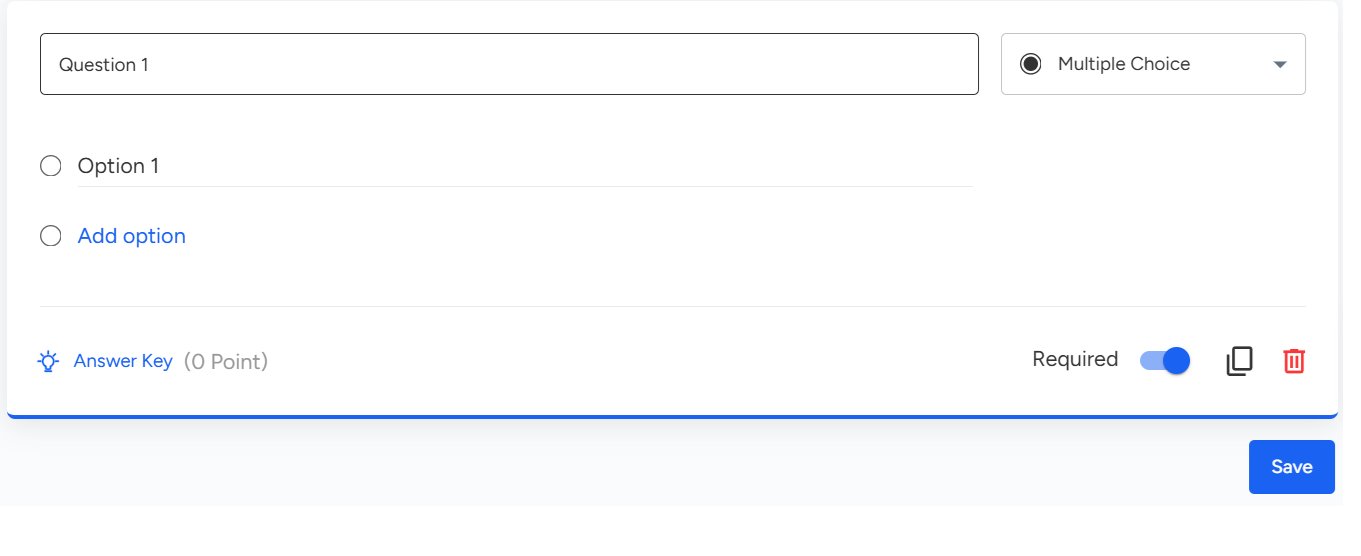
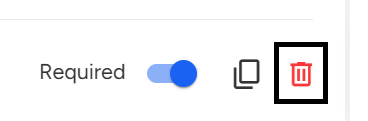
- Required: Make the questions compulsory to mark; the user will only be able to submit the form after attempting the question.

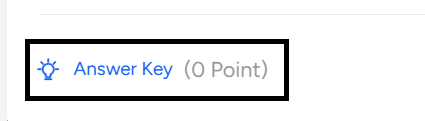
- Answer Key: This allows you to set the correct answer to the question.
- Delete: This option allows you to delete a particular question.
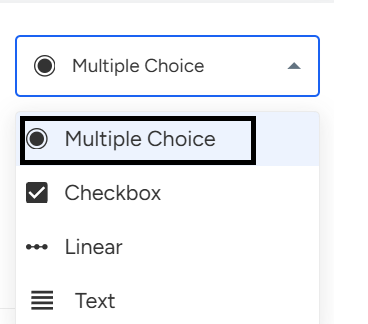
You can form three types of Multiple Choice questions by clicking on the option "Multiple."
- To save the form, Click on "Save."

Now, a form will be visible in the Library Dashboard's assessment section.
Organizations can create Process Knowledge Tests directly in the Convin Dashboard under LMS → Assessment. Users can either build from scratch or import from the question bank. While creating, they can add questions, mark them as required, set answer keys, or delete them. Once saved, the assessment will appear in the Library Dashboard for easy access and tracking.
📩 Still need help? Contact our support team at [email protected] —we’re happy to assist!
Good day!