
This article highlights the essential steps for creating categories and defining parameters within these categories to enable precise AI scoring. By effectively structuring audit templates, organizations can maintain quality standards and facilitate meaningful performance assessments.
The Audit Manager is available in the Settings of your Convin Dashboard, which allows you to create and map audit templates to their respective teams.
Here are the steps to Create Template:
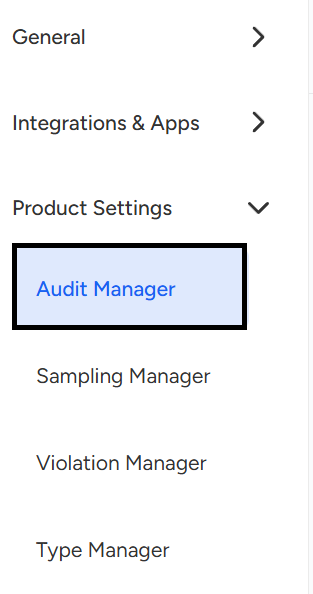
Go to Settings.

You can find the Audit Manager under the Product Settings section.
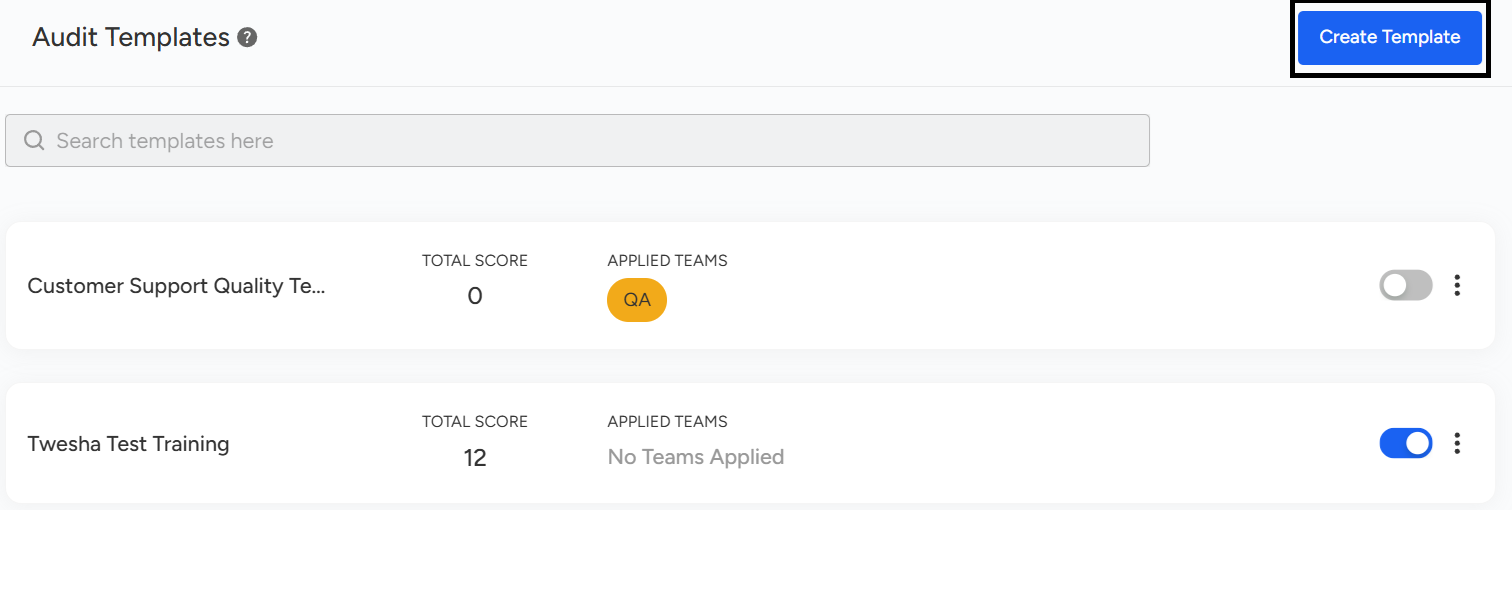
Click on "Create Template" to set up a new template.
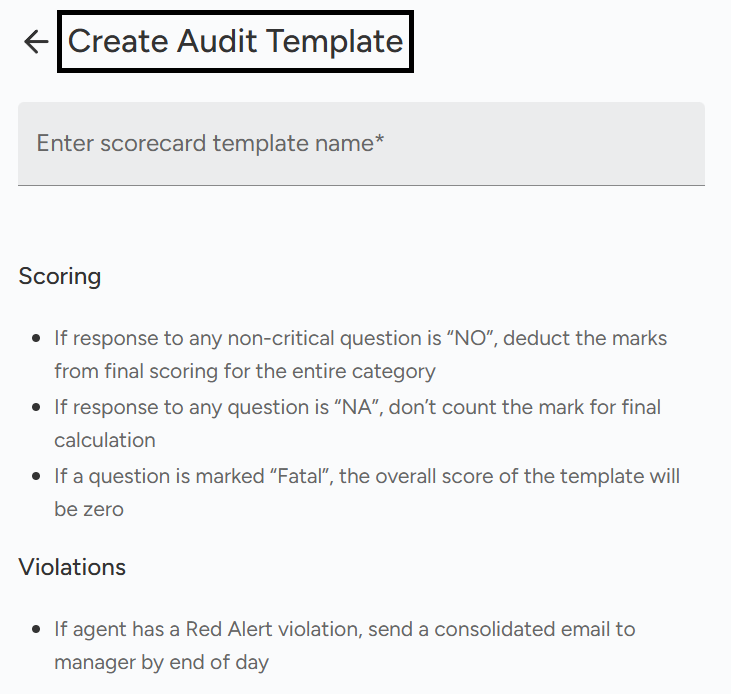
Mention the desired name for your template in the "Enter Scorecard Template Name" .
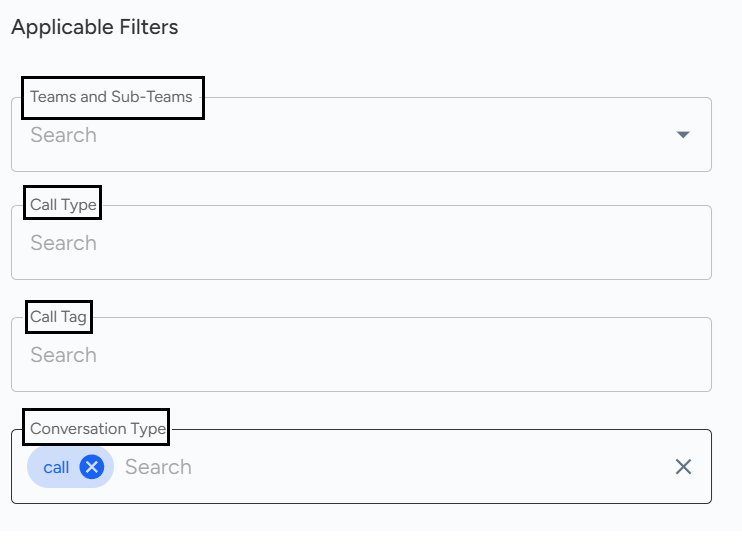
Choose the relevant Teams and Sub-teams, along with the appropriate Call Type, Call Tag, and Conversation Type for the template.
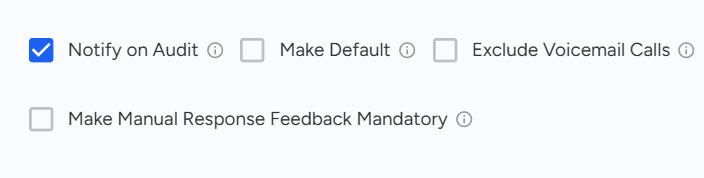
In this section, you can define additional settings for your audit template:
Notify on Audit – Enable this option to send notifications whenever an audit is performed.
Make Default – Set this template as the default audit template.
Exclude Voicemail Calls – Use this option to exclude voicemail calls from the auditing process.
Make Manual Response Feedback Mandatory – Enforce mandatory manual feedback for responses.
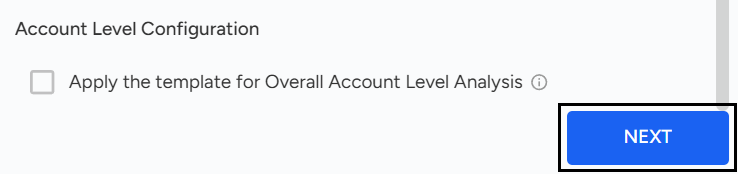
Apply the template for Overall Account Level Analysis – Apply this template to all accounts for a comprehensive level of analysis.
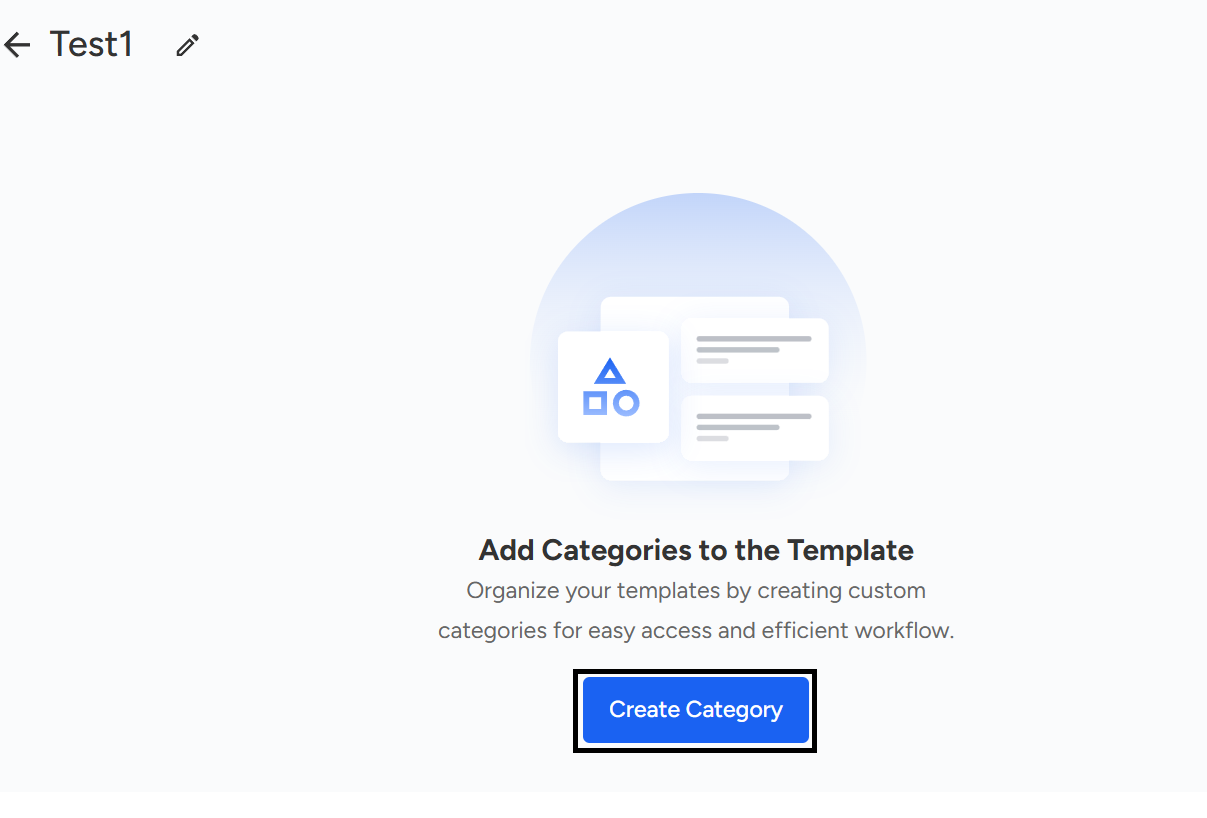
To add Categories to the Audit form follow below steps:
- Click on Create Category.
Enter the "Category Name" and optional "Description."
A category can encompass multiple parameters. For example, under the category "Call Opening," parameters like "Greetings of the day," "Agent Name," and "Company Name" can be included.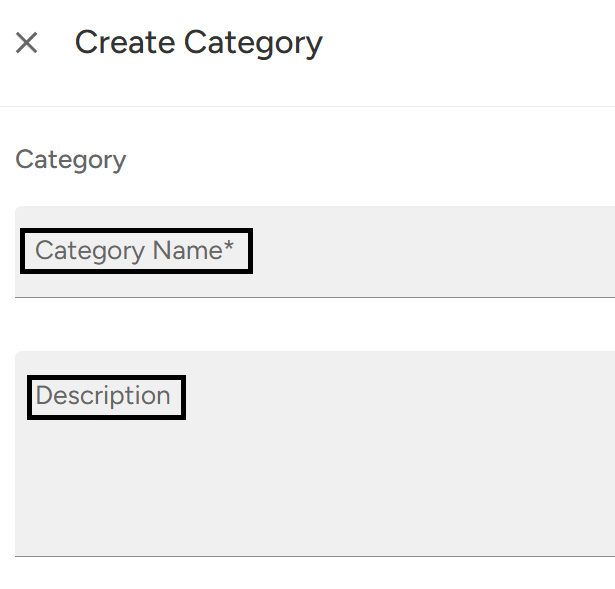
Once you are satisfied with the Category Name and Description, click on the "Create Category" button.

To add Parameter to the Audit form follow below steps:
To add parameters, click on the "Add Parameters" button.
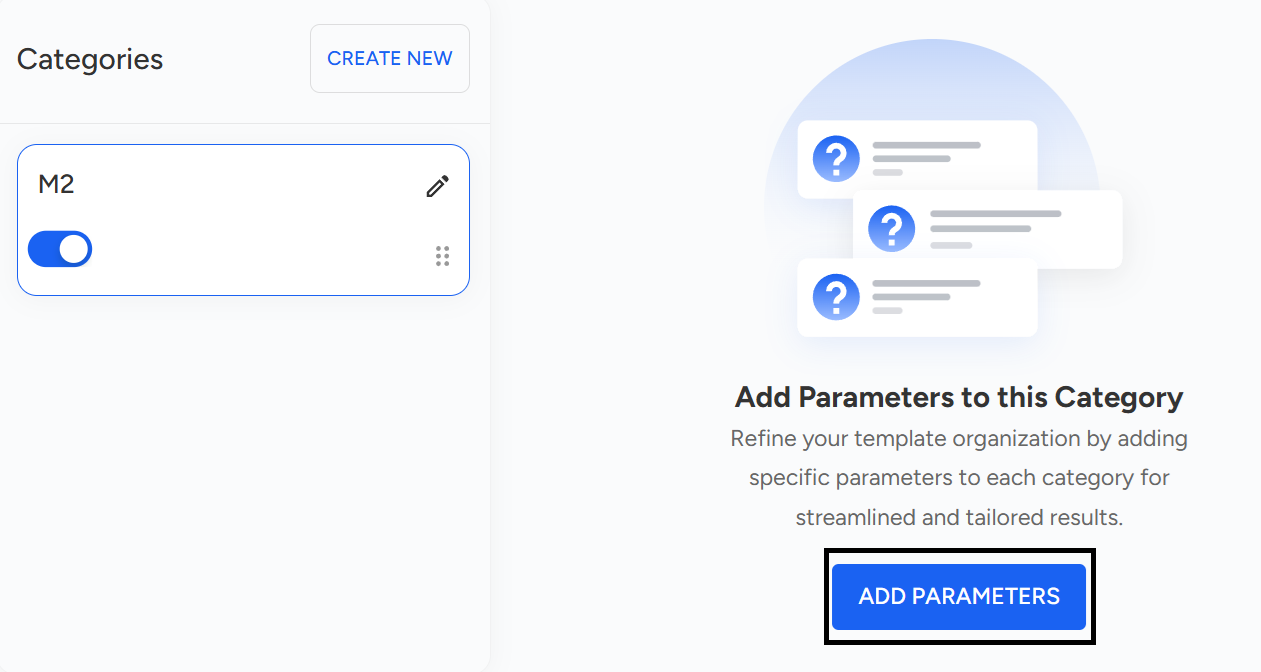
The subsequent page will appear as shown below.
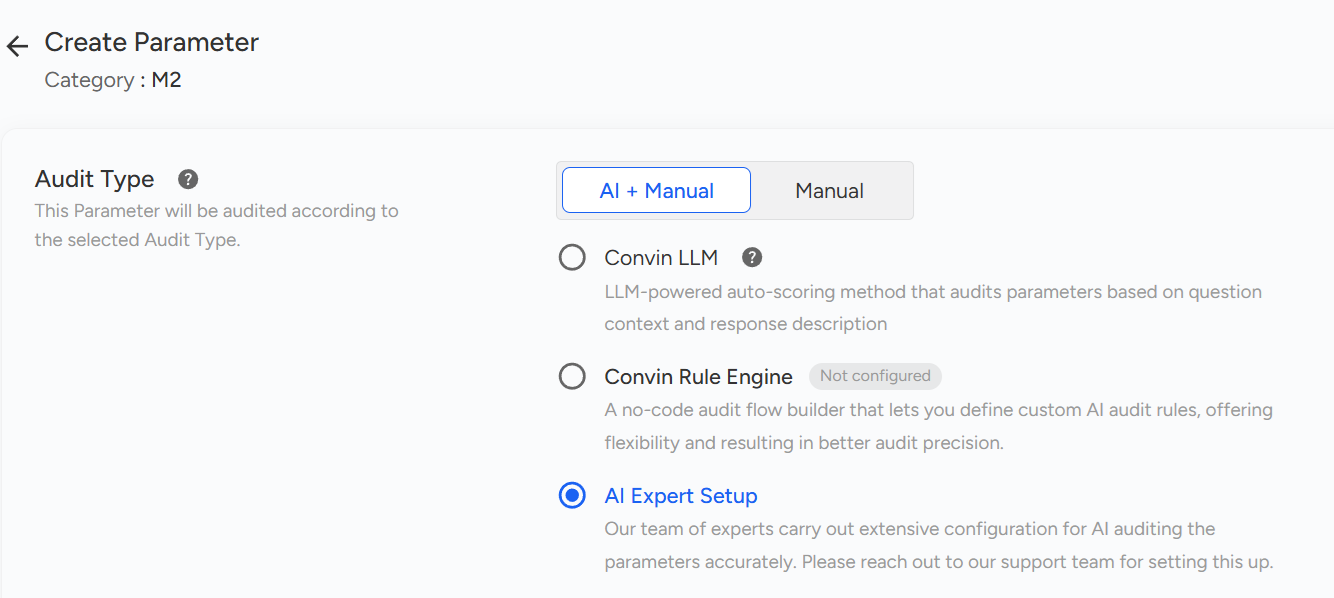
- Choose whether the parameter should be audited using AI + Manual or Manual only.

- Choose Audit Method (if AI + Manual is selected):
Convin LLM: AI-powered auto-scoring based on context and response.
Convin Rule Engine: No-code setup to define custom AI audit rules (requires configuration).
AI Expert Setup: Convin experts configure AI auditing parameters for more accuracy (requires support setup).
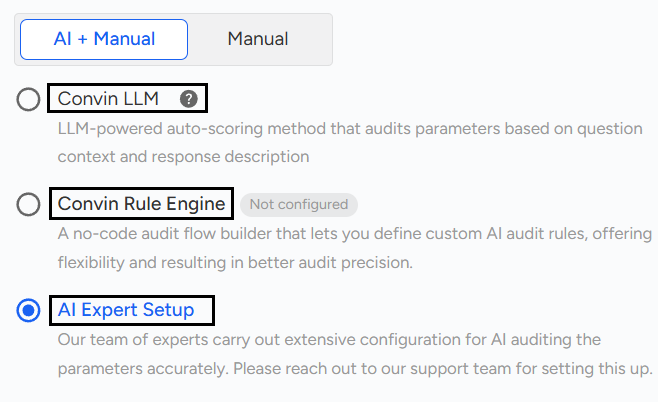
In the "Basic Information" section, complete all mandatory fields.
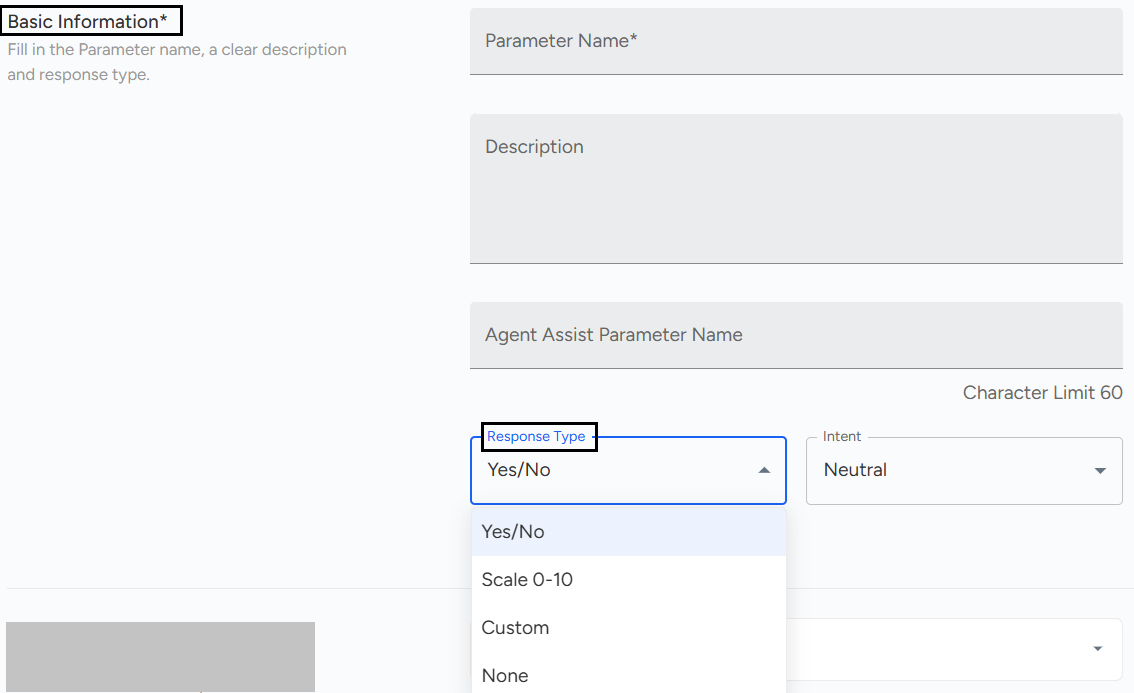
Enter Parameter Name – Provide a clear and descriptive name for the parameter.
Add Description – Write a short explanation to define the purpose of this parameter.
Agent Assist Parameter Name – Specify if you want to use a shorter or alternate name for Agent Assist display (character limit: 60).
Choose Response Type – Select the format in which the parameter will be evaluated:
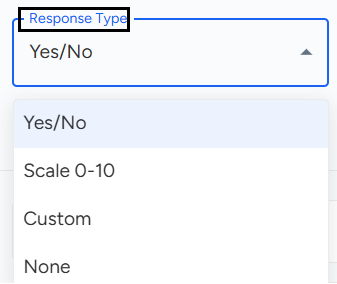
Yes/No – Binary response.
Scale 0–10 – Rating-based scoring.
Custom – Define custom responses.
None – No fixed response required.
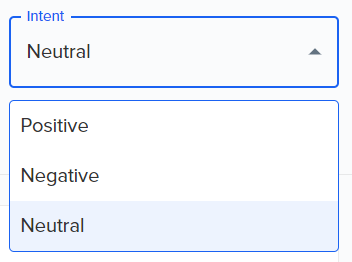
Select Intent– Pick the intent type (e.g., Neutral, Positive, Negative) for more context in audits.
If the parameter response must be provided by auditors, mark the "Response is a must" option.

In the "Response Configuration" section, set the score for each response.
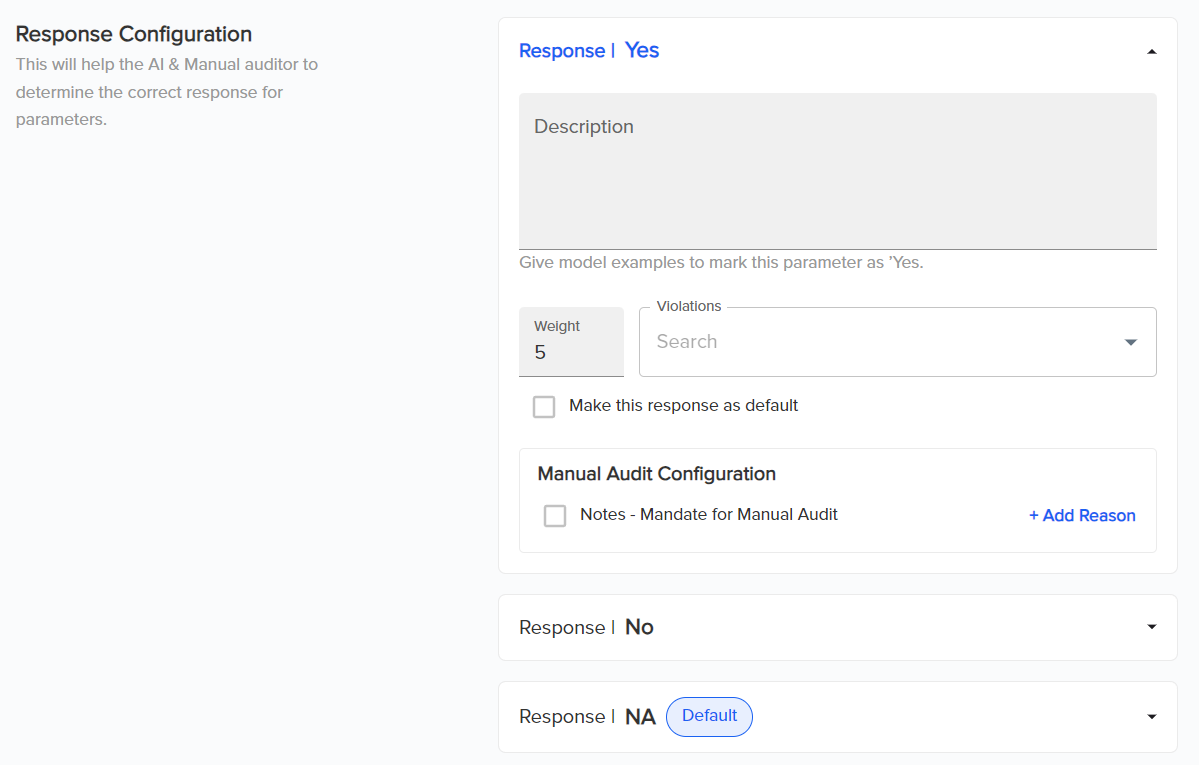
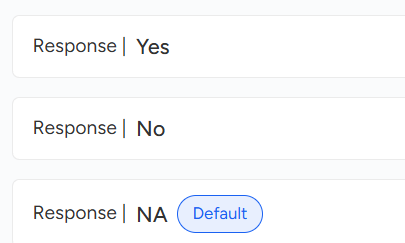
Select Response – Choose the response option (Yes, No, NA) to configure.
Add Description – Provide a clear description of what this response represents.
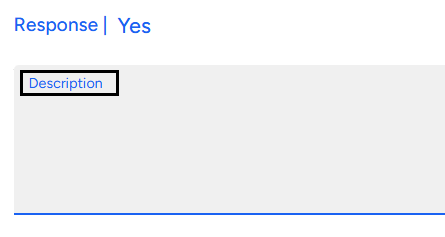
Assign Weight – Set a numerical weight (e.g., 0, 1, 5) that contributes to scoring. Add Violations – Link any violations by searching and selecting from the list.
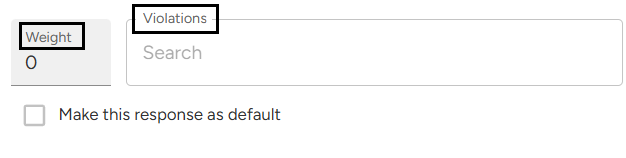
Set as Default – Check “Make this response as default” if this should be the pre-selected choice.

Manual Audit Configuration –
Enable “Notes – Mandate for Manual Audit” if auditors must add notes when selecting this response. Click + Add Reason to define specific reasons that auditors can pick while marking this response.

Under Account Level Configuration you will be able to see page.
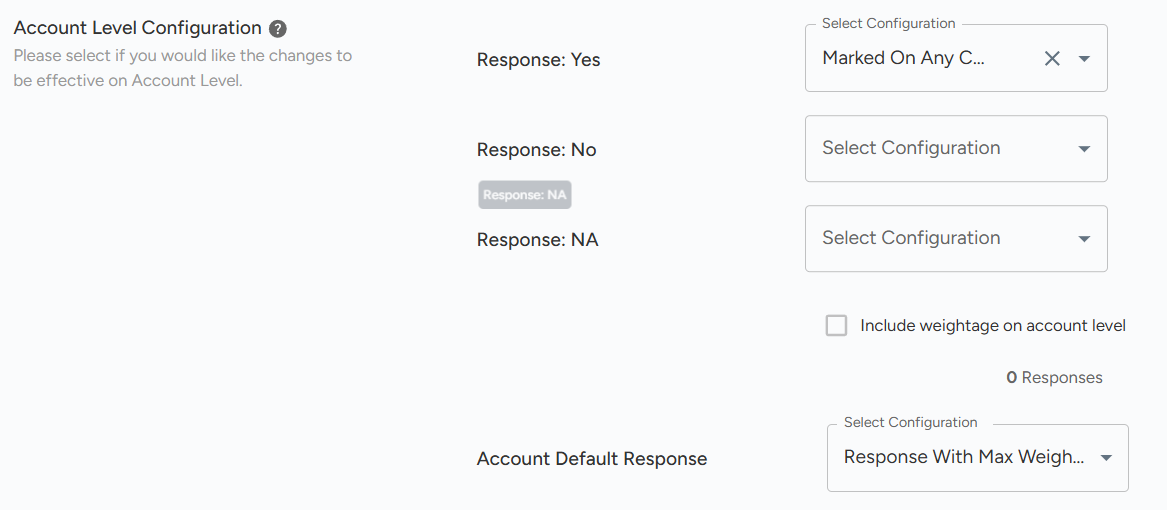
You can select configuration as "Marked On All Conversation / Marked On Any Conversation" under responses.
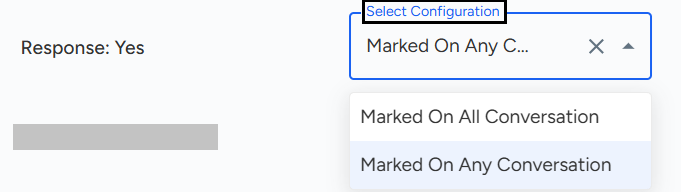
Please select the option that aligns with your requirement.
Scroll to the end & click on the "Create Parameter" button.

The Audit Manager in Convin helps create audit templates, add categories, and define parameters for accurate AI scoring.
Assign templates to teams, sub-teams, and call types.
Add categories (e.g., Call Opening) with multiple parameters.
Configure parameters with AI/manual methods, response types, weights, and violations.
Apply settings at the account level for consistent auditing.
📩 Still need help? Contact our support team at [email protected] —we’re happy to assist!
Good day!