
This feature allows Managers, Team Leads, Admins, and Quality Analysts to view the tags of individual leads or accounts from the salesperson or support perspective in the Convin Dashboard after CRM integration.
To Access the Account Tags follow below steps:
Navigate to the Account Page:
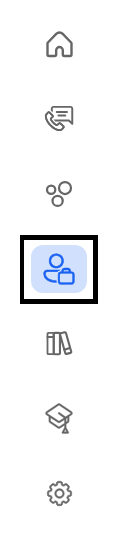
The 'Filters' option is located at the top right of the dashboard.

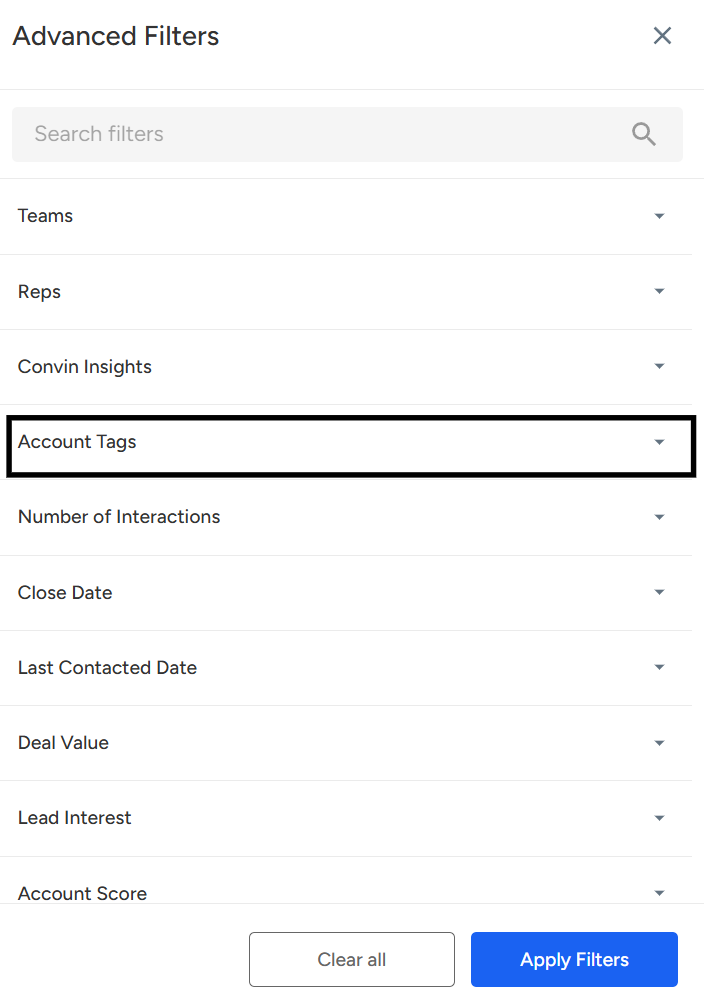
Clicking the option will display a list of search filters for the dataset. Select 'Account Tags'.
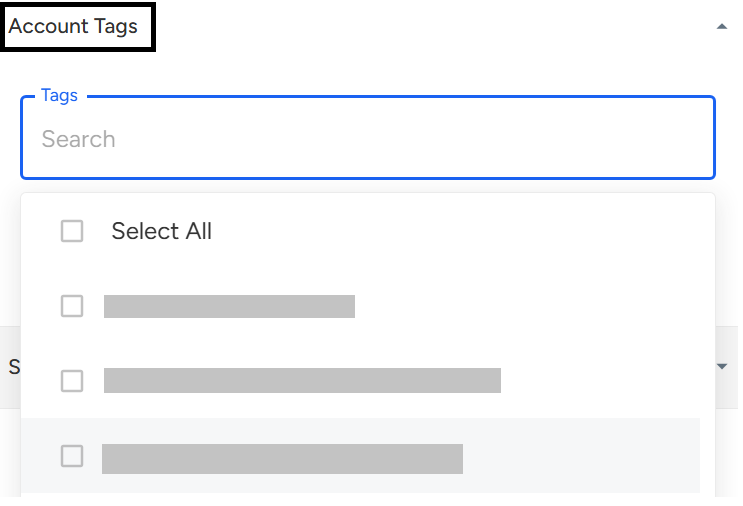
Search for the Tag that you are looking for.
Click on "Apply Filter"
The image shows the accounts dataset filtered by the selected Accounts Tag.
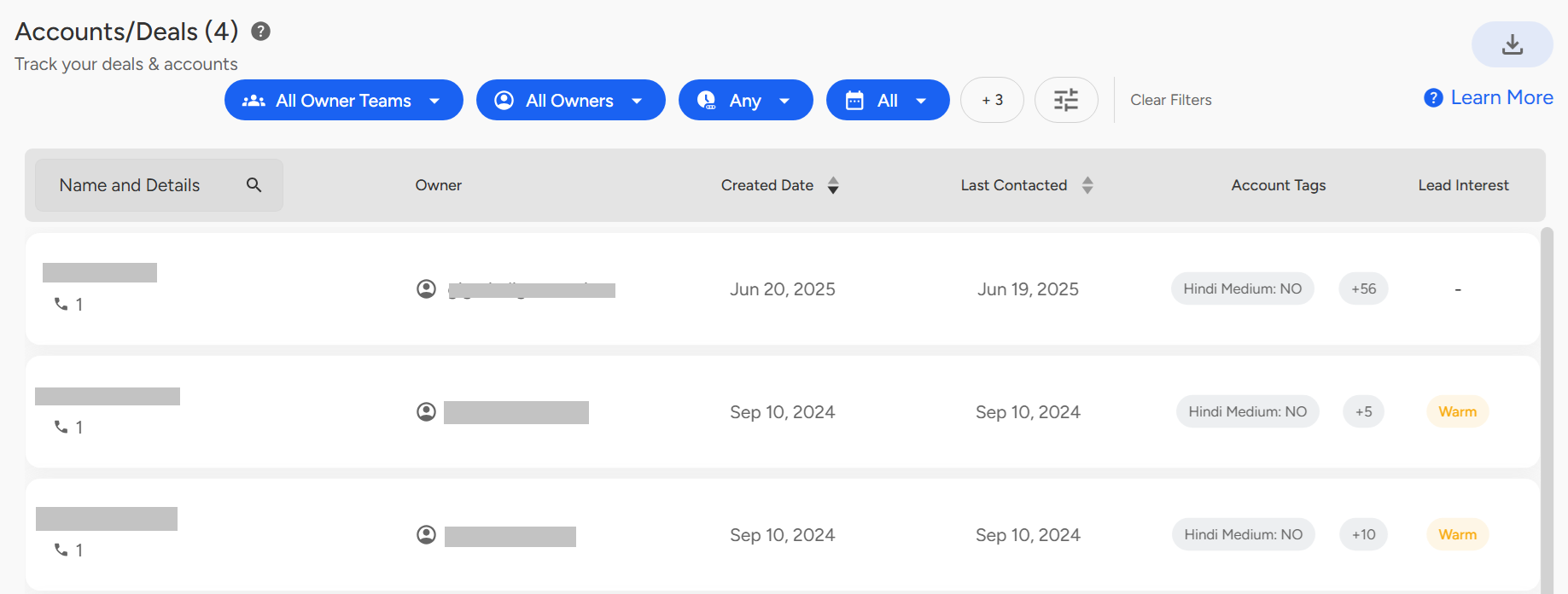
Account Tags in Convin Dashboard
This feature lets Managers, Team Leads, Admins, and Quality Analysts view tags of individual leads or accounts from the salesperson or support perspective after CRM integration. Use the Filters option on the Accounts page to select Account Tags, search for the desired tag, and apply the filter to view the corresponding accounts.
📩 Still need help? Contact our support team at [email protected] —we’re happy to assist!
Good day!