
The Close Date represents the expected finalization date of a deal. After integrating CRM with Convin, organizations can view each deal’s Close Date directly in the Accounts Dashboard, providing better visibility and tracking of sales timelines.
The Close Date filter allows users to search and segment accounts by their assigned close dates, helping sales teams prioritize follow-ups, manage pipelines efficiently, and focus on deals scheduled to close within specific timeframes.
Steps for selecting Close Date Filter:
- Navigate to the Account Page.

- Click on " Advanced Filters".

- Once you click on the option, you will find a list of search filters for a particular dataset. Click on "Close Date"
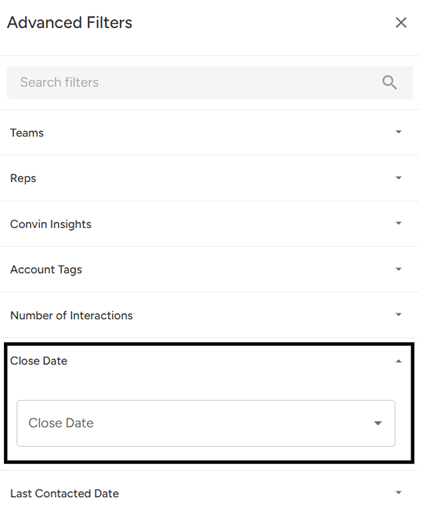
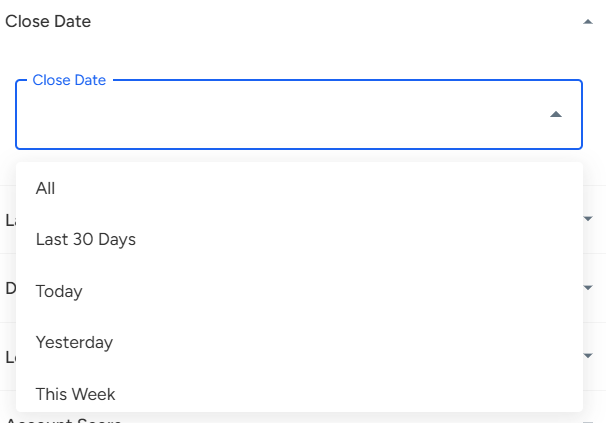
- User can choose the appropriate date range from the drop-down menu, which includes options like All, Last 30 Days, Today, Yesterday, and more.
- Users can even choose a custom date range, which includes selecting a From Date and To Date.
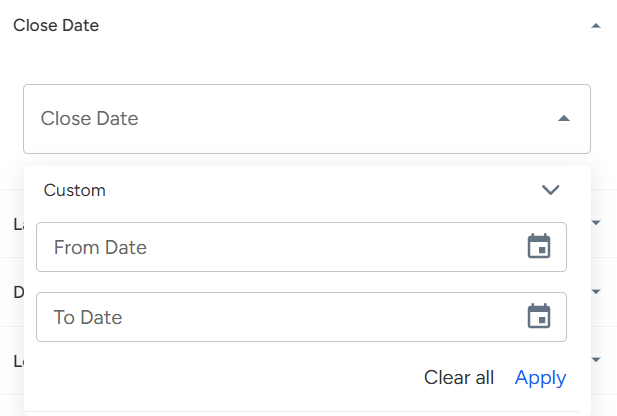
- Click on "Apply Filter".

The Close Date indicates when a deal is expected to be finalized and can be viewed directly in the Accounts Dashboard after CRM integration with Convin. Using the Close Date filter, users can segment accounts by their close dates, helping sales teams prioritize follow-ups, manage pipelines efficiently, and focus on deals closing within specific timeframes. To apply the filter, navigate to the Account Page, click Advanced Filters, select Close Date, choose a predefined or custom date range, and click Apply Filter.
Need Additional Assistance?
📩 Still need help? Contact our support team at [email protected] —we’re happy to assist!
Good day!