
The Account Scoring filter in the Accounts Dashboard allows for precise searches on individual accounts, helping you quickly find specific information on Convin.
Steps to access Account Score in the Accounts Dashboard.
Navigate to Account Icon.

Locate the 'Filters' option at the top right of the dashboard.

The filter option is "Account Score".
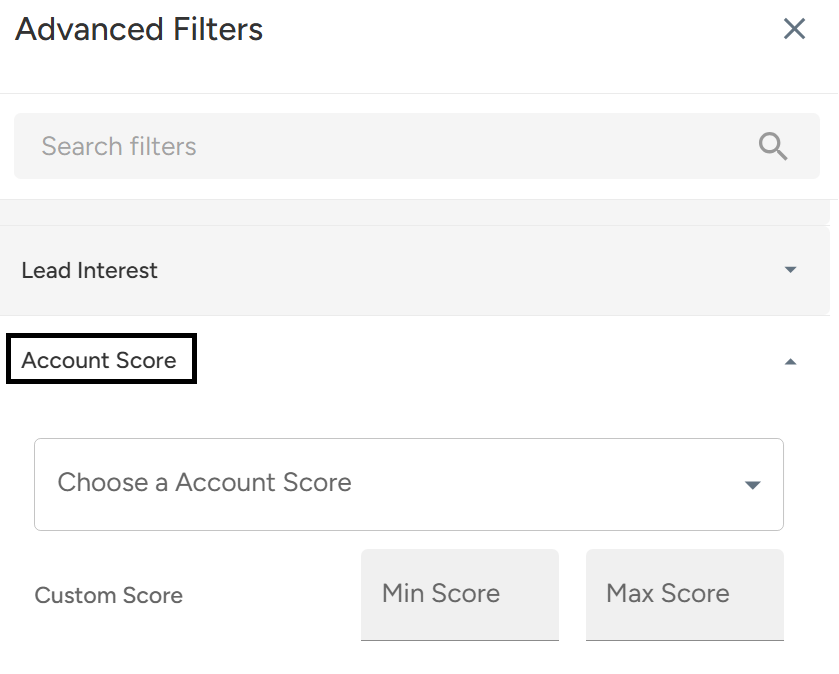
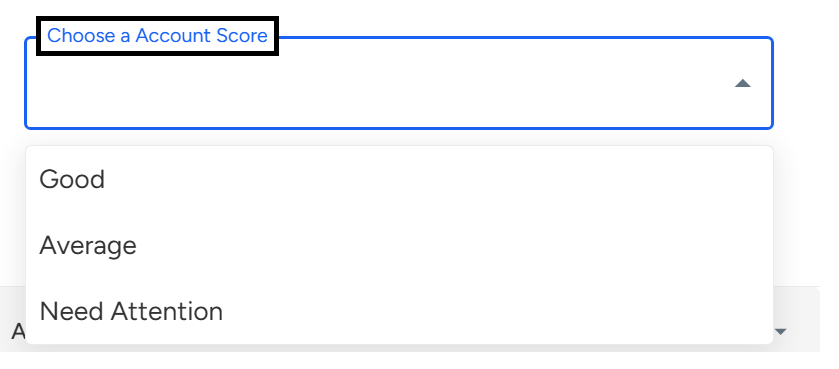
- Select the options from the drop-down, which includes: Good, Average, and Need Attention.
- Users can also input custom scores by typing the "Min Score" and "Max Score".

- After selecting the required data, click on "Apply Filter."

This will help to check the dataset on the selected range of options, which allows managers, auditors, and team leads to monitor an account-level view.
Account Scoring in Convin Dashboard
The Account Scoring filter allows managers, auditors, and team leads to quickly find and monitor accounts based on specific scores. Access it via the Accounts icon → Filters → Account Score, then select from predefined options (Good, Average, Need Attention) or enter custom Min/Max scores and click Apply Filter to view the filtered dataset.
Need Additional Assistance?
📩 Still need help? Contact our support team at [email protected] —we’re happy to assist!
Good day!