
In Convin, user roles such as Admin, Auditor, Manager, Team Lead, and Representative are assigned specific permissions that define access to different features and functionalities. These permissions ensure that each user has the appropriate level of access aligned with their responsibilities.
In Convin, only Admins can modify existing roles and permissions.
Follow the steps below to modify or manage user roles:
1. To get started, navigate to the Settings module in the Convin platform.
2. In the Settings menu, navigate to and select General -> Role Manager.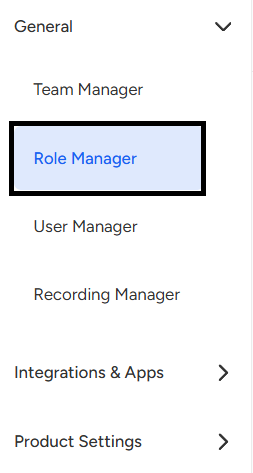
3. In the Role Manager section, you will see a list of all roles—Admin, Auditor, Manager, Team Lead, and Representative with their current permissions displayed next to each role. You can modify any role by selecting the corresponding options.
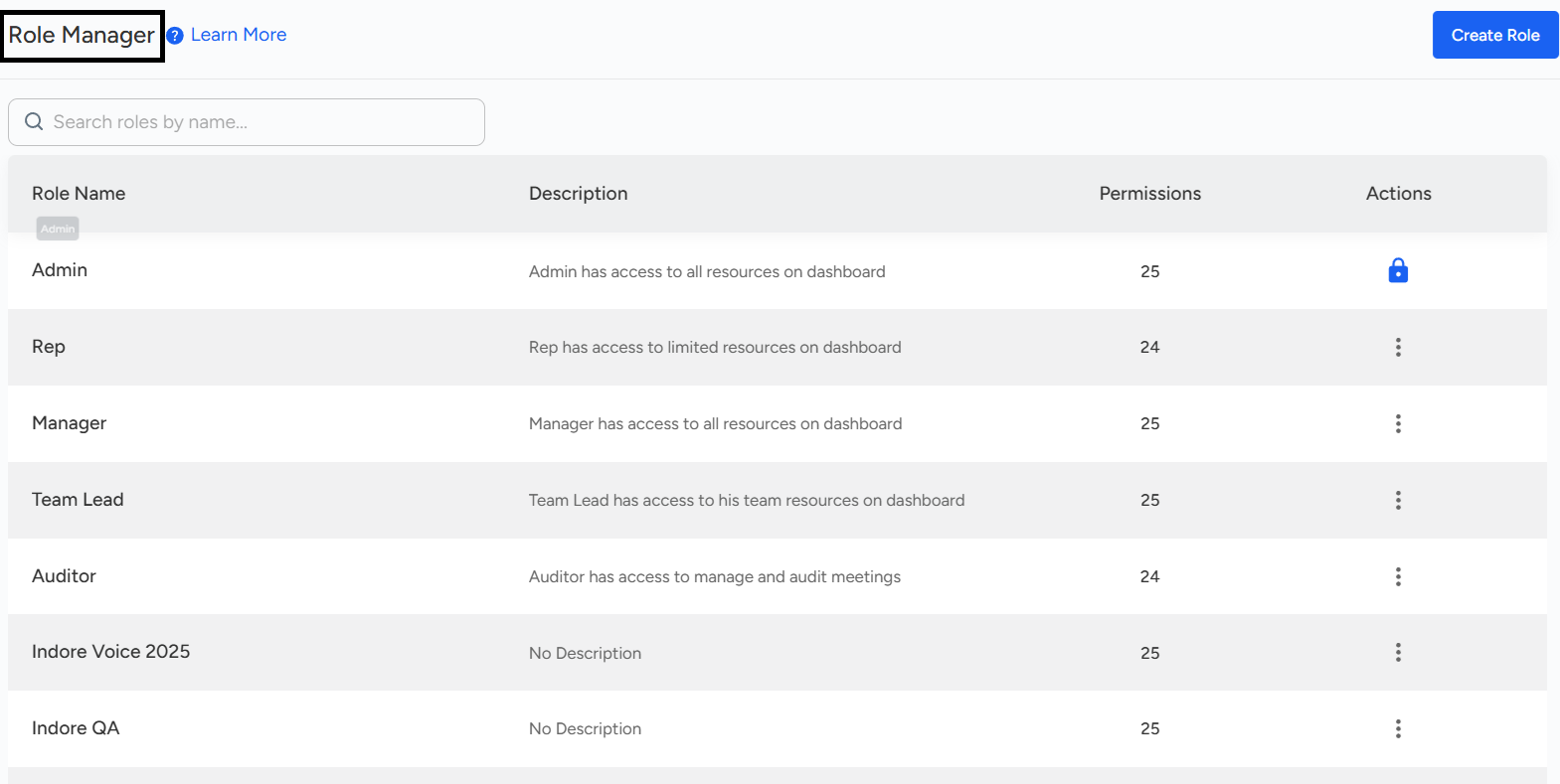
5. You will see two options: Edit and Clone. Click Edit to make changes to the existing role.
6. Adjust the following settings to customize permissions according to your team’s requirements.

- Select the desired teams for which the necessary accessibility permissions are to be applied.
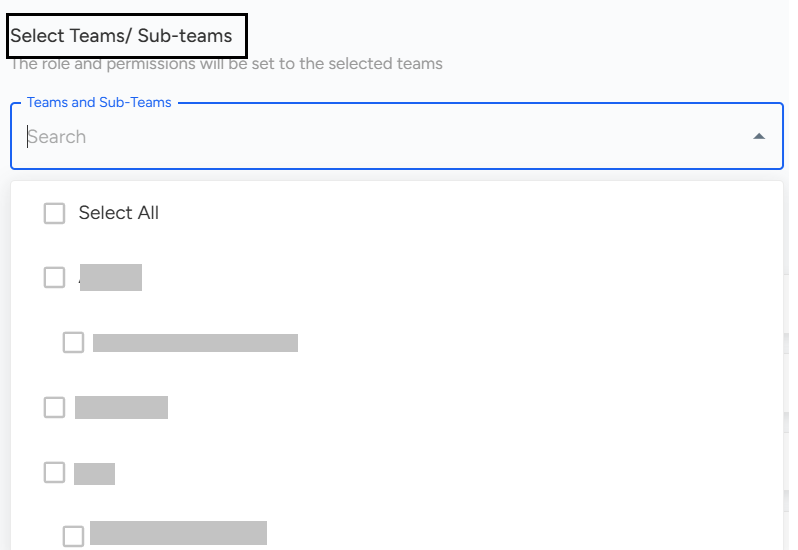
Note: To grant permissions selectively to specific teams or sub-teams for different components, configure the following settings accordingly.
- For Meeting: "List of selected Team Meetings".

- For Statistics: "List of selected Team Meetings".

- For Accounts: "List of selected Team Accounts".

2. Once you’ve selected all the desired teams, scroll to the bottom of the page and click the Update Role button to save your changes.
In Convin, user roles such as Admin, Auditor, Manager, Team Lead, and Representative have specific permissions that control access to various features. Only Admins can modify roles and permissions. To manage roles, navigate to Settings → General → Role Manager, view the list of roles, and click Edit to make changes. Customize permissions by selecting the appropriate teams or sub-teams for Meetings, Statistics, and Accounts, then click Update Role to save your changes.
Need Additional Assistance?
📩 Still need help? Contact our support team at [email protected] —we’re happy to assist!
Good day!