
One can schedule a report from the "All Reports" section of the Analytics Dashboard, which contains the data of all the representatives' and auditors' performances over time and the duration of conversations.
To access the Report section:
Go to the Home page of the Convin Dashboard and click on the dropdown arrow next to the overall dashboard.

In the dropdown, you’ll find the last option labeled "All Reports." Click on it to view all the available reports in one place.
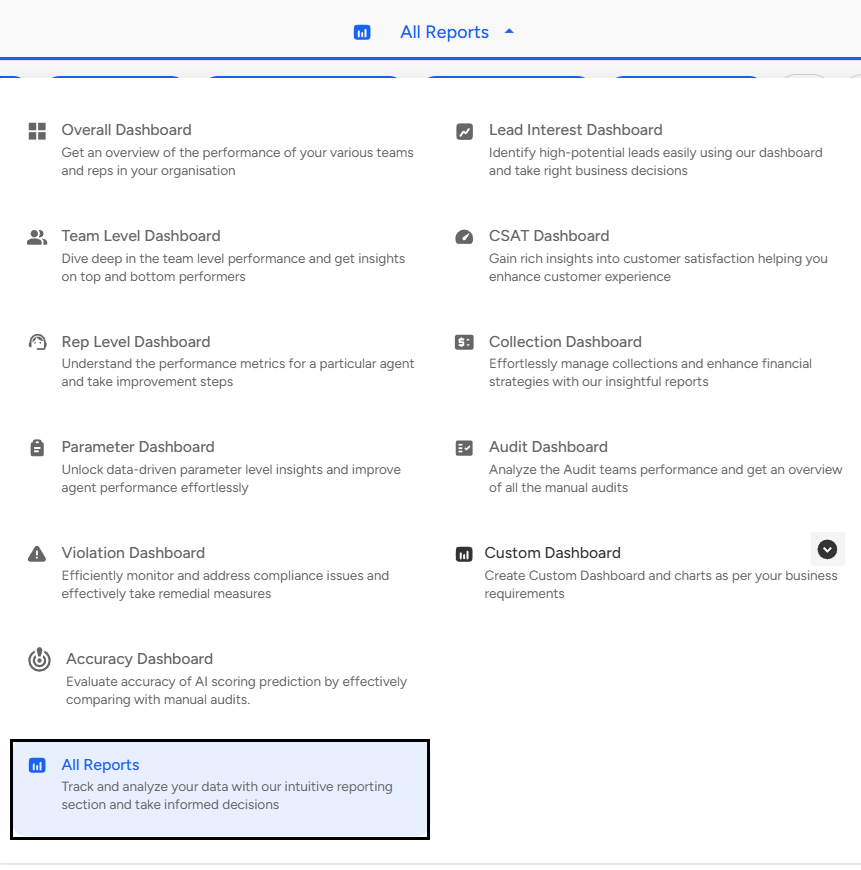
- The below image shows the list of Reports available on the Convin Dashboard.

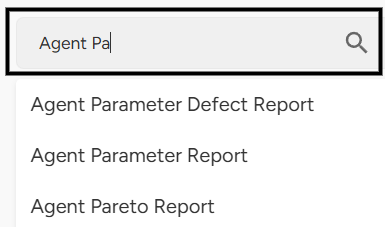
Use the search bar to quickly find the required report by entering its name or relevant keywords.
To "Schedule a report," just before the download arrow, there is an option to schedule a report.
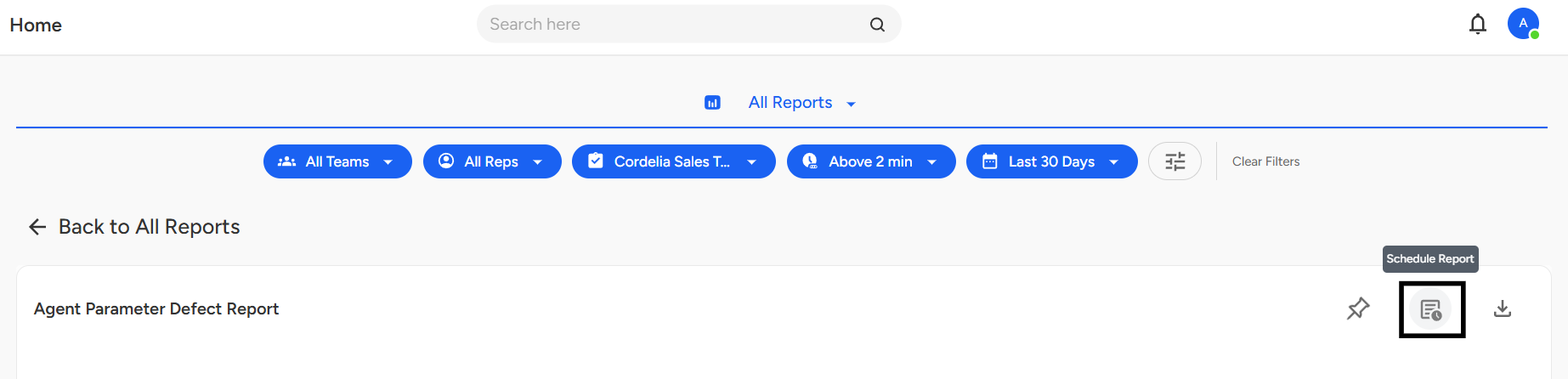
Click on "Schedule Report."
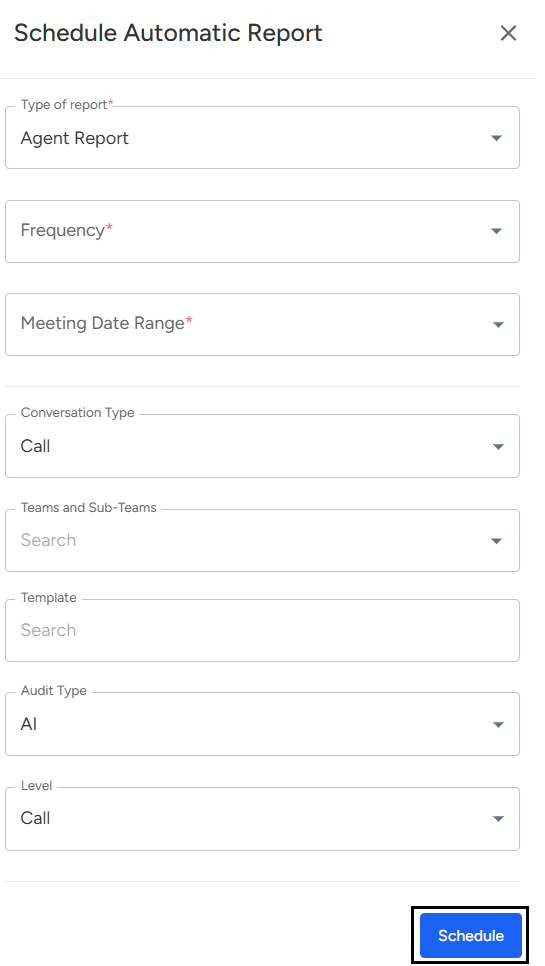
Users can schedule and view multiple reports available on the Convin Dashboard.
From the All Reports section in Convin’s Analytics Dashboard, users can schedule and access reports that track representative and auditor performance, along with meeting durations. Simply navigate to All Reports via the Home page dropdown, use the search bar to find a report, and click Schedule Report to automate delivery.
📩 Still need help? Contact our support team at [email protected] —we’re happy to assist!
Good day!