
Violations help us identify any transgressions or faults that have occurred during conversations.
The Violation Manager allows us to track these issues and take proactive measures to minimize their occurrence.
To access the Violation Manager, follow these steps:
- Go to the Settings page on the Convin Dashboard.

- Scroll down to find the Violation Manager option.
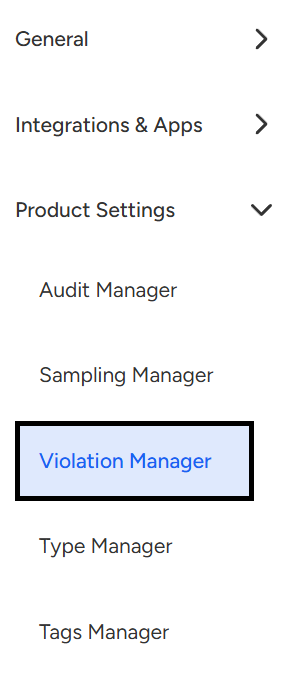
- Click on "Violation Manager."
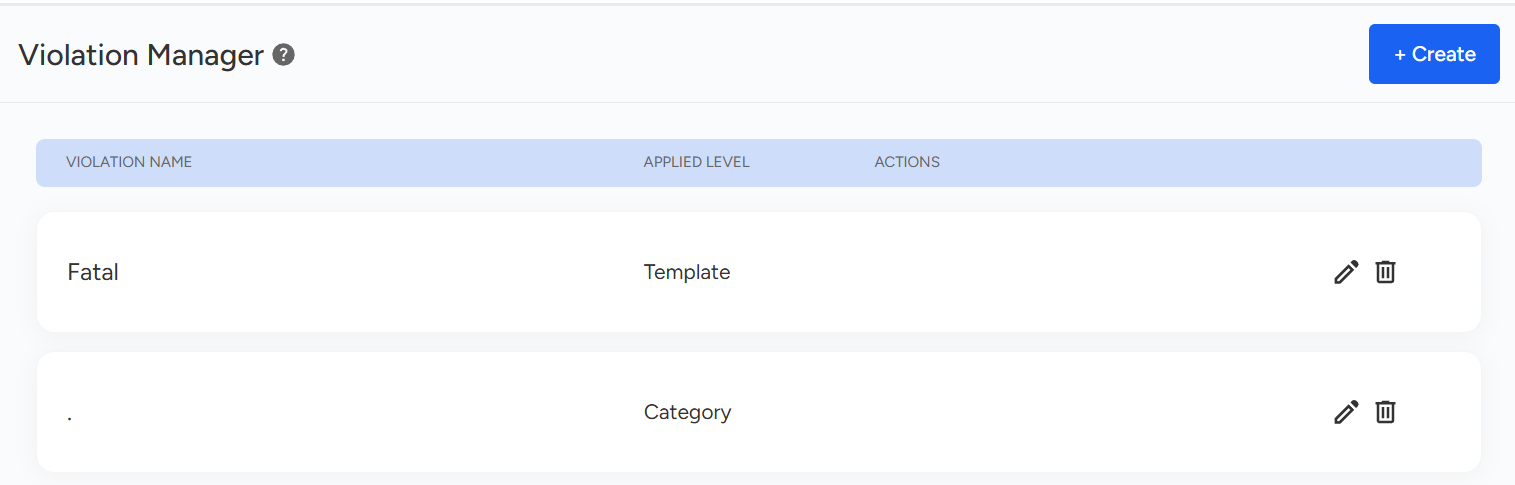
- To create a new violation, the user can click on the Create button.

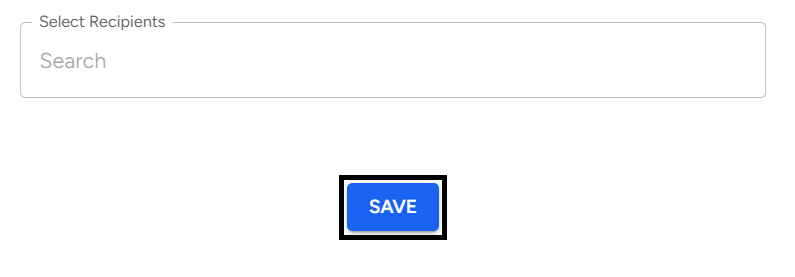
- Users can Assign a Name to the violation and select who they want to Notify by Selecting Recipients in case of the violation.
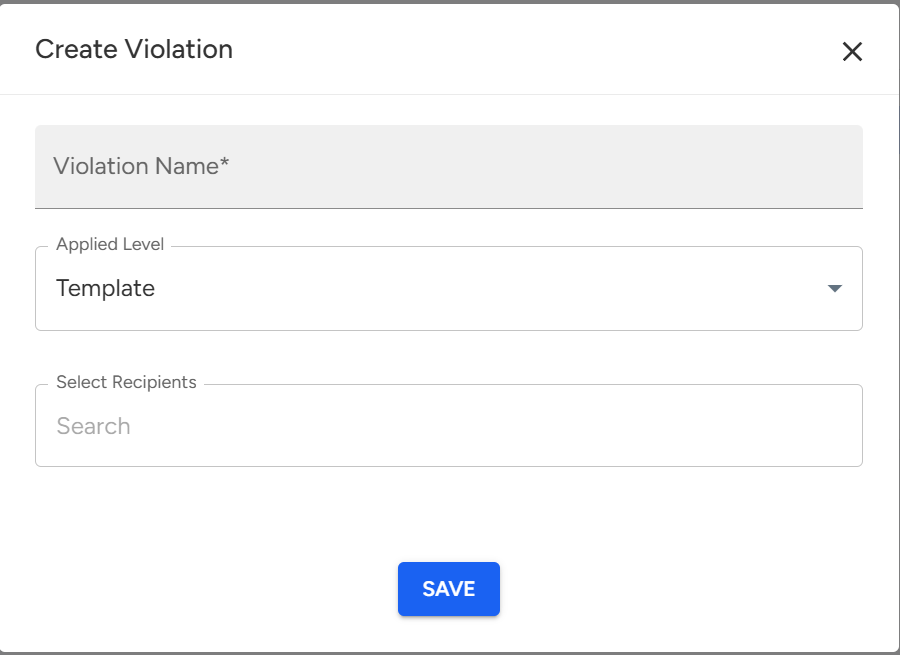
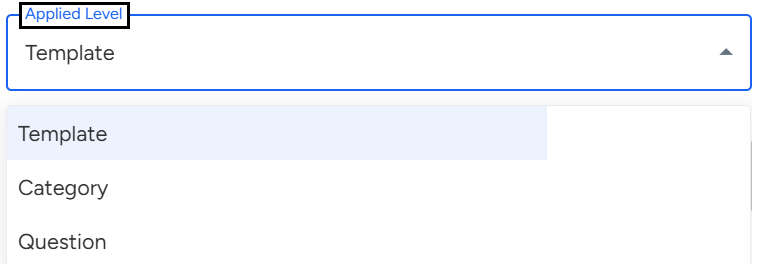
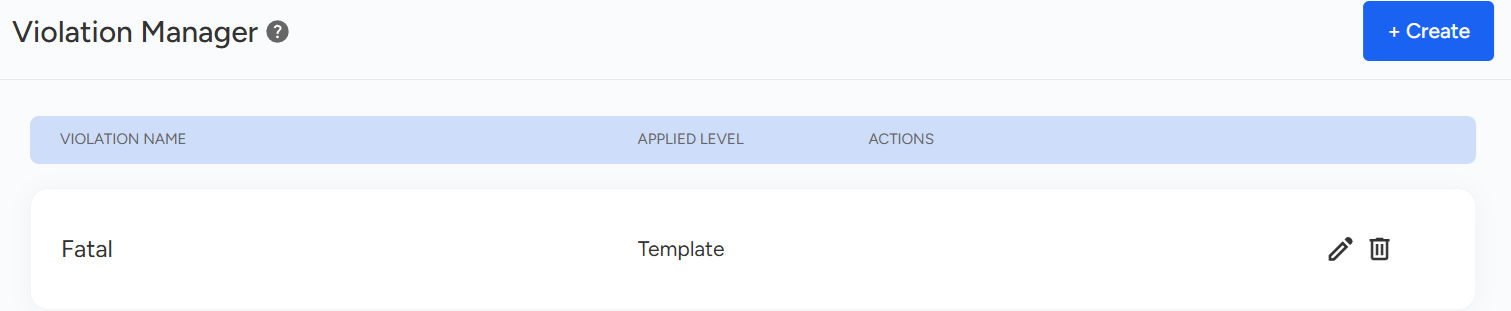
- Users can also assign the level at which it will be applied - Question, Category, or the entire Template (marking a wrong response at any selected level will result in a zero score for the entire level).
- Finally, Click on "Save."
- The image attached above shows the Violations added to the Convin Dashboard.
Marking Violations across parameters helps us uncover the most crucial parts of the conversations.
This data enables agents to handle conversations more sensitively and track parameters affecting their conversation scoring.
The Violation Manager in the Convin Dashboard helps track conversation errors and minimize their recurrence. Admins can create and configure violations, assign names, set recipients for notifications, and apply them at the question, category, or template level. Marking violations ensures sensitive handling of conversations and improves scoring insights.
Need Additional Assistance?
📩 Still need help? Contact our support team at [email protected] —we’re happy to assist!
Good day!