
Learning how to add teams and sub-teams within an existing template helps auditors simplify manual call auditing and enables team leads to easily access and view AI Scores.
Please follow these steps to Add teams or Sub-teams:
Navigate to the "Settings" module.

Go to "Product Settings".
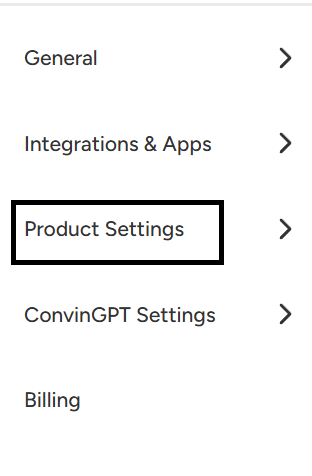
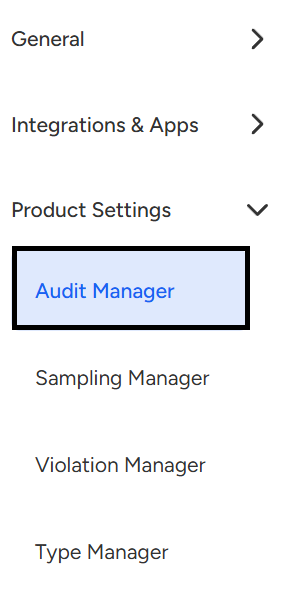
Locate the "Audit Manager" settings.
Choose the template in which you wish to include the desired teams.
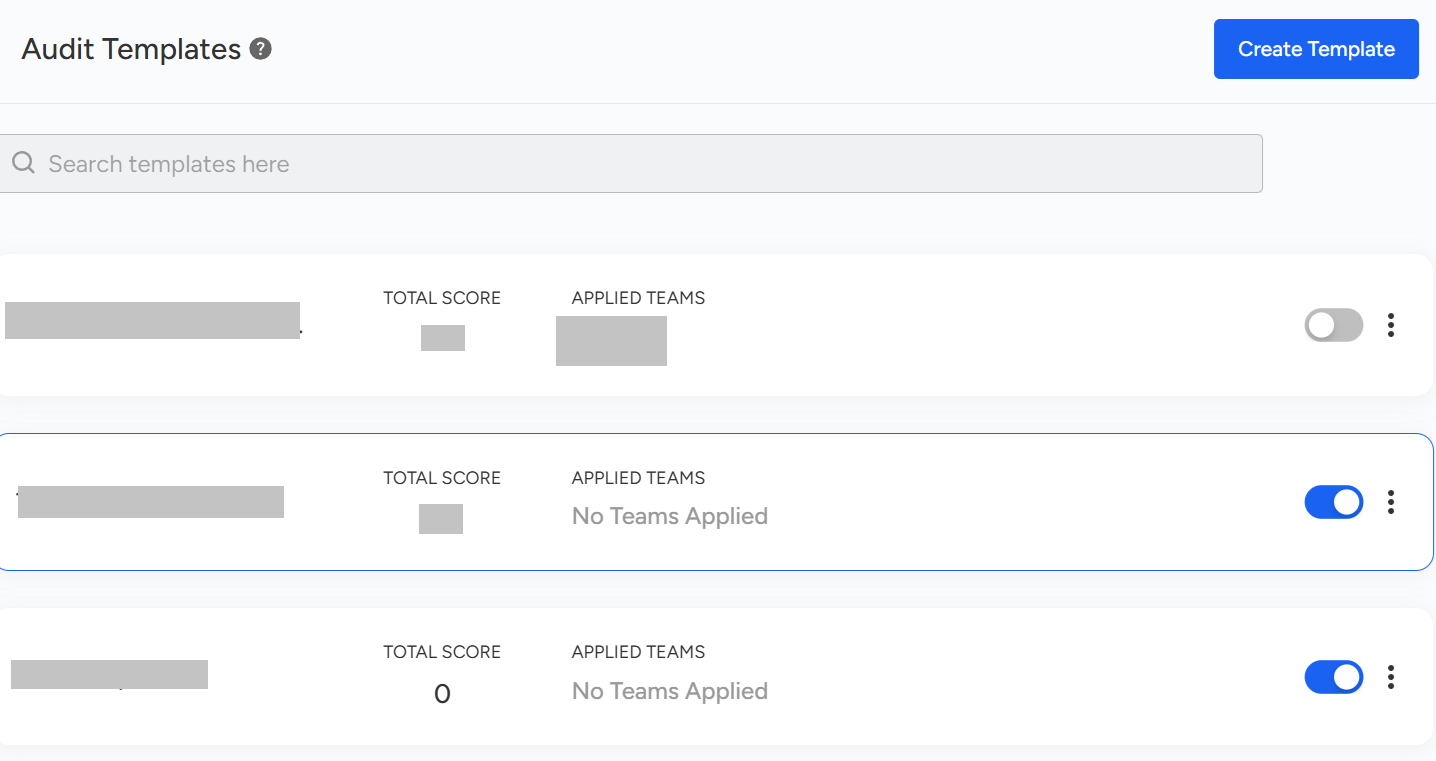
Upon opening the template, you'll find an option to edit it next to the template name.

Head to the teams and sub-teams field.
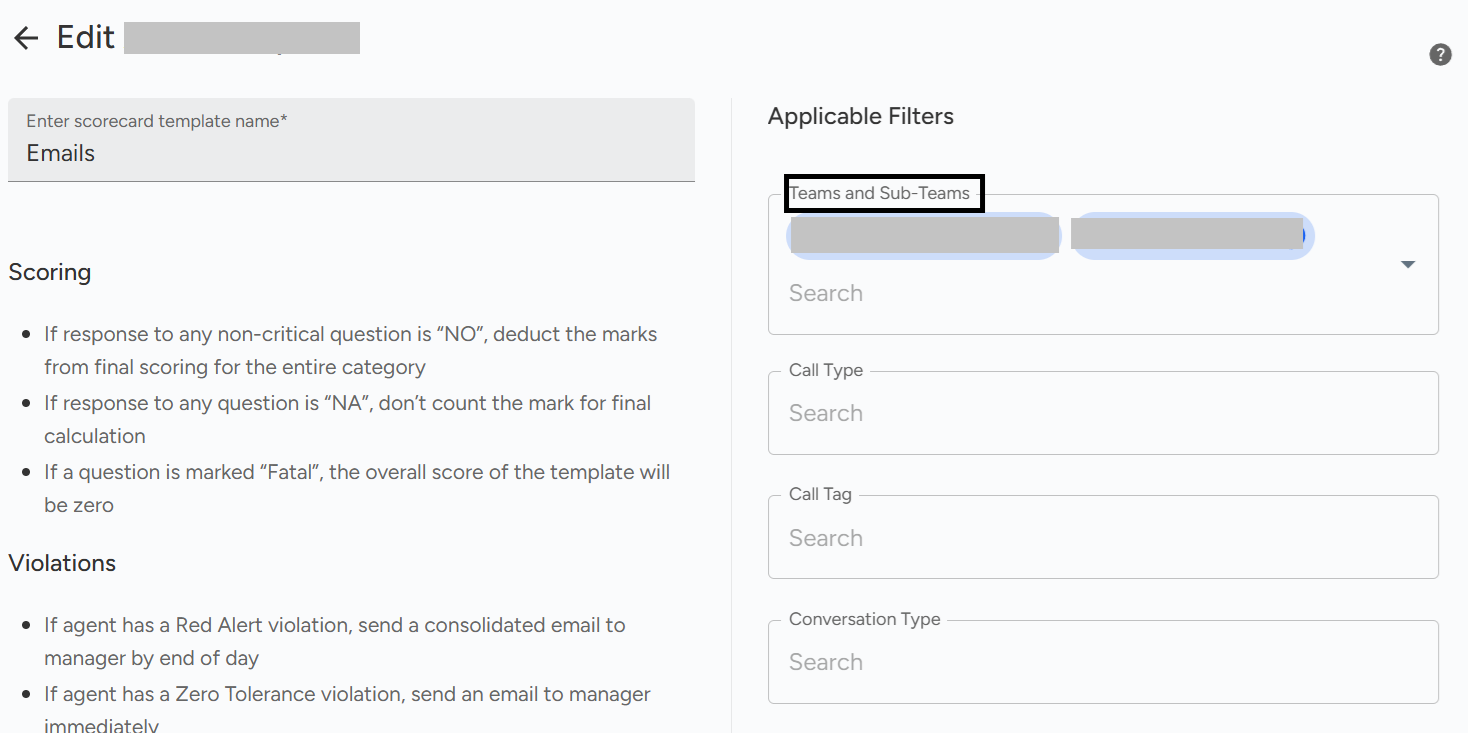
Add all the desired teams to which this template should be assigned.
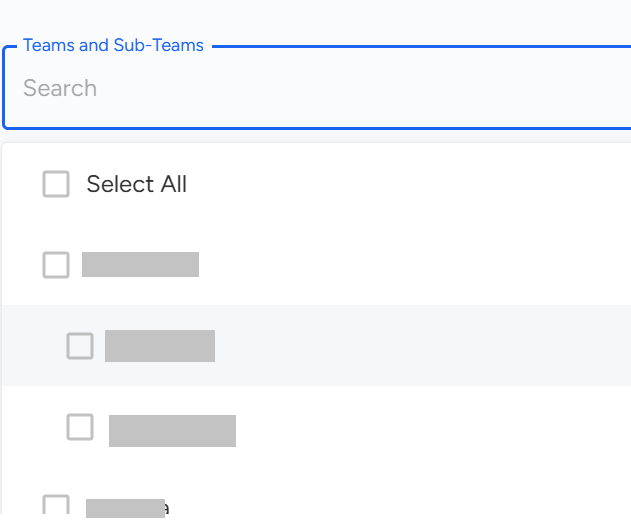
After selecting all the desired teams, click on the "Save" button.

You can easily add teams and sub-teams to an existing template by navigating to Settings → Product Settings → Audit Manager. Select the template, edit it, add the required teams/sub-teams, and save the changes.
📩 Still need help? Contact our support team at [email protected] —we’re happy to assist!
Good day!