
Team Manager is available in the Settings of the Convin Dashboard, which lets you create and manage teams and assign users to their respective teams.
To access the "Team Manager" option, follow the steps mentioned below:
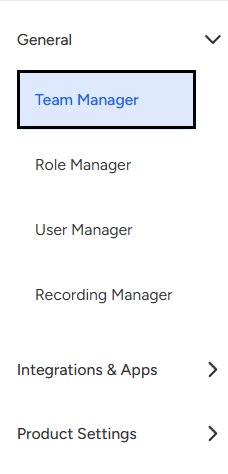
Go to the Settings page of the Convin Dashboard.

To the right, under General menu you will find an option, "Team Manager."
To Create a team:
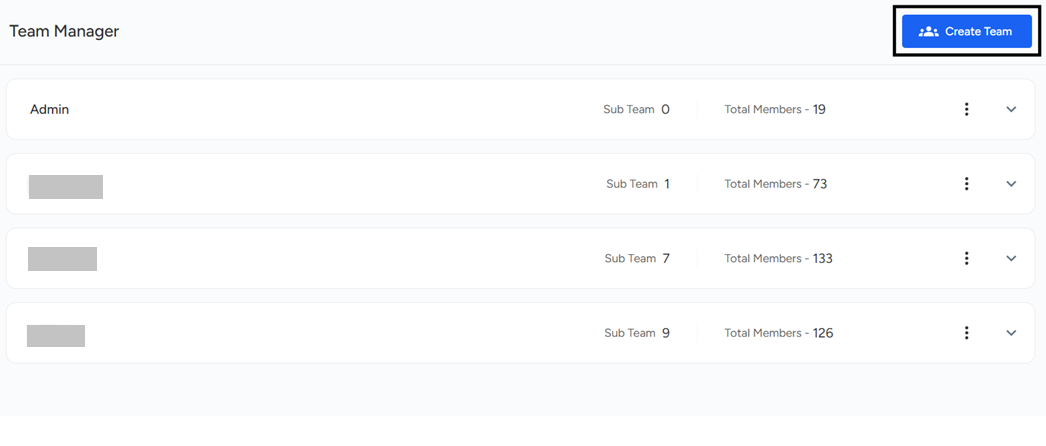
- Click on the "Create Team" button.
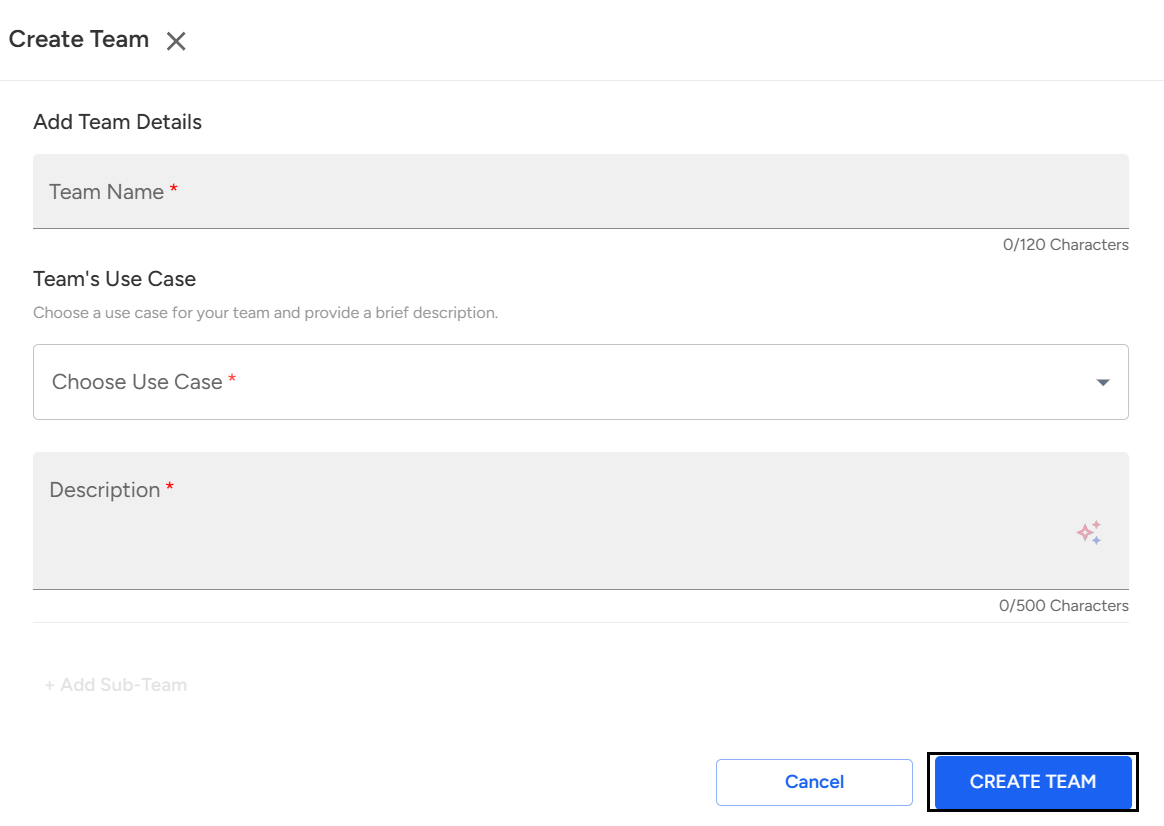
Add the team name and Team's Use Case. Users have the option to add description for a particular team.
Click on Create Team to set up a new team within the platform.
To add members to the team,
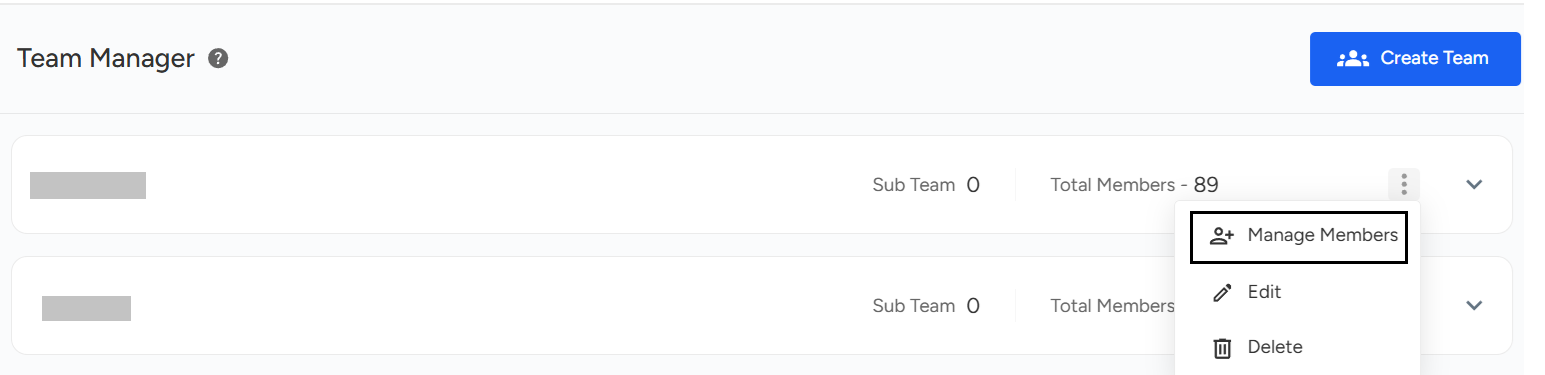
Click on Three Dots
Click on Manage Members
Click on Add member to add users in the team.
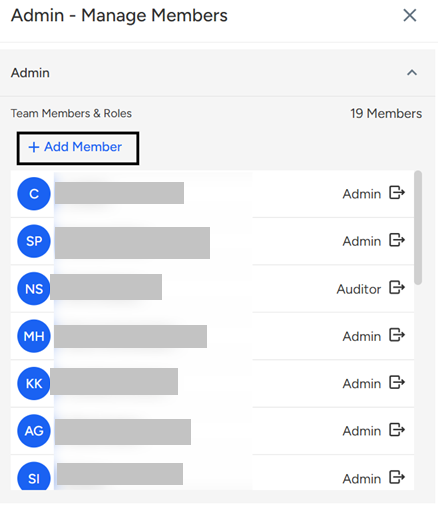
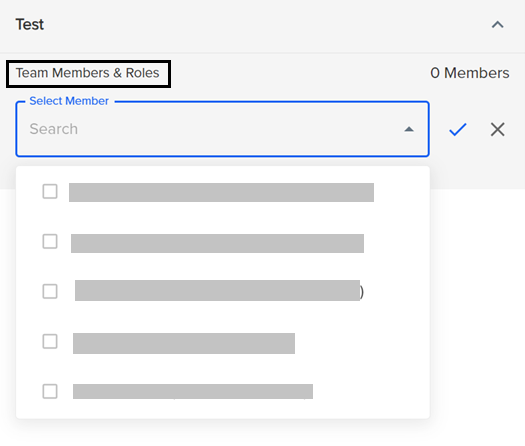
Select Users to add in the particular created team.
Users can edit and delete the teams, and the drop-down lets you view the sub-teams for a particular team.
Any user with permission to create a team from the Role Manager settings can create or delete a team.
The Delete a Team function requires moving users to another existing team or sub-team.
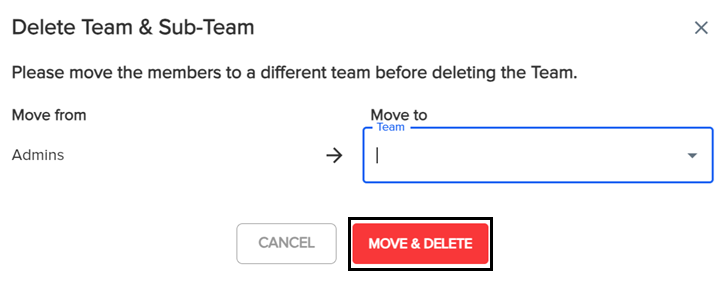
The Team Manager in Convin’s Settings allows users to create, manage, and organize teams by assigning users and defining use cases. Users with the right permissions can create, edit, or delete teams, manage team members, and view sub-teams. When deleting a team, users must be reassigned to another existing team or sub-team to proceed.
📩 Still need help? Contact our support team at [email protected] —we’re happy to assist!
Good day!