
The User Manager feature, located in the Settings section of the Convin Dashboard, provides administrators with powerful tools for managing user accounts on the platform. This feature simplifies the onboarding process for organizations of all sizes, allowing for individual and bulk user creation.
With User Manager, administrators can easily configure essential user details, including:
- Full Name
- Email Address
- Phone Number
- Additional customizable fields
To access and use the User Manager functionality, follow these steps:
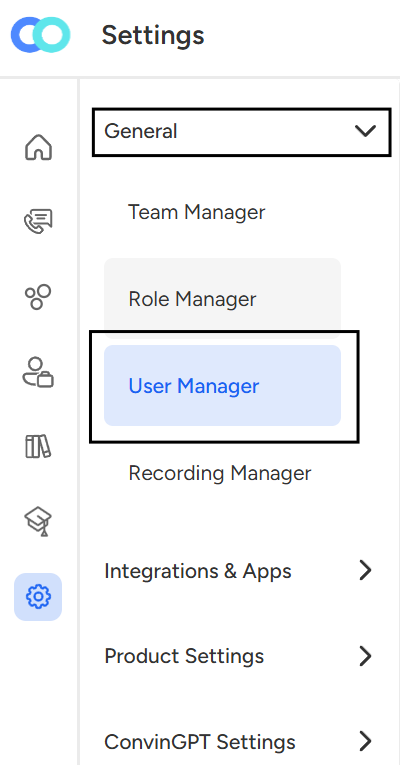
Go to the Settings page in the Convin Dashboard.

Locate the "User Manager" option under the "General" settings category.
To add individual users or small groups, click the "+User" button.

Select the "Create User" option.

In the pop-up window, fill in all required fields, including:
- First Name
- Email Address
- Role
- Team
To add multiple users in succession, click the "+Add User" button.

When finished, click "Create User" to confirm and save the new account(s).

Verify successful user creation by searching for the newly added user(s) in the User Manager.
By leveraging these user management tools, administrators can efficiently scale their Convin implementation while maintaining precise control over user access and permissions.
📩 Still need help? Contact our support team at [email protected] —we’re happy to assist!
Good day!