
The Role Manager is available in the Settings of the Convin Dashboard. It helps manage access to various features of Convin for different types of users, based on their specific use cases.
To access the "Role Manager" option, follow the steps mentioned below:
- Go to the Settings page of the Convin Dashboard.

- To the right, you will find an option, "Role manager."
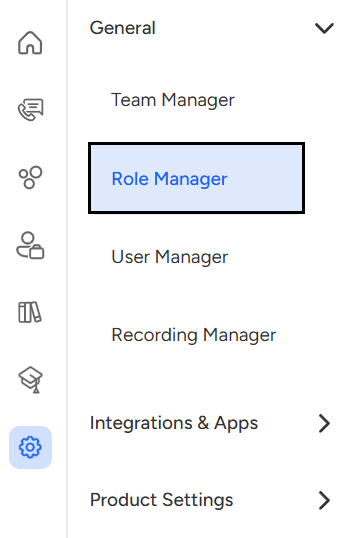
- Click on "Role Manager" to access the designated page and manage user roles as needed.

To create a new role,
- Click on "Create role."

- Now, Enter the role name and a short description for it.
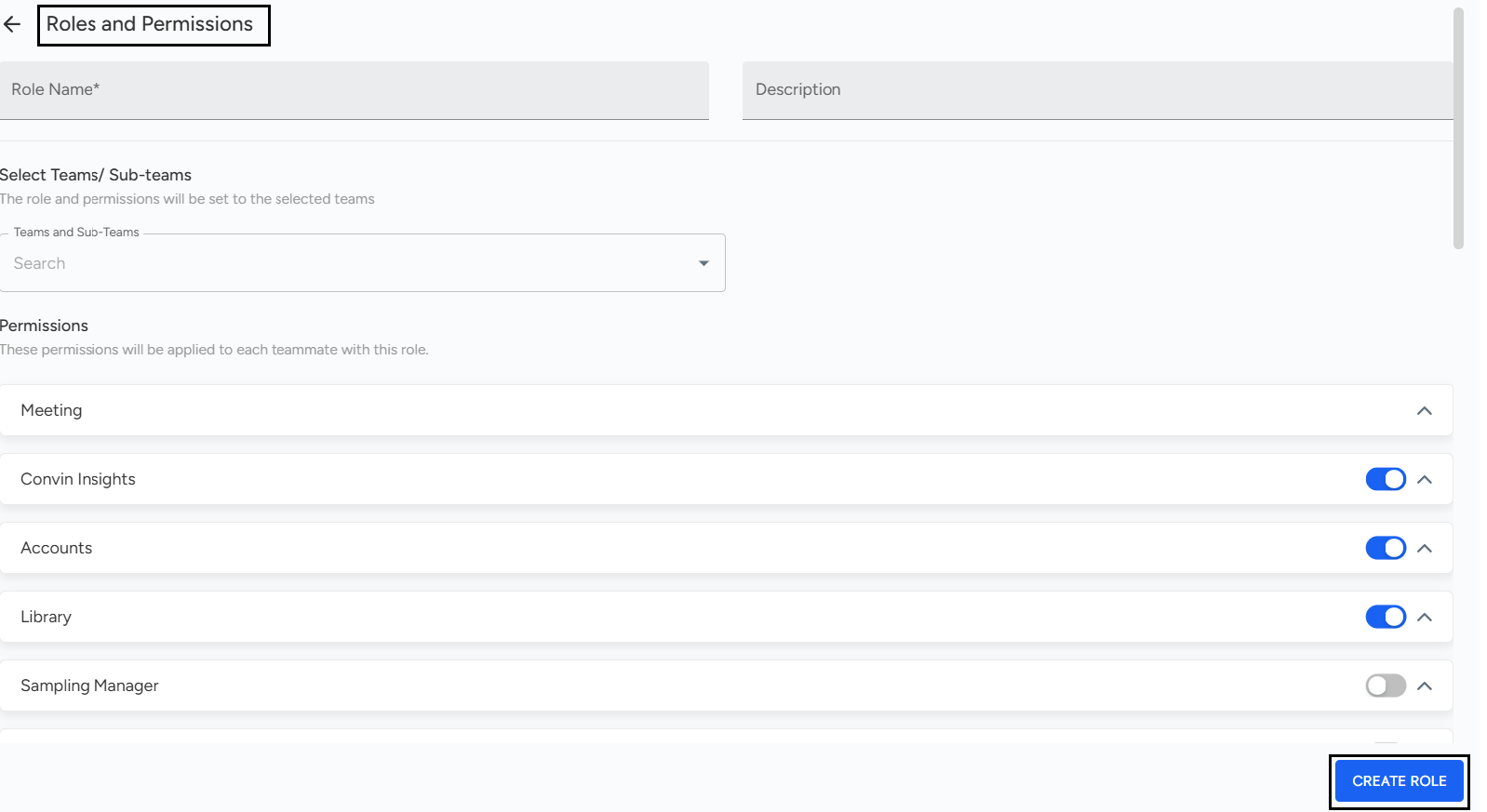
- An Admin can then select the different access options for the multiple features of the Convin Dashboard.
- To apply these changes, Click on "Create Role," and a new role will be created.
- We can also assign specific roles to a particular team or teams using the role manager.
The Role Manager in Convin allows Admins to create, manage, and assign roles with customized access permissions based on user responsibilities. Admins can define roles, control feature visibility across the Dashboard, and assign roles to specific teams—ensuring secure and role-based access for all users.
📩 Still need help? Contact our support team at [email protected] —we’re happy to assist!
Good day!