
The Recording Manager is available in Settings of the Convin Dashboard, enabling you to configure/customize Convin's Call Recording Assistant. This assistant automatically joins calls after calendar integration is set up by the user.
To access the "Recording Manager" option, follow the steps mentioned below:
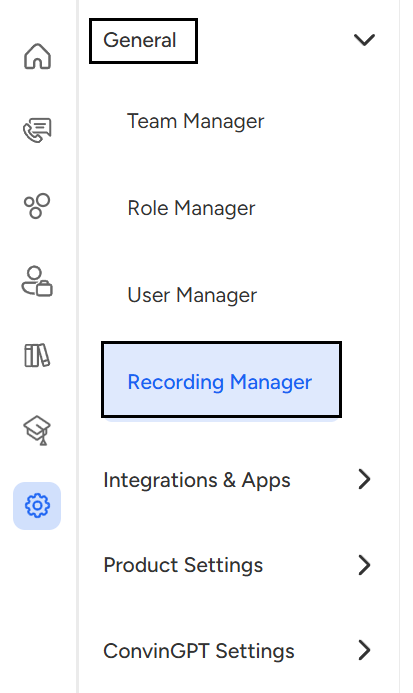
- Navigate to the Settings page of the Convin Dashboard.

- Go to the General section and click on Recording Manager.
You will see an overview of the Recording Manager, displaying key settings and configurations related to call recordings.
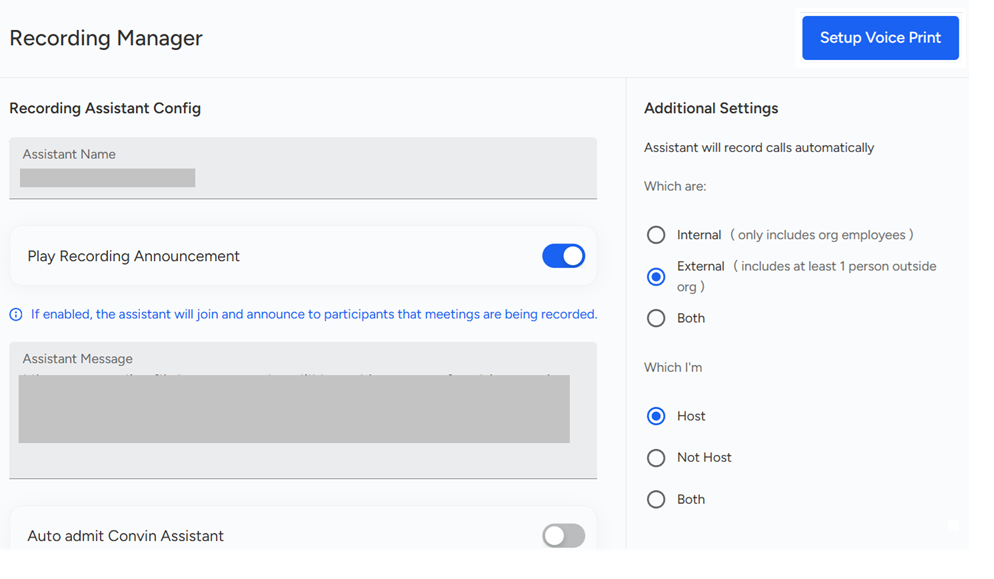
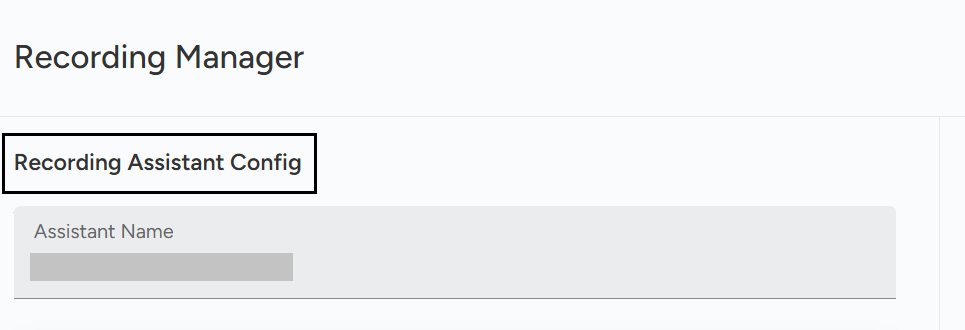
Users can customize the name of the bot joining the call by assigning the name in "Recording Assisstant Config."
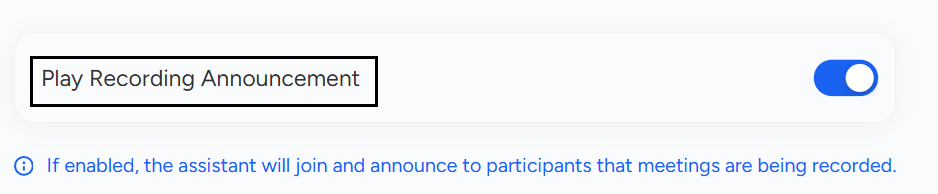
Enabling the toggle button for ‘Play Recording Announcement' lets the bot announce to the participant that the meeting is being recorded. The announcement message can be configured and customized in the box below.
Users can enable the "Auto admit Convin assistant" to admit to the meeting automatically, which will let the Convin bot join the call and record the conversations.

For automatic recording, the recording manager has a few configurations where a user can choose whether a bot should join in the Internal (organizational level) or External (Client level) meeting with the "Host / Not Host" customization.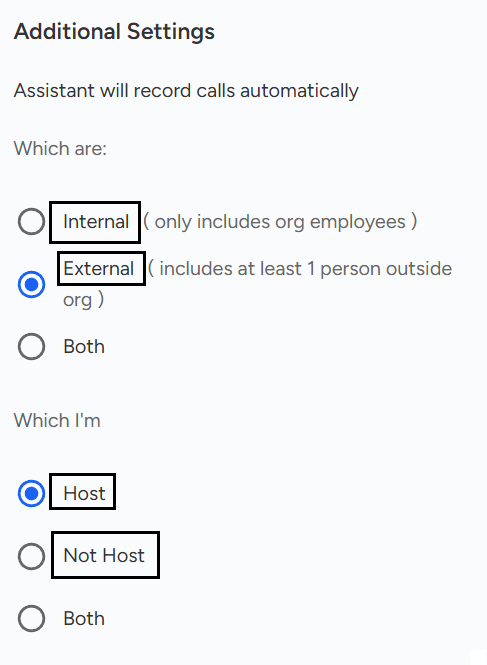
The Recording Manager in Convin's Settings allows users to configure the Call Recording Assistant, which automatically joins meetings after calendar integration. From this section, users can customize the bot’s name, enable recording announcements with customizable messages, and set auto-admit preferences. It also offers options to define whether the bot should join internal or external meetings based on host settings.
📩 Still need help? Contact our support team at [email protected] —we’re happy to assist!
Good day!